
HubSpot is a CRM and marketing platform widely used by agencies, B2B businesses, and content sites that need contact management alongside email marketing. Once connected, you can sync new members as HubSpot contacts, add them to lists, update contact properties when membership plans change, and trigger HubSpot workflows from WordPress events.
Before you start
FlowSync connects your WordPress site to HubSpot using OAuth. You authorize FlowSync against your HubSpot account once, and FlowSync stores the access token (and a refresh token to keep the connection alive). No data passes through FlowSync’s servers — the connection runs directly between your WordPress site and HubSpot.
This takes about 5 minutes the first time. You will not need to do it again unless you revoke the connection in HubSpot.
What you need:
- A HubSpot account (sign up free if you don’t have one)
- Admin access to your WordPress site
- FlowSync plugin active on your site
Why OAuth, not API key? HubSpot deprecated API keys in November 2022 in favour of OAuth and private apps. OAuth is more secure — tokens are scoped to specific permissions and can be revoked without affecting other integrations — and FlowSync handles the token exchange automatically so you don’t need to create a private app yourself.
Step 1 — Start the connection
- In your WordPress admin, go to FlowSync → Integrations
- Find HubSpot in the CRM / Email tab and click Connect
- Click the Connect button under the credentials section
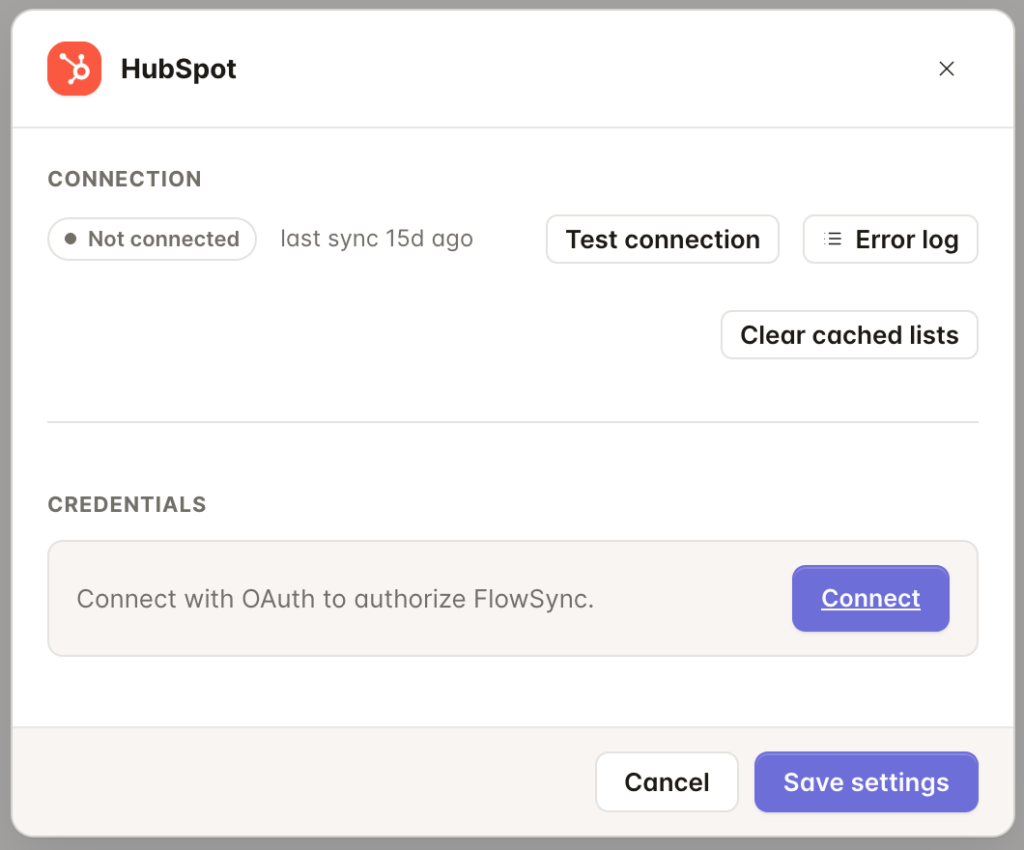
You will be redirected to HubSpot’s authorization page.
Developer note: FlowSync routes OAuth through the FlowSync auth broker at
oauth.flowsync.site. The broker holds the HubSpot app credentials and exchanges the authorisation code for an access token, which is then returned to your site. The broker only handles the OAuth handshake — it never sees your contact data, which flows directly between your site and HubSpot after the connection is established.
Step 2 — Choose the HubSpot account
If you have access to multiple HubSpot accounts, HubSpot asks you to choose which one to connect.
- Select the account you want FlowSync to sync to
- Review the requested permissions — FlowSync needs access to contacts, lists, and timeline events
- Click Connect app
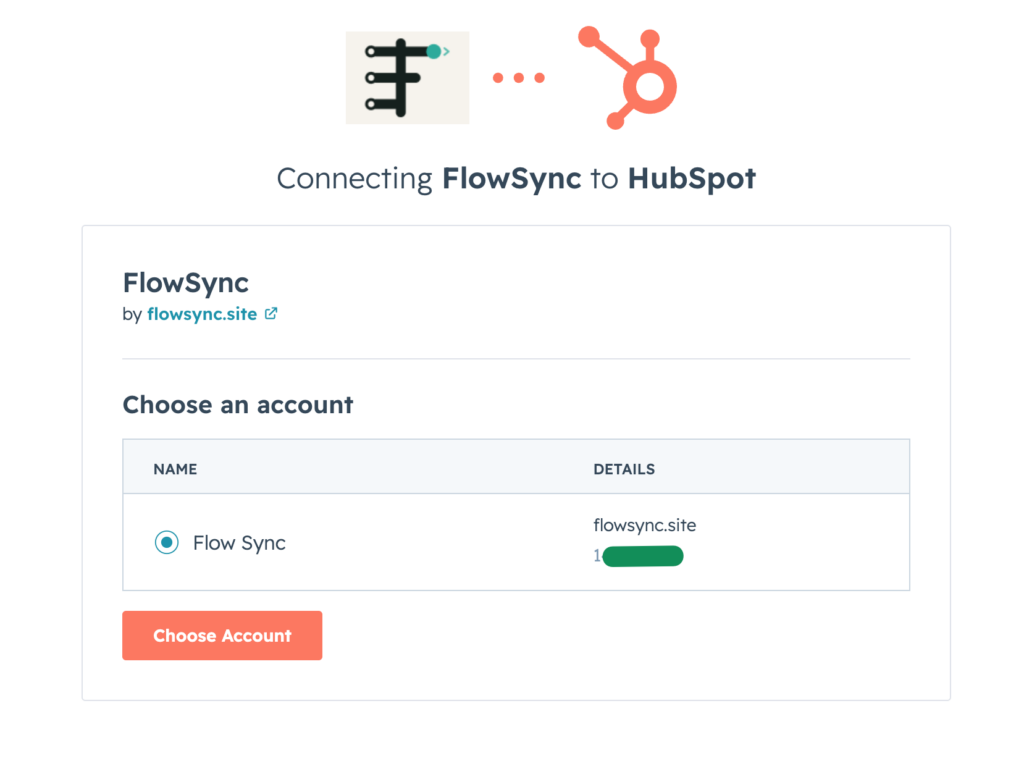
HubSpot redirects you back to your WordPress site. FlowSync shows a green Connected status.
Developer note: FlowSync requests the following scopes:
crm.objects.contacts.read,crm.objects.contacts.write,crm.lists.read,crm.lists.write,crm.schemas.contacts.read, andtimeline. Thetimelinescope is required for custom event tracking. If your HubSpot account doesn’t permit one of these scopes (some scopes require Marketing Hub or Operations Hub paid tiers), the connection will succeed but related actions will fail at runtime — check the sync log for scope errors.
Step 3 — Verify the connection
In the HubSpot configure modal, click Test connection. FlowSync makes a live round-trip to HubSpot and confirms:
- The access token is valid
- Your HubSpot account is active
- FlowSync can list your contact lists and contact properties
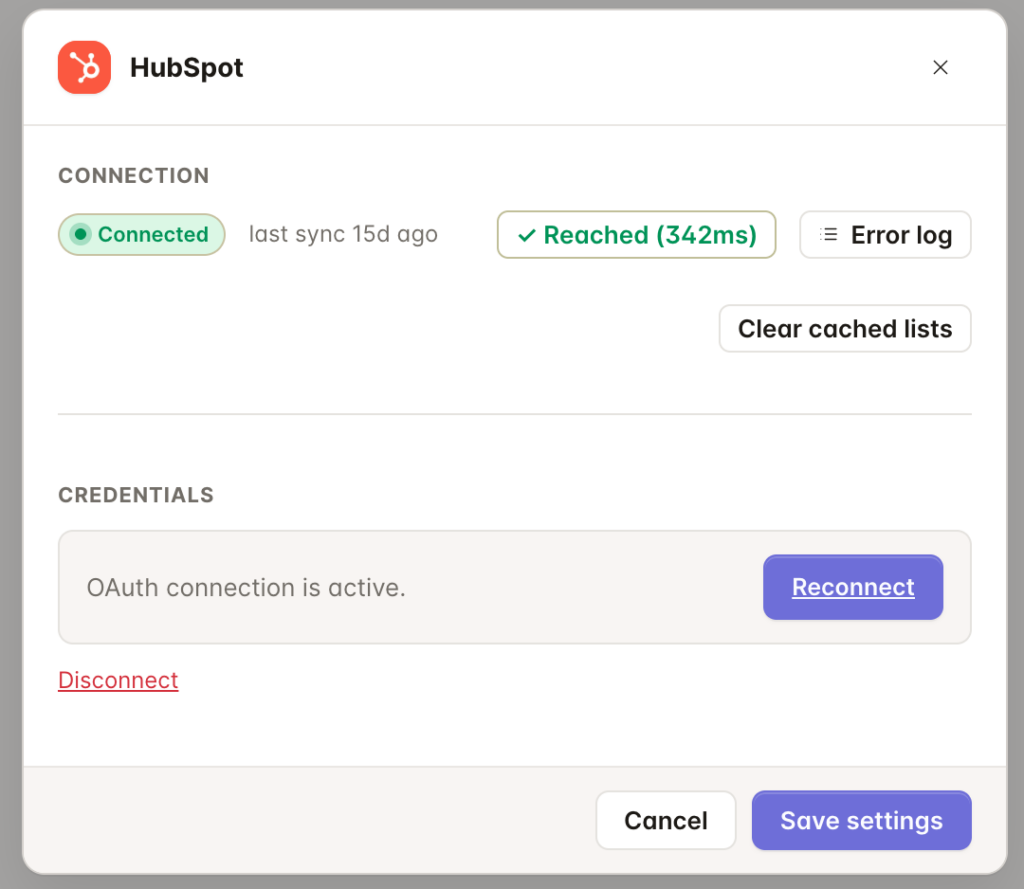
If the test fails, check the error message and see the Troubleshooting section below.
Developer note: FlowSync caches HubSpot’s contact properties for 10 minutes via
Integration_Cache. Connection status is cached for 5 minutes — click Clear cached lists to force a fresh list check. Access tokens expire after 6 hours; FlowSync refreshes them automatically using the stored refresh token before any API call that’s within 5 minutes of expiry.
Using HubSpot in workflows
With the integration connected, several actions are available in the workflow builder:
Add to List — adds the contact to a HubSpot static list. (Active lists in HubSpot are dynamic and managed by HubSpot’s own criteria — FlowSync can only add to static lists.) If the contact does not exist in the list, it updates the contact’s standard and custom properties without changing list membership.
Remove from List — removes the contact from a HubSpot static list.
To add a HubSpot action to a workflow:
- Open a workflow in the FlowSync workflow builder
- In the Actions section, click Add Action
- Select HubSpot from the action group
- Choose the action type
- Select the target list (for list actions) or event template (for timeline events)
- Map the fields — see Field mapping below
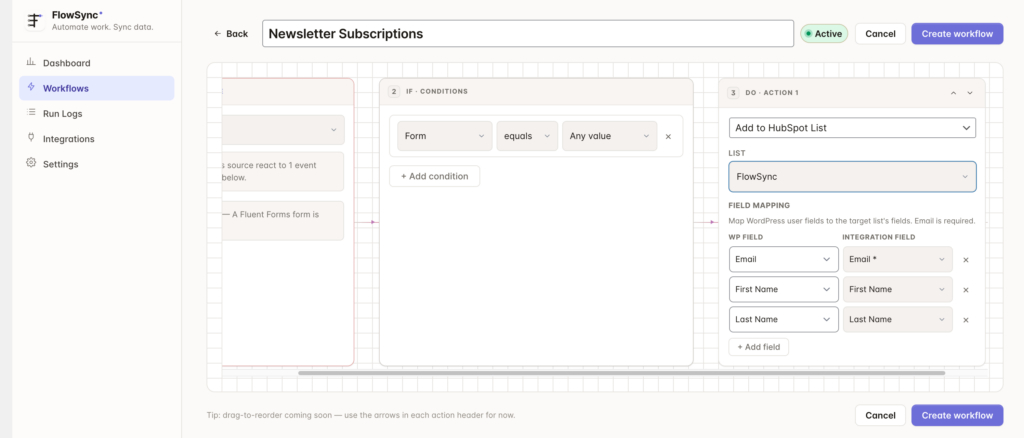
Important: HubSpot distinguishes between static lists (manually managed) and active lists (dynamic, criteria-based). FlowSync can only add or remove contacts from static lists. If you need contacts to land in an active list, set up the active list’s criteria to match a contact property FlowSync writes (e.g. an active list of contacts where
membership_plan = gold, populated automatically when FlowSync updates that property).
Field mapping
HubSpot has the richest contact property model of any FlowSync integration. Standard properties (Email, First Name, Last Name, Phone, Company, Lifecycle Stage) are pre-defined by HubSpot. Custom properties can be added in HubSpot’s settings and become available in FlowSync’s field mapping dropdown automatically.
To map fields:
- In the action’s Field Mapping section, select the WordPress field on the left
- Select the matching HubSpot property on the right
- Click + Add field to map additional fields
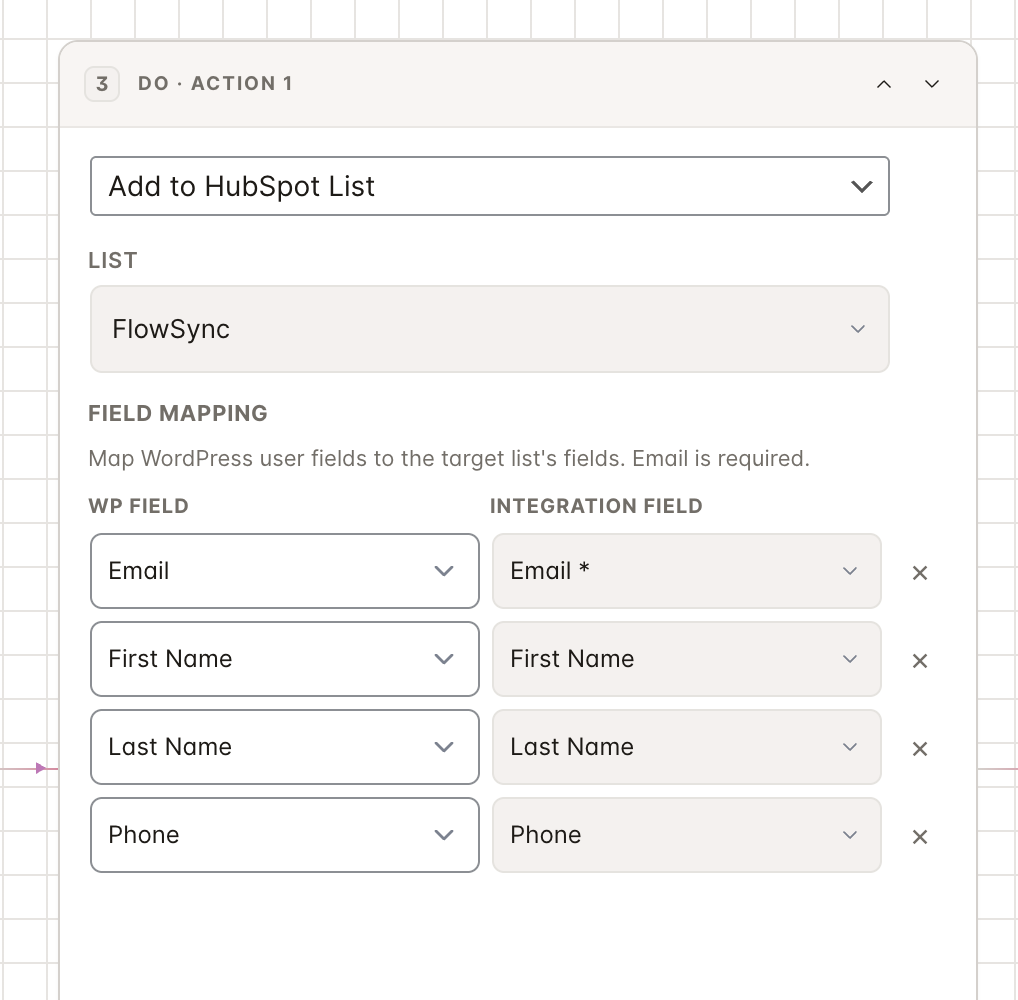
Creating custom properties in HubSpot:
- In HubSpot, go to Settings → Properties
- Select Contact properties
- Click Create property
- Choose a group (e.g. “Contact information” or a custom group), set the field type, and save
After creating the property in HubSpot, return to FlowSync and click Test connection to flush the cache — the new property will appear in the field mapping dropdown.
Developer note: FlowSync queries
/crm/v3/properties/contactsto populate the field mapping dropdown. The result is cached for 10 minutes. Property types are respected — mapping a WordPress string field to a HubSpot number property will cause HubSpot to reject the value with a validation error visible in the sync log. Date properties expect Unix timestamps in milliseconds; FlowSync converts WordPress date values automatically.
Free plan users can map only Email, First Name, and Last Name. Pro unlocks all HubSpot properties, including custom ones, plus mapping for membership and order data from ProfilePress, WooCommerce, and other sources.
Troubleshooting
“Token expired” or “Invalid token” errors: FlowSync should refresh tokens automatically, but if the refresh token itself has been revoked (e.g. someone uninstalled the FlowSync app from HubSpot’s connected apps), the connection breaks. Click Disconnect in FlowSync’s HubSpot configure modal, then Connect HubSpot again to re-authorise.
“Insufficient scope” errors when running actions: The connection was made before FlowSync added a new scope, or your HubSpot account doesn’t permit that scope on the current tier. Disconnect and reconnect — the OAuth flow will request the current scope set. If a specific scope is unavailable on your HubSpot tier (e.g. some timeline event features require Operations Hub), that action will not work until you upgrade.
Active lists don’t appear in the list dropdown: This is expected — HubSpot manages active list membership based on criteria you define in HubSpot itself. FlowSync can only add to static lists. To get contacts into an active list, write a contact property that the active list’s criteria match against.
Contacts created but not added to the marketing audience: HubSpot’s marketing email features require contacts to have a subscription status of Opted in for the relevant subscription type. Contacts FlowSync creates have Not Opted In status by default. Either chain a confirmation email in your workflow, or configure a HubSpot workflow to handle the opt-in process.
“Property does not exist” error: The HubSpot property name in your field mapping has been deleted or renamed in HubSpot. HubSpot uses internal property names (not display labels) in API calls — if you renamed a property’s internal name, mappings break. Open the workflow, re-select the property from the dropdown, and save.
Sync log shows “skipped — loop prevention”: This is expected. FlowSync detected that a sync write was triggered by an incoming webhook (or vice versa) and skipped it to prevent an infinite loop. If you see this consistently for normal operations, check that your field mapping directions are configured correctly — bidirectional fields are more likely to trigger lock skips than push-only or pull-only fields.
Lists or properties don’t appear in the dropdown: FlowSync caches list and property data for 10 minutes. If you created a new list or property in HubSpot and it doesn’t appear, click Test connection on the Integrations page to flush the cache and reload.
Custom contact properties aren’t available for mapping: Custom property mapping requires FlowSync Pro. The free plan only maps Email, First Name, and Last Name. Upgrade to Pro to map all HubSpot properties, including custom ones, plus pull membership and order data from your sources.
Developer note: All HubSpot API errors are logged to
wp_flowsync_sync_logwith the response body in theerrorcolumn. Query the table directly or use the Sync Log viewer (Pro) to see exact error responses from HubSpot — failures include acategoryfield (VALIDATION_ERROR,OBJECT_NOT_FOUND,RATE_LIMIT) and amessageexplaining the failure. Rate-limited requests are automatically retried with exponential backoff via Action Scheduler.