
Running listmonk on your own server and want WordPress to keep it populated automatically? This page covers how to connect FlowSync to a self-hosted ListMonk instance and sync contacts into your lists.
listmonk is self-hosted, so the connection needs your installation URL plus an API user and token you create inside listmonk. There’s no OAuth step.
What you’ll need
- A running listmonk instance reachable from your WordPress server.
- Admin access to that instance, so you can create an API user.
- At least one list already created in listmonk.
- FlowSync installed and active on your WordPress site.
Step 1: Create an API user in Listmonk
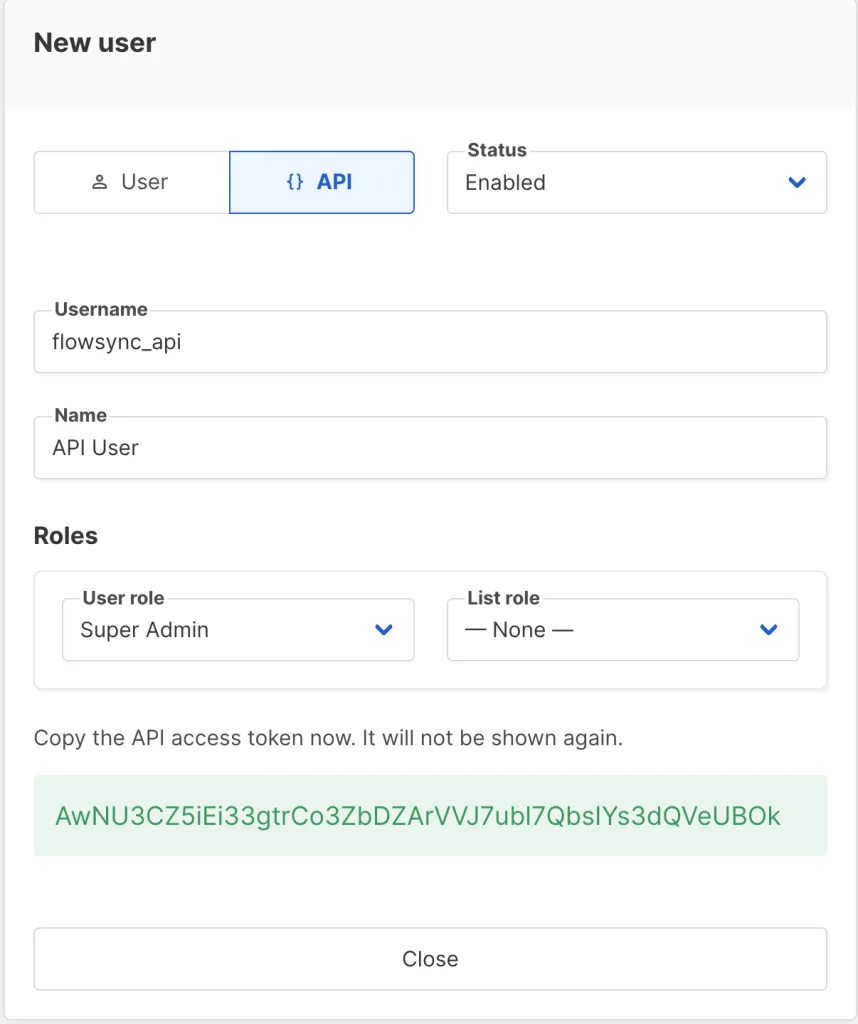
In listmonk, go to Admin → Settings → Users and create a new API user. Generate its token. Copy the username and token somewhere safe.
Step 2: Connect Listmonk in FlowSync
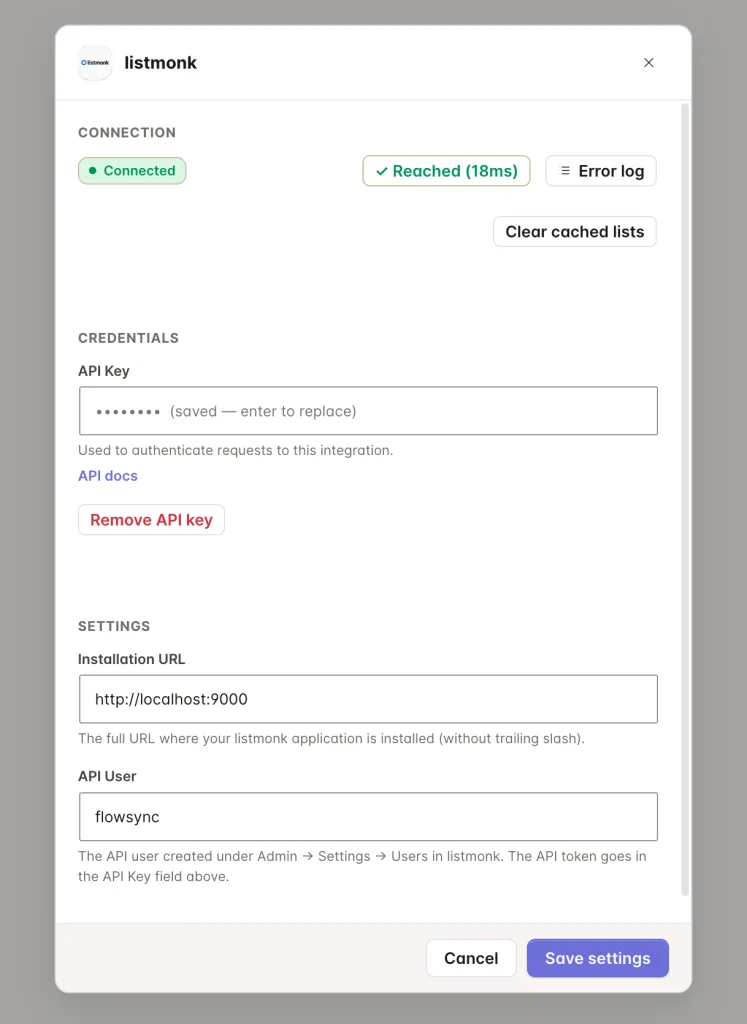
In WordPress, go to FlowSync → Integrations, find the Listmonk card, and click Connect. Fill in the form:
- Installation URL: the base address of your instance, for example
https://lists.example.com. A trailing slash is fine. - API User: the username from Step 1.
- API Key: the token from Step 1.
Click Save settings, then Test connection. A working connection shows Reached with a response time.
Step 3: Add a listmonk action to a workflow
Open a workflow and add an action:
- Add to listmonk List creates the subscriber if they don’t exist, or updates them and adds the selected list to their existing memberships.
- Remove from listmonk List removes only that list membership, leaving the subscriber record and any other lists untouched.
Step 4: Map your fields
By default, FlowSync maps:
| WordPress | listmonk |
|---|---|
email | |
| Full name | name |
For developers: listmonk’s custom fields are schemaless. Any field you map beyond email and name is stored inside the subscriber’s
attribsJSON object, using the field key you enter.
If something goes wrong
- Test connection fails with a connection error. The Installation URL isn’t reachable from your WordPress server. Confirm it loads in a browser over HTTPS and check for a firewall blocking outbound requests.
- 401 or 403 on test. The API user or token is wrong, or the API user was deleted in Listmonk. Recreate it and re-save.
- Contact created but not on the list. The List field wasn’t set on the workflow action. Check it on the Add to ListMonk List action.
- Check the sync log. Failed syncs record the exact error Listmonk returned.
Still need help? Contact our support team, and we’ll help you get it working.