
FlowSync listens to Paid Member Subscriptions (PMS) and turns membership signups, renewals, and cancellations into CRM or email automation. New members can be added to a welcome list, expired members can be removed from active lists, and plan changes can move a contact to a different segment.
What you’ll need
- Paid Member Subscriptions installed and active.
- An integration already connected in FlowSync (Integrations).
Available triggers
- Subscription Created: a member subscription record is created. Paid signups start out pending. Default on.
- Subscription Activated: a member subscription becomes active, usually once payment clears. Default on.
- Subscription Trial Started: a subscription is activated while a trial period is still running. Fires alongside Activated, not instead of it.
- Subscription Completed: the final installment of the fixed-length plan has been made.
- Subscription Expired: a member subscription reaches its expiration date. Default on.
- Subscription Canceled: a member or admin cancels a subscription.
- Subscription Status Changed: any status transition, including moves into pending or abandoned.
- Subscription Plan Changed: a member is moved to a different subscription plan.
- Subscription Renewed: a recurring, renewal, or retry payment completes on an existing subscription.
Created vs. Activated: they don’t fire together on a paid plan
This is the one part of PMS that trips people up, so read it before you build a welcome sequence.
On a paid plan, PMS records the signup as pending first. Subscription Created fires right away, at the pending row. The subscription only becomes active, and Subscription Activated fires only once the payment gateway confirms the charge. That confirmation can happen seconds later or, depending on the gateway, some time later. Created and Activated are two separate moments, not a pair.
On the free plan, PMS immediately marks the subscription as active, so both Subscription Created and Subscription Activated fire together in the same request.
If you’re building a welcome email or adding new members to a CRM list, use Subscription Activated. It only fires once the member has actually paid, so it never sends a “welcome” message to someone whose card was declined or who abandoned checkout. Use Subscription Created only if you want to know about a signup attempt regardless of whether payment ever completes.
Renewals come from payments, not from the subscription row
Subscription Renewed fires when a recurring, renewal, or retry payment completes, not when the subscription’s own row changes. A gateway usually records the payment as pending first and completes it on a later callback, so the event fires upon completion, just like Activated does.
If a plan is a fixed-length installment plan, the final installment payment fires both Subscription Renewed and Subscription Completed at once. If you only want the plan’s true final payment, add both to the same workflow, or use Subscription Completed on its own.
Conditions
Two conditions are available on every trigger:
- Subscription Plan: matches against a specific PMS plan. This stores the plan itself, not its name, so renaming a plan later in PMS won’t break a saved workflow.
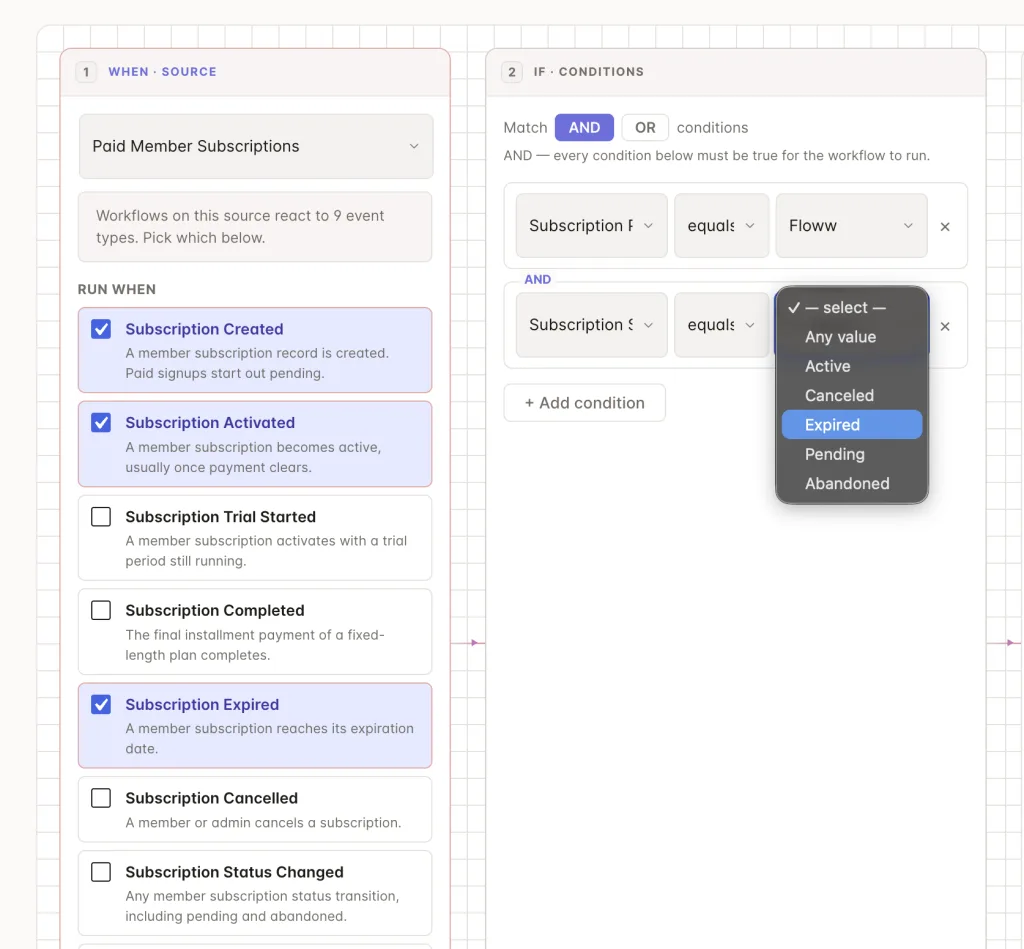
- Subscription Status: matches against the subscription’s current status. The dropdown lists Active, Canceled, Expired, Pending, and Abandoned.
One spelling note: PMS stores that status internally as “canceled” (one L), which is also what you’ll see in the Subscription Status dropdown. FlowSync’s trigger keeps the “Subscription Canceled” spelling used by every other membership integration. Both point to the same event; just pick whichever field you’re looking at (trigger vs. condition) and use its spelling.
Step 1: Create a workflow
Go to FlowSync > Workflows and click Add New. Give it a name, for example, “New PMS members to Brevo.”
Step 2: Choose Paid Member Subscriptions as the source
Under trigger source, select Paid Member Subscriptions, then pick a trigger such as Subscription Activated or Subscription Expired. Add a condition using the Subscription Plan or Subscription Status if you want only a specific plan.
Step 3: Add your CRM action
Under Actions, choose your connected CRM. Use Add to List for new or active members, or Remove from List for expired or canceled ones.
Step 4: Map your fields
| Source field | Maps to |
|---|---|
| Contact email | |
| First/Last Name | First/last name |
| Plan Name | Custom field or tag |
| Subscription Status | Custom field or tag |
| Billing Amount | Custom field |
Every event carries subscription_id, plan_id, plan_name, subscription_status, start_date, expiry_date, trial_end, billing_amount, billing_next_payment, and payment_gateway. Status-change events also carry old_status and new_status. Plan-change events also carry old_plan_id, old_plan_name, new_plan_id, and new_plan_name. Renewal and completed events also carry payment_id, payment_type, payment_amount, currency, and transaction_id.
On FlowSync Pro, the field picker adds PMS · Subscription (Plan ID(s), Plan Name(s), Subscription Status, Subscription Row ID(s), Start Date, Expiration Date, Next Payment Date, Trial End Date, Billing Amount, Payment Gateway) and PMS · Billing (Billing First/Last Name, Billing Email, Billing Company, Billing Address, Billing City, Billing State / Province, Billing Postal Code, Billing Country).
Save the workflow, then set it to Active.
A worked example
Say you want a welcome group in your CRM for paying Gold plan members, and you want expired members automatically removed from it.
Workflow 1: New Gold members to the welcome group
- Trigger: Subscription Activated
- Condition: Subscription Plan equals Gold
- Action: Add to List, mapped to your welcome group
Workflow 2: Expired members off the welcome group
- Trigger: Subscription Expired
- Action: Remove from List, same welcome group
Two workflows, not one. FlowSync doesn’t reverse an earlier add on its own, so the removal has to be its own workflow with its own trigger.
Manual runs
Once you’ve connected a CRM, you can back-fill your existing PMS members into it without waiting for them to trigger a new event. Open the workflow’s … menu and choose Run manually. FlowSync pages through every distinct WP user with a PMS subscription record and runs your conditions and actions against each one, the same way an automatic run would. This is the fastest way to seed a CRM list right after you connect it, for members who signed up before the workflow existed.
If something goes wrong
Sign up a throwaway test account for a paid plan, or change a test user’s plan or status from PMS’s admin tools, then check FlowSync > Logs for the run.
- New paid members don’t appear in the CRM. Check whether your trigger is Subscription Created. A paid signup starts pending, so Created fires before payment is confirmed. Switch to “Subscription Activated” if you want the workflow to run only after the member has actually paid.
- Renewal payments don’t trigger the workflow. Use Subscription Renewed. It only fires when a recurring, renewal, or retry payment completes, separate from the initial signup.
- Subscription Plan condition never matches. Confirm the test subscription is actually on the plan your condition targets, not a similarly named one. The condition stores the specific plan, so selecting the wrong one from the dropdown is usually the cause.
- Expired or canceled members stay on active CRM lists. Add a second workflow with the Subscription Expired or Subscription Canceled trigger and a Remove from List action. FlowSync doesn’t automatically undo an earlier add.
Still need help? Contact our support team, and we’ll help you get it working.