
Want new WordPress users, members, or form leads to automatically land in Omnisend? This page covers connecting FlowSync to Omnisend, syncing contacts, and tagging them.
One thing to know before you start: Omnisend has no lists. If you’ve used Mailchimp or Brevo, you’ll look for a list dropdown here and not find one. Omnisend organizes contacts into tags and segments instead, and segments are rule-based: there’s no API action that directly adds a contact to a segment. So FlowSync’s Omnisend actions target tags, not lists.
What you’ll need
- An Omnisend account.
- An API key from Store settings → API keys in Omnisend.
- FlowSync installed and active on your WordPress site.
- A WordPress user with the
manage_flowsynccapability (admins have this by default).
Step 1: Get your API key from Omnisend
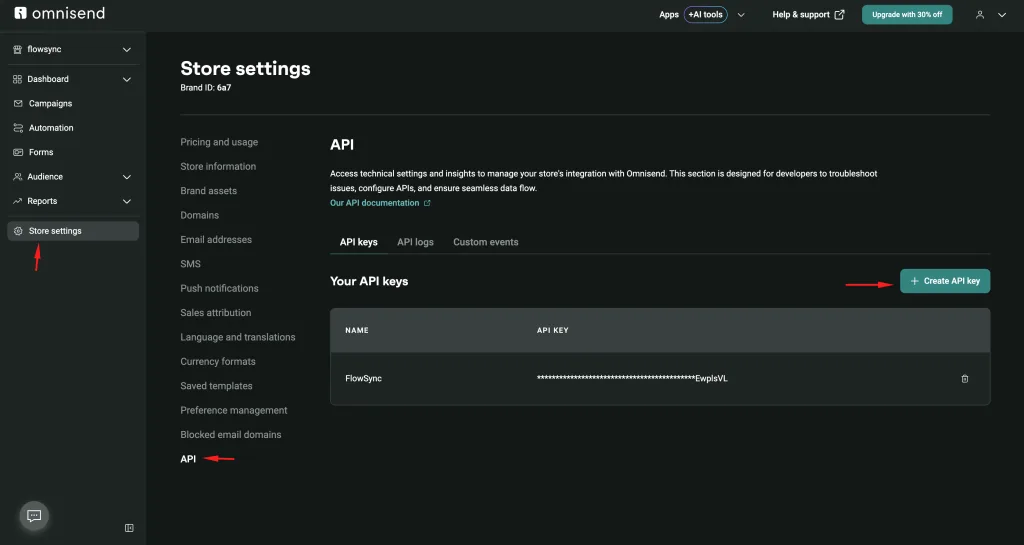
In Omnisend, go to Store settings → API → API keys and generate a key. Copy it.
Step 2: Connect Omnisend in FlowSync
In WordPress, go to FlowSync → Integrations, find the Omnisend card, and click Configure. Paste the key into the API Key field and click Save settings.
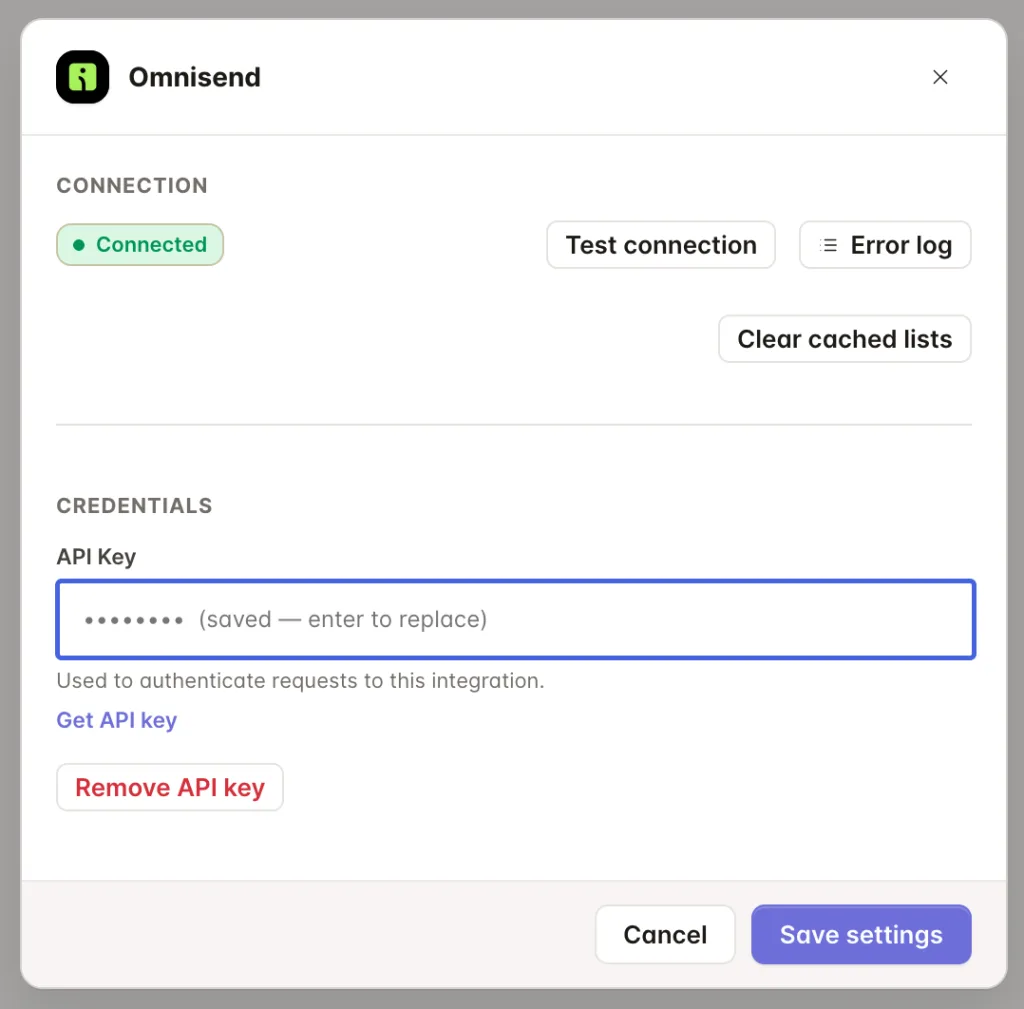
Click Test connection to confirm. A working connection shows Reached with a response time.
Step 3: Add an Omnisend action to a workflow
Open a workflow and add an action. Omnisend gives you two, and they are shaped differently on purpose:
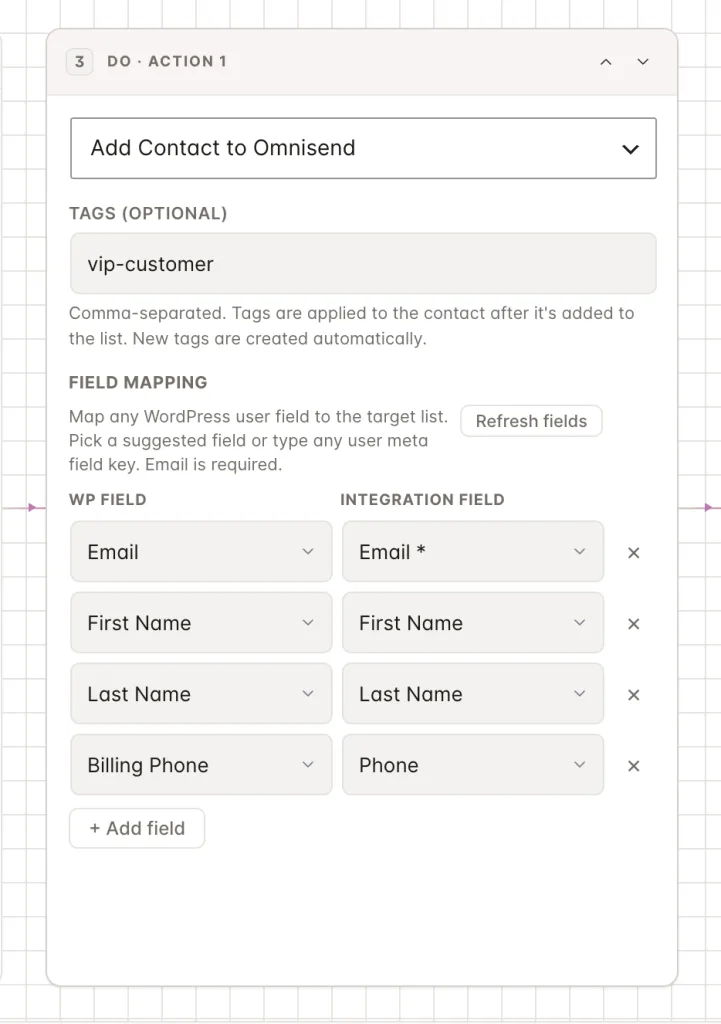
- Add Contact to Omnisend creates or updates the contact with your mapped fields, and can optionally apply one or more tags in the same step. Tags are comma-separated and optional. You don’t have to tag anything; syncing fields alone is useful because an Omnisend segment can be built from any contact property, not just a tag.
- Remove Tag in Omnisend removes a tag from the matching contact. It needs no field mapping, just the tag to remove.
There’s no dropdown of existing tags to pick from. Omnisend has no endpoint that lists tags back, so both actions use a free-text field: type the tag exactly as you want it applied. Use the same spelling in the add action and the remove action, since Omnisend won’t match VIP-Customer against vip customer.
For developers: tagging is asynchronous. Omnisend accepts the tag request right away but applies it a moment later, so a newly added tag may not show up in the Omnisend UI immediately after the workflow runs. That’s expected, not a failed sync.
Building a segment from your synced data
Since Omnisend has no lists, the closest equivalent is a segment. Segments in Omnisend are rule-based: you write a condition, and Omnisend continuously computes which contacts match it. There’s no button to add a contact to one directly.
To build a “list” of contacts FlowSync sends to Omnisend:
- In Omnisend, create a segment.
- Set its rule to match the tag your FlowSync action applies (for example, “Tags contains
new-member“). - Or set the rule to match a contact property FlowSync syncs instead, such as a mapped custom field.
Either way, the segment fills itself in as FlowSync tags or updates contacts. You don’t manage membership by hand.
Step 4: Map your fields
By default, FlowSync maps:
| WordPress | Omnisend |
|---|---|
email |
|
| First name | firstName |
| Last name | lastName |
| Phone | phone |
Free maps these core fields. Pro adds Omnisend’s other standard contact fields (address, city, state, postal code, country, birthdate, gender) to the mapping dropdown.
Anything you map beyond Omnisend’s standard fields automatically becomes a custom property. There’s no setup needed on the Omnisend side; the property is created the first time a contact carries it. Omnisend restricts property names to letters, digits, and underscores, so FlowSync converts any other characters to underscores. For example, a mapped key of billing city is sent to Omnisend as billing_city.
For developers: a contact synced by FlowSync is marked subscribed to email by default (
identifiers[0].channels.email.status = subscribed). Use theflowsync_omnisend_email_statusfilter to change this, acceptingsubscribed,unsubscribed, ornonSubscribed. Whether a contact should be opted in is a consent decision, and it’s yours to make, not FlowSync’s default.
If something goes wrong
- Test connection fails with an auth error. The API key is incorrect or has been revoked. Generate a new one in Omnisend and re-save it.
- A tag doesn’t appear in Omnisend immediately after the workflow runs. Omnisend applies tags asynchronously. Check again after a minute before assuming the sync failed. Check the sync log first; a logged success means Omnisend accepted the request.
- Remove Tag doesn’t remove anything. The tag name has to match exactly what the add action applied. Check both actions for spelling, capitalization, and extra spaces.
- A custom field looks different in Omnisend than in your mapping. Omnisend only allows letters, digits, and underscores in property names. FlowSync converts spaces and other characters to underscores, so
billing citybecomesbilling_cityin Omnisend. - A segment isn’t picking up contacts. Check the segment’s rule against the exact tag name or field value FlowSync is sending. A rule watching for
New Memberwon’t match a tag saved asnew-member. - Check the sync log. Failed syncs record the exact error Omnisend returned.
Still need help? Contact our support team, and we’ll help you get it working.