The official Mailchimp for WooCommerce plugin pushes customers into Mailchimp, but its segmentation is shallow. You can’t say “Every customer who bought from the Premium Coffee category goes to my Premium audience, every customer who bought a one-off accessory goes to a different one.” You end up doing the segmentation inside Mailchimp using its audience filters, which works until you want to trigger different email flows for each segment and realize Mailchimp’s flow editor doesn’t see WooCommerce category data at the moment of subscription.
FlowSync handles this in WordPress. Once the order completes, FlowSync checks which products were in it and pushes the customer to the right Mailchimp audience with the right tags before Mailchimp sees them.
This post walks through the setup for the most common case: routing WooCommerce customers into different Mailchimp audiences based on product category.
Why segment in WordPress, not in Mailchimp
Mailchimp’s audience filters are reactive. You create a segment based on data Mailchimp already has, then trigger a flow when the segment changes. That has two problems for WooCommerce stores.
Product category isn’t a default field in Mailchimp. You’d need to sync it as a tag or merge field first, which the official Mailchimp for WooCommerce plugin doesn’t do at the category level. And segments are evaluated with a delay — a customer placing an order might not hit the right segment for hours, by which point your welcome flow has already sent the wrong email.
Doing the segmentation in WordPress means the customer lands in the correct Mailchimp audience already tagged, and any Mailchimp automation triggers on the right data immediately.
What you need
- WooCommerce 6.0 or later
- An active Mailchimp account with at least two audiences set up (one per segment)
- FlowSync Lite
- FlowSync Pro: if you want to map fields beyond email, first name, and last name
For developers: Mailchimp integration uses the Members API. Audience IDs and merge field schemas are cached per-audience via the
Integration_Cachelayer to avoid repeated API calls on every workflow run. Tags are synced as Mailchimp tags, not merge fields, so they don’t pollute your audience field schemas.
Step 1: Connect Mailchimp
Go to FlowSync → Settings → Integrations → Mailchimp.
Paste your Mailchimp API key (in Mailchimp: Account → Extras → API keys) and click Save. FlowSync detects your data center from the key automatically — the suffix after the dash (for example -us21) determines the API endpoint.
[Screenshot: FlowSync Mailchimp connection screen with API key field and success confirmation]
Test the connection and confirm your audiences appear in the dropdown before moving on.
For developers: Auth is a stored API key, not OAuth. Full connection steps are in the Mailchimp connection guide.
Step 2: Build the first workflow — premium category buyers
Create a new workflow: FlowSync → Workflows → Add new.
Name it something like WooCommerce Premium category → Mailchimp Premium audience.
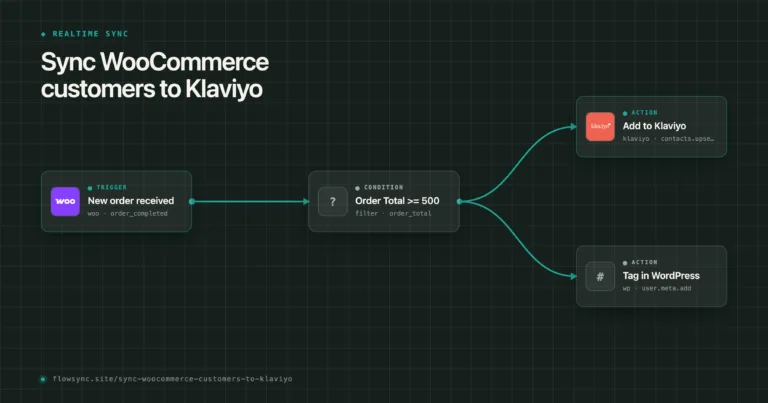
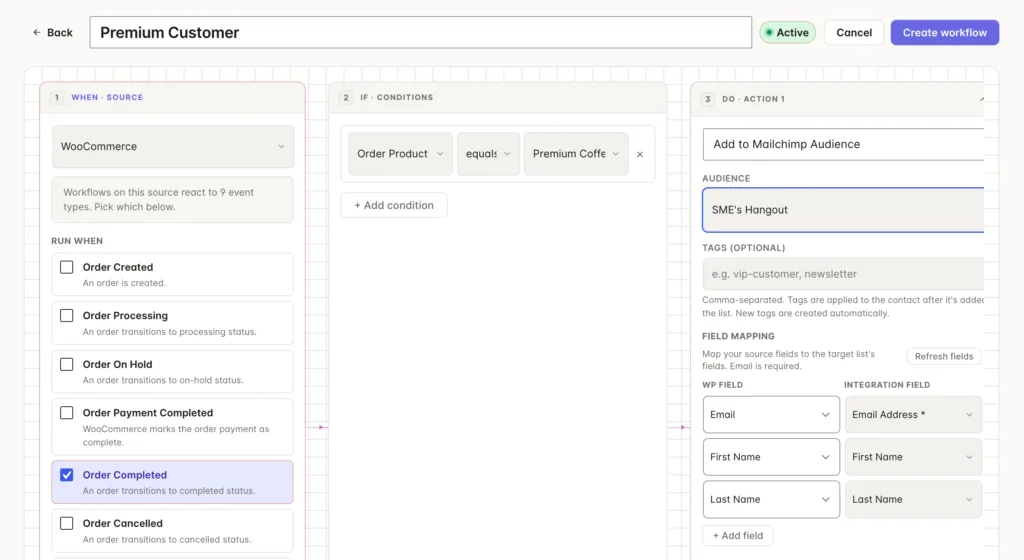
Trigger: WooCommerce → Order completed.
This fires when an order transitions to the completed status. The event payload includes the order ID, line items, product IDs, category IDs, and the customer’s billing email, so all the data you need for segmentation is available to the condition evaluator at trigger time.
Condition: add a condition row:
- Field: Order product categories
- Operator: contains
- Value: Premium Coffee (select from the dropdown — FlowSync loads your actual WooCommerce categories)
Action: add Sync contact → Mailchimp.
Configure:
- Audience: your Premium customers audience
- Fields to sync: email, first_name, last_name by default; add billing_company if you want B2B context
- Tags to apply: premium-buyer, woocommerce-customer
Save the workflow.
For developers: Category conditions are stored as term IDs, not display names, so renaming a category in WooCommerce doesn’t break saved workflows. The condition resolver reads from
$context['data']['product_category_ids']first, then falls back to a direct order lookup if the event payload is incomplete.
Step 3: Build the second workflow — accessory buyers
Same pattern, second segment.
Name it WooCommerce Accessories → Mailchimp General audience.
Same trigger (Order completed), but change the condition and action:
- Condition: Order product categories contains
Accessories - Action: Sync to your General audience, tag with
accessory-buyer
Save.
Step 4: Handle customers who buy across both categories
If a customer buys a premium product and an accessory in the same order, both workflows fire, and they end up in both audiences. That’s usually the right behavior.
If you only want them in the higher-tier audience, add a second condition to the accessory workflow:
- Field: Order product categories
- Operator: does not contain
- Value: Premium Coffee
Now the accessory workflow only fires for orders that contain accessories but no premium products.
Step 5: Only sync customers who agreed to marketing
If your checkout captures marketing consent, the sync should respect it. Adding a customer who never opted in to a promotional audience is how you get spam complaints, and the complaint rate is the metric that quietly damages your Mailchimp sender reputation.
FlowSync doesn’t add a consent field to your checkout. What it does is read a field that’s already there. If your theme or a plugin adds a marketing opt-in checkbox at checkout, FlowSync can use that field as a condition and run the sync only for customers who checked it.
You define the condition against your own field name. Using a custom checkout field in a condition is included in the free plan.
Step 6: Test the full flow
Place a test order in WooCommerce with a product from your Premium Coffee category. Complete the order (set the status to completed in the admin if you’re not processing real payment).
Within seconds, the customer should appear in your Mailchimp Premium audience with the correct tags applied. Check FlowSync → Logs to see the workflow run, the condition evaluation result, and the Mailchimp API response.
If the customer didn’t sync, the log shows which condition failed or what Mailchimp returned. The most common issue is that the target audience has required merge fields beyond email — Mailchimp rejects the push if those aren’t included in the mapped fields. Add them to your field mapping and re-test.
Keep audiences clean on refunds
Pair your add workflows with a removal workflow. Trigger on Order refunded (order_refunded), action Remove from Mailchimp audience (mailchimp.audience.remove), pointed at the same audience. The removal is non-destructive and removes the contact from the audience without deleting their profile or history.
A customer who just refunded an order and then receives a follow-up purchase email is a prime candidate to report it as spam.
FAQ
Does this sync customers who bought before I installed FlowSync? New orders sync automatically. To backfill existing customers, use a manual bulk run, which processes your order history through the workflow in batches. Manual bulk runs are a Pro feature.
Will it create duplicate subscribers? No. The add action is matched by email address. Running it more than once for the same customer updates the existing subscriber record rather than creating a second one.
What’s free and what’s Pro? The Mailchimp integration is available on the free plan — connect your API key and the sync works. The free plan maps email, first name, and last name, which is everything Mailchimp needs to create or match a subscriber profile. Pro unlocks field mapping beyond those three fields, so if you want to push order totals, product data, or custom checkout fields into Mailchimp merge fields, that’s where Pro comes in. Manual bulk runs to backfill existing customers are also Pro.
Do I still need the official Mailchimp for WooCommerce plugin? They do different jobs. The official plugin handles order event tracking and metrics inside Mailchimp. FlowSync handles the decision of who gets synced to which audience based on rules you set in WordPress. Many stores run both.
Next steps
Install FlowSync lite. Connect your API key, build the order-completed workflow, and the sync is live. Upgrade to Pro for advanced field mapping (order totals, product data, custom fields into merge fields), unlimited workflows, and manual bulk runs to backfill existing customers. FlowSync also supports syncing WooCommerce customers to Klaviyo.
For the full list of WooCommerce triggers available, see the WooCommerce source page. For every Mailchimp action, see the Mailchimp integration page.

FlowSync
FlowSync syncs members, customers, and form leads to Brevo, Mailchimp, HubSpot, Klaviyo, and more based on activity happening on your WordPress site.