
Want your Mailchimp audiences to reflect what’s actually happening on your WordPress site — new members, completed orders, subscription changes?
This guide covers how to connect FlowSync to Mailchimp so your contacts sync automatically, without manual exports or third-party relay services.
What you’ll need
- A Mailchimp account with at least one audience set up.
- An API key from your Mailchimp account (covered in Step 1).
- FlowSync installed and active on your WordPress site.
Step 1: Get your Mailchimp API key
In Mailchimp, go to Account & Billing → Extras → API keys and generate a new key. Copy it somewhere safe — Mailchimp shows the full key only once.
For developers: FlowSync extracts the server prefix by splitting on the last hyphen in the key string (e.g.
us21fromxxxxx-us21). All API calls go tohttps://{server}.api.mailchimp.com/3.0. Authentication uses HTTP Basic auth with the headeranystring:{api_key}, base64-encoded. Credentials are stored encrypted in the FlowSync credential vault.
Step 2: Connect Mailchimp in FlowSync
In WordPress, go to FlowSync → Integrations and open Mailchimp. Fill in:
- API Key — the key you copied in Step 1.
- Default Audience — your main Mailchimp audience. This is the audience FlowSync uses for contact lookups and as the default in new workflow actions. You can override it per action.
Click Save. FlowSync calls Mailchimp’s /ping endpoint to verify the key and marks the integration as connected.
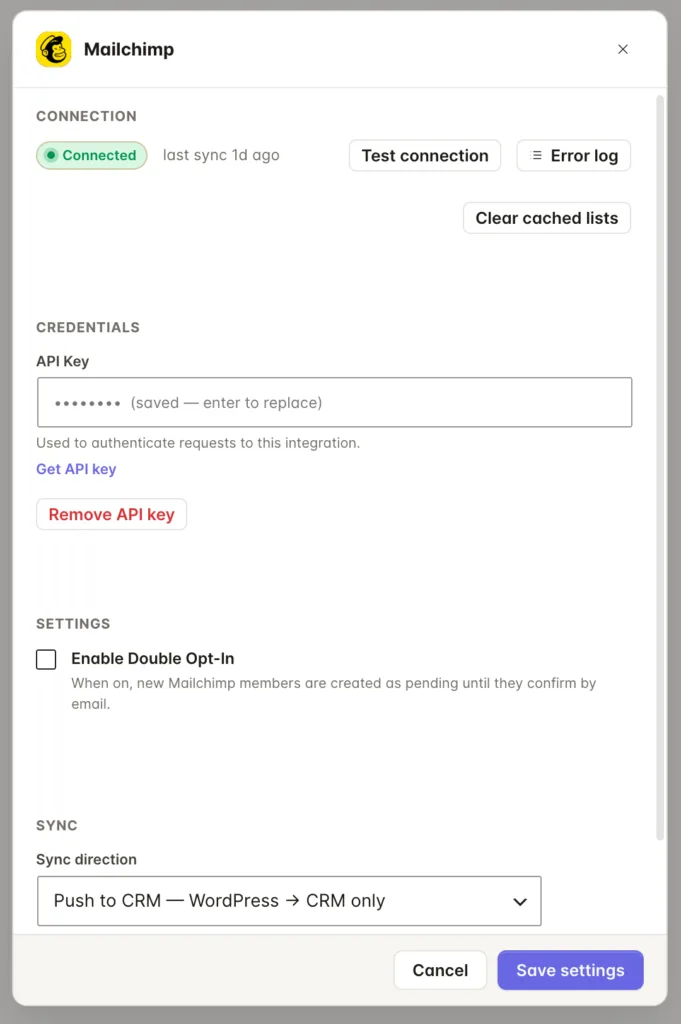
For developers: The connection check calls
/pingand caches the result for five minutes. The audience list is fetched from/3.0/lists?count=200and cached for ten minutes. If you want to re-test immediately after a key change, the Test Connection button bypasses the cache and makes a live round-trip.
Optional: sync direction and double opt-in
Two additional settings are available once you’re connected:
- Sync direction — defaults to Push (WordPress → Mailchimp only). Set to Bidirectional if you want changes in Mailchimp to flow back into WordPress user meta via workflows. Bidirectional requires a webhook to be registered in Mailchimp (see Bidirectional sync).
- Double opt-in — when enabled, new contacts are added to Mailchimp with
status_if_new: pending, meaning they receive a confirmation email before being subscribed. Contacts already in the audience are updated regardless of this setting.
Step 3: Add a Mailchimp action to a workflow
Open a workflow (or create one) and add an action. FlowSync gives you four Mailchimp actions:
- Add to Mailchimp Audience — adds or updates a contact in the audience you choose. FlowSync identifies the contact by email (using the Mailchimp subscriber hash:
md5(lowercase email)). If a contact with that address already exists, FlowSync updates their merge fields. If not, it creates them. You can optionally attach tags in the same action step. - Remove from Mailchimp Audience — sets the contact’s status to
unsubscribed. Mailchimp doesn’t fully delete contacts via the API, so FlowSync unsubscribes rather than deletes. If the contact isn’t in the audience, the action logs a success and does nothing. - Add Mailchimp Tag — adds one or more tags to an existing contact in the audience. The contact must already be a member of that audience; if they aren’t, the action logs a failure.
- Remove Mailchimp Tag — removes one or more tags from an existing contact. Tags that aren’t currently applied are silently skipped.
Tags are audience-scoped in Mailchimp, so both tag actions require you to pick an audience before you can pick a tag.
Step 4: Map your fields
By default, FlowSync maps the basics:
| WordPress | Mailchimp merge tag |
|---|---|
email_address | |
| First name | FNAME |
| Last name | LNAME |
On the free plan, FlowSync syncs email, first name, and last name.
Pro unlocks the phone field (PHONE) plus any custom merge fields you’ve added to the audience in Mailchimp. FlowSync reads available merge fields directly from your Mailchimp account per audience, so any merge field you’ve created in Mailchimp’s audience settings shows up in the mapping dropdown automatically.
For developers: Merge fields are fetched from
/3.0/lists/{list_id}/merge-fieldsand cached in a per-audience bucket ([list_id => fields]). Tags are fetched from/3.0/lists/{list_id}/tag-searchand cached the same way. Flushing the integration cache (which happens automatically after saving settings) clears both buckets. The reserved fieldsemail_address,FNAME,LNAME, andPHONEare always available and don’t need to appear in the merge-fields response.
Bidirectional sync
If you want changes in Mailchimp to update WordPress user meta — for example, applying a tag in Mailchimp triggers an update to a user’s membership status — you need to set up a Mailchimp webhook.
In Mailchimp, go to Audience → Manage Audience → Settings → Webhooks and add a new webhook. The URL to enter is shown in the FlowSync Mailchimp settings page. FlowSync listens for subscribe, unsubscribe, profile, and upemail events.
If you want to secure the webhook, set a Webhook Secret in FlowSync settings (any random string), then append ?secret=YOUR_SECRET to the webhook URL you register in Mailchimp.
With bidirectional sync enabled, FlowSync fires workflows when Mailchimp sends an inbound event. An Apply inbound sync action in the workflow controls which WordPress user fields actually get written — FlowSync doesn’t write anything automatically from a webhook.
For developers: Mailchimp sends form-encoded POST data. FlowSync maps wire types to internal events:
subscribe → contact_created,profile → contact_updated,upemail → contact_updated. Theunsubscribetype is intentionally ignored — FlowSync never removes WordPress user data based on a Mailchimp unsubscribe. Email changes (upemail) usedata[new_email]for the lookup. Inbound events fireflowsync_crm_mailchimp_webhook_eventso matching workflows can dispatch normally throughTrigger_Manager.
If something goes wrong
- The integration doesn’t show as connected after saving. Check that the API key is complete and ends with the server prefix (e.g.
-us21). A key missing the suffix will fail silently because FlowSync can’t construct the API URL without the server region. - Contacts are added but merge fields aren’t updating. Confirm the merge field tags in your field map match the actual merge tags on the audience — they’re case-sensitive (
FNAME, notfname). Open the audience in Mailchimp and check Settings → Audience fields and *|MERGE|* tags. - A contact appears in Mailchimp but with
pendingstatus. Double opt-in is enabled in FlowSync settings. The contact will stay pending until they click the confirmation link Mailchimp sends them. - Tags aren’t being applied after the audience add. Tag failures are non-fatal — FlowSync logs them separately without failing the whole action. Check the sync log for a tag-specific error. The most common cause is a tag name that doesn’t exist yet in the audience; Mailchimp creates tags on first use via the API, so this usually only happens if the name contains special characters.
- The bidirectional webhook isn’t triggering workflows. Confirm the webhook URL is registered in Mailchimp and the event types include at least
subscribeandprofile. If you set a secret in FlowSync, make sure the?secret=query parameter matches exactly. - Check the sync log. Go to FlowSync → Logs. Each failed sync records the Mailchimp API response, which usually identifies the problem directly.