
Klaviyo is an email and SMS marketing platform built for ecommerce and content businesses. Once connected, you can sync new members to Klaviyo lists, update profile properties when membership plans change, and use Klaviyo’s segmentation to target campaigns based on data flowing in from your WordPress site.
Before you start
FlowSync connects to Klaviyo using a private API key generated in your Klaviyo account. The connection runs directly between your WordPress site and Klaviyo’s API — no data passes through FlowSync’s servers.
This takes about 5 minutes the first time. You will not need to do it again unless you rotate your API key.
What you need:
- A Klaviyo account (sign up free if you don’t have one)
- Admin access to your WordPress site
- FlowSync plugin active on your site
Step 1 — Generate a Klaviyo private API key
Sign in to klaviyo.com with the account you want to sync FlowSync data into.
- Navigate to the API Keys tab on Klaviyo
- Click Create Private API Key
- Give it a name — “FlowSync” works fine
- Set the access scope — for full functionality, select Full Access Key, or use Custom Key and grant access to Profiles, Lists, Events, and Subscriptions
- Click Create
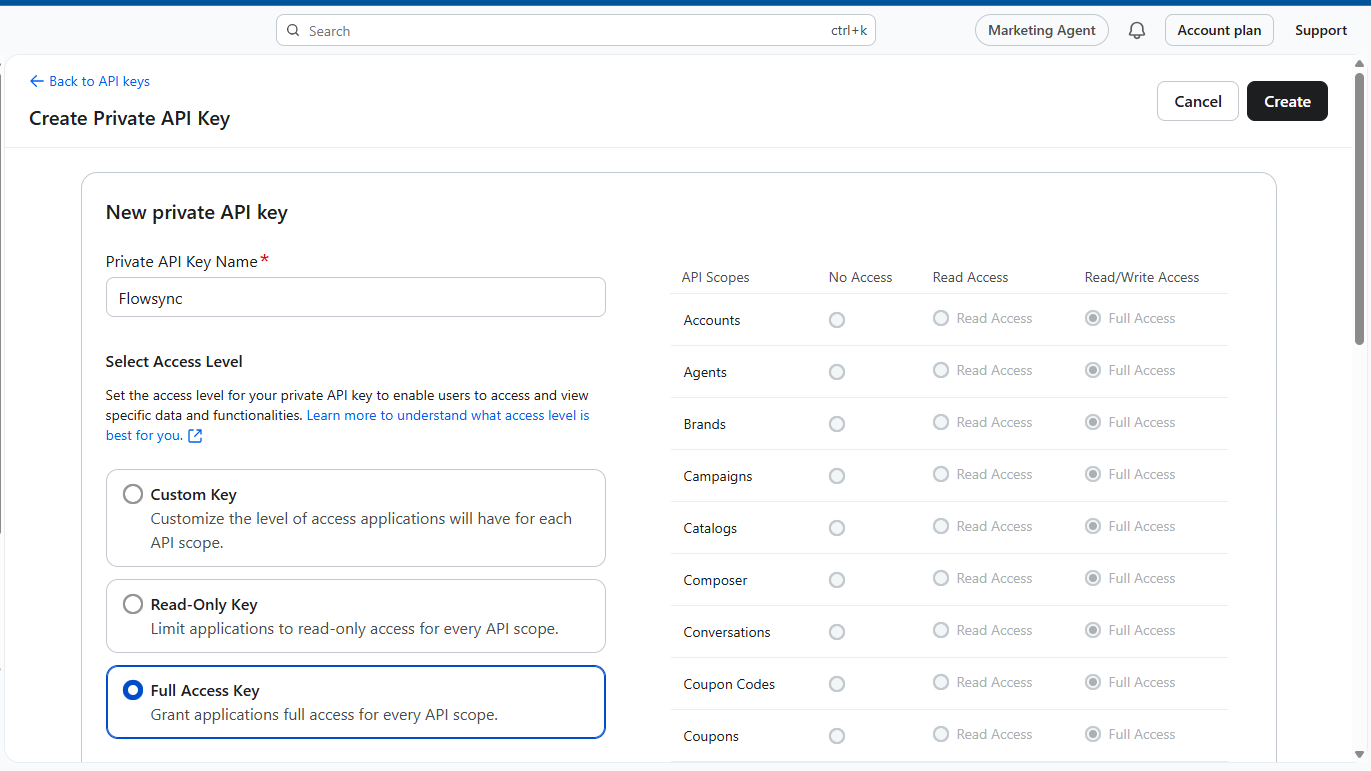
Klaviyo shows the new key once. Copy it now — you will not be able to see it again after closing the dialog. If you lose it, you can generate a new one and delete the old.
Developer note: Klaviyo private API keys start with
pk_followed by a long alphanumeric string. The scope you select determines which endpoints the key can hit — if you choose Custom Key, FlowSync needs at minimum:profiles:read,profiles:write,lists:read,lists:write,events:write, andsubscriptions:write. A key withoutlists:writewill fail when adding subscribers to a list. Treat the key like a password — if compromised, regenerate it in Klaviyo and update FlowSync immediately.
Step 2 — Paste your API key into FlowSync
- In your WordPress admin, go to FlowSync → Integrations
- Find Klaviyo in the CRM / Email tab and click Configure
- Paste your API key into the Private API Key field
- Click Save credentials
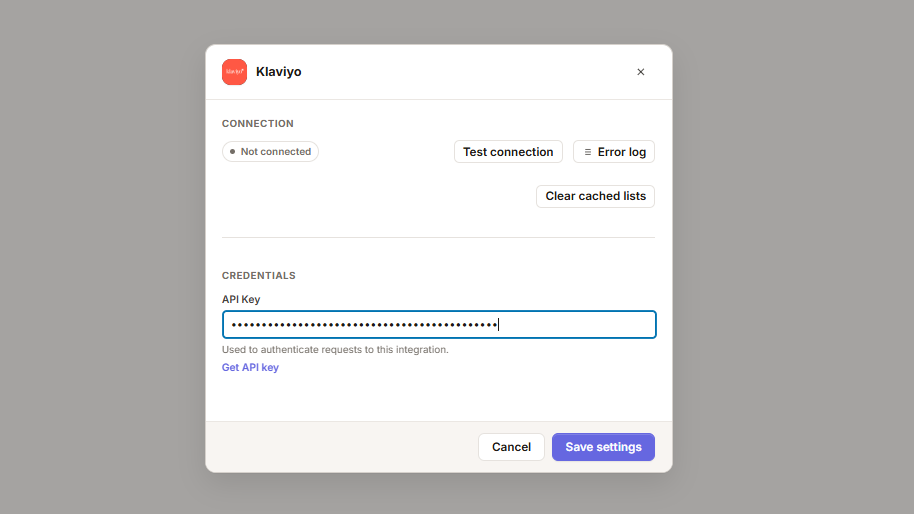
FlowSync immediately tests the key against Klaviyo’s API. If the key is valid, the panel shows a green Connected status with your Klaviyo account name.
Developer note: FlowSync encrypts the API key at rest using
Credential_Vault(OpenSSL/sodium depending on server support). The key is never stored in plaintext after the first save. Connection status is cached for 5 minutes viaIntegration_Cache— click Test connection to force a live check. FlowSync uses Klaviyo’s current API revision (sent via therevisionheader on every request).
Step 3 — Verify the connection
With your key saved, click Test connection in the configure modal. FlowSync makes a live round-trip to Klaviyo and confirms:
- The API key is valid
- Your Klaviyo account is active
- FlowSync can list your lists and standard profile fields
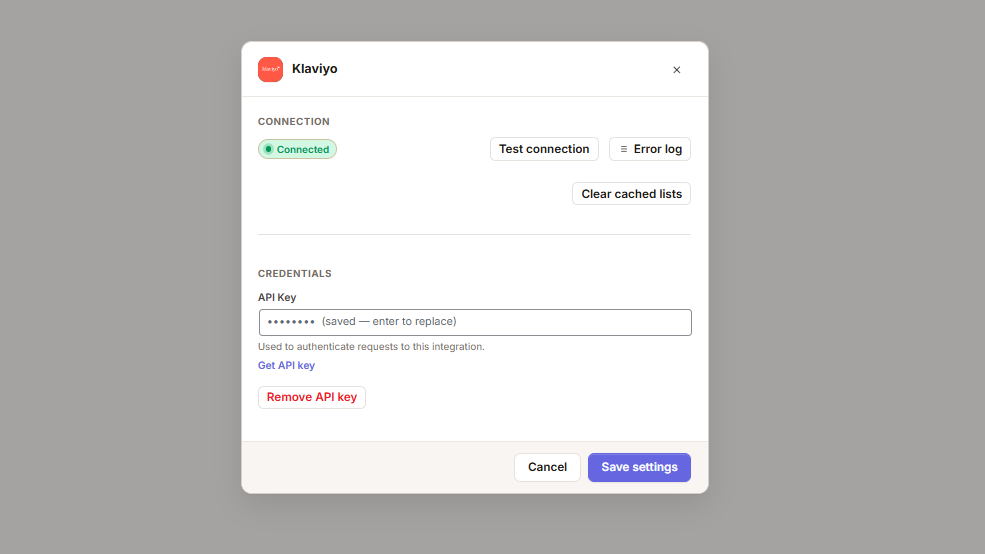
If the test fails, check the error message and see the Troubleshooting section below.
Step 4 — Configure double opt-in (optional)
Klaviyo handles double opt-in at the list level rather than per-action. When a list has double opt-in enabled, anyone added to the list via the API automatically receives a confirmation email and is marked as a confirmed subscriber only after they click the link.
To enable double opt-in for a list:
- In Klaviyo, go to Audience → Lists & Segments
- Open the list you want to use with FlowSync
- Click Settings in the list view
- Toggle Single opt-in off (this enables double opt-in)
- Customize the confirmation email if needed
- Save
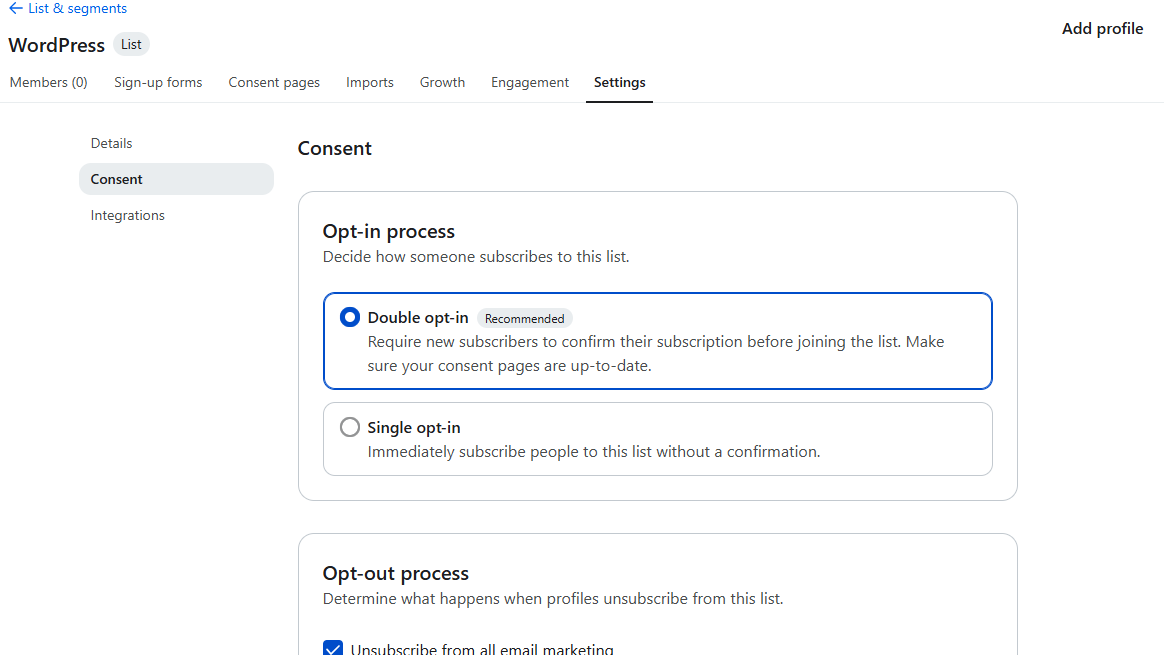
No FlowSync configuration is required — once double opt-in is enabled on a Klaviyo list, the next subscriber FlowSync adds to that list will receive the confirmation email automatically.
Developer note: FlowSync’s Klaviyo
Add to Listaction usesPOST /api/profile-subscription-bulk-create-jobswithcustom_sourceset to the workflow name. The list’s opt-in setting in Klaviyo determines whether the profile gets confirmed status immediately or enters a pending state. To force a profile to active status regardless of list settings, you’d need to use the direct list-add endpoint instead — FlowSync does not currently expose this as an option.
Using Klaviyo in workflows
With the integration connected, several actions are available in the workflow builder:
Add to Klaviyo List — adds the subscriber to a Klaviyo list. Use this for new member sign-ups, completed orders, or any state change that should put a user on a specific list.
Remove from Klaviyo List — removes the subscriber from a Klaviyo list. Use this when a subscription expires, is cancelled, or a member changes plans and should move off the previous list.
Update Profile — updates the profile’s standard fields and custom properties in Klaviyo without changing list membership.
Track Event — sends a custom event to Klaviyo (e.g. “Membership Upgraded”, “Order Refunded”) that can trigger Klaviyo flows or feed into segmentation.
To add a Klaviyo action to a workflow:
- Open a workflow in the FlowSync workflow builder
- In the Actions section, click Add Action
- Select Klaviyo from the action group
- Choose the action type
- Select the target list (for list actions) or event name (for Track Event)
- Map the fields — see Field mapping below for how this works
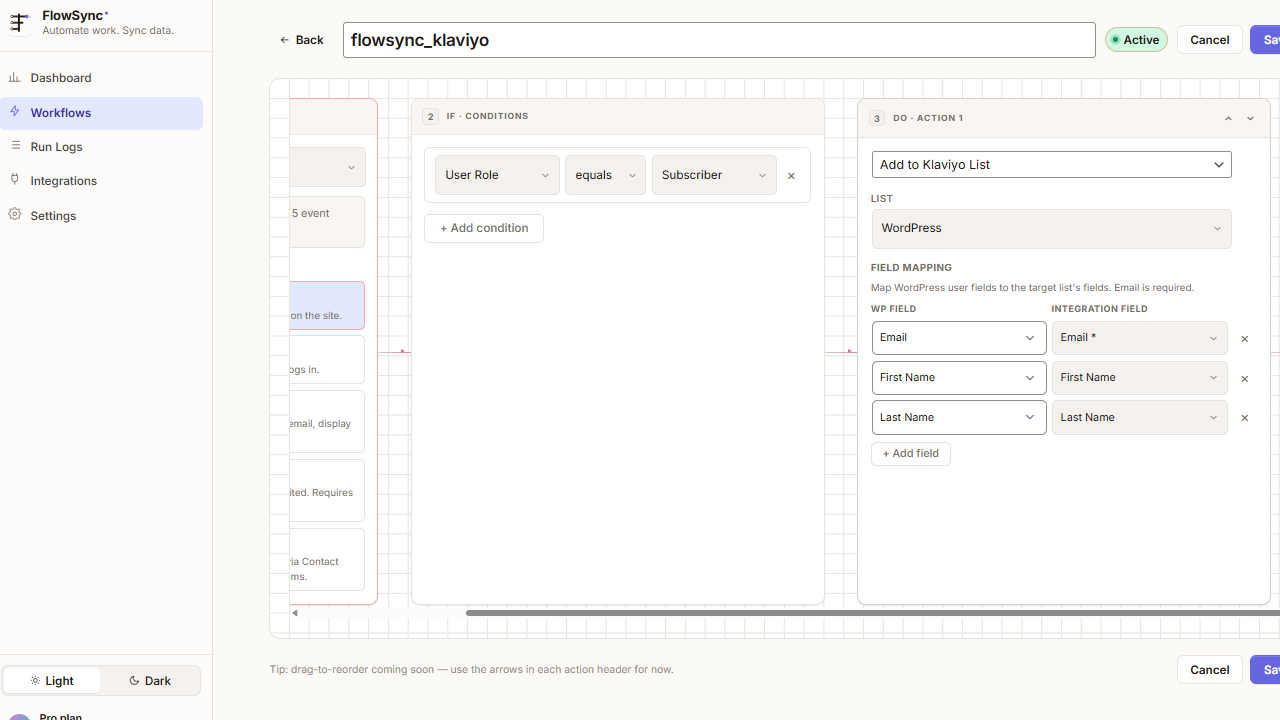
Field mapping
Klaviyo field mapping in FlowSync works differently from other CRM integrations. The mapping UI has two modes depending on what you’re mapping to:
Standard Klaviyo fields — Email, First Name, Last Name, Phone Number, Organization, Title, and Location fields (City, Region, Country, Zip). For these, select the WordPress field on the left and the matching Klaviyo field on the right.
Custom properties — Any WordPress field that doesn’t match a standard Klaviyo field is sent as a custom profile property. Select the WordPress field on the left and leave the right-hand selector empty (— select —). FlowSync will add the value to the subscriber’s Klaviyo profile under a property named after the WordPress field.
[Screenshot: FlowSync workflow builder — Klaviyo field mapping showing Email/First Name/Last Name mapped to standard fields, and Website mapped to a custom property with no integration field selected]
In the example above, mapping Website with no integration field selected means the user’s website URL will appear on their Klaviyo profile as a custom property called Website, available for use in Klaviyo segments and flows.
Important: Unlike Brevo and Mailchimp, FlowSync does not let you map WordPress fields to pre-defined Klaviyo custom properties. Klaviyo creates profile properties on the fly when data is sent — there’s no schema to map against. Whatever WordPress field you select on the left becomes the property name on the Klaviyo profile.
Developer note: Standard fields are sent in the
attributesobject of the Klaviyo profile payload. Unmapped WordPress fields are sent insideattributes.propertiesas a key-value object — the property name uses the WordPress field’s display label, sanitized to remove special characters. Klaviyo’s API accepts arbitrary property names with no pre-registration required, but property names should stay consistent across workflows — Klaviyo treatsWebsiteandwebsiteas different properties.
Free plan users can map Email, First Name, and Last Name only. Pro unlocks the full standard field set plus custom property mapping for membership and order data from ProfilePress, WooCommerce, and other sources.
Sync direction
Klaviyo is a push-only integration in FlowSync. Data flows from WordPress to Klaviyo, not the reverse.
This differs from Brevo, FluentCRM, and Mailchimp, which support bidirectional sync. Klaviyo does not have a webhook system that fits FlowSync’s omnichannel sync model — its event webhooks are designed for triggering external workflows based on Klaviyo activity (campaign opens, clicks), not for syncing profile field changes back to source systems.
What this means in practice:
- Changes you make to a WordPress user’s profile sync to Klaviyo if you have a workflow set up for it
- Changes you make to a Klaviyo profile (editing properties, unsubscribing) do not sync back to WordPress
- The Klaviyo integration does not appear in the Omnichannel sync field mapping UI
If you need bidirectional sync — for example, to capture unsubscribes from Klaviyo back into WordPress user meta — use Brevo or FluentCRM instead, or build a custom webhook handler.
Developer note: FlowSync’s
Klaviyo\Contact_SyncimplementsSync_Integration_Interfacebutpull_contact()returns an empty array andhandle_incoming_webhook()is a no-op. The integration is excluded from the field mapping UI by returning an empty array fromget_field_map()for pull/bidirectional directions. If Klaviyo introduces a profile-change webhook in future, this can be revisited — for now, treat the integration as one-way only.
Troubleshooting
“Invalid API key” error after saving The key was either copied incorrectly or has been revoked in Klaviyo. Generate a new key in Klaviyo (Step 1) and paste it again. Make sure there are no leading or trailing spaces, and confirm the key starts with pk_.
“Insufficient scope” error when running actions You created a Custom Key without granting all the scopes FlowSync needs. Either create a new Full Access Key, or edit the existing key in Klaviyo and add the missing scopes (profiles:write, lists:write, events:write, subscriptions:write).
Subscribers added but never receive emails If double opt-in is enabled on the Klaviyo list, new subscribers stay in pending status until they click the confirmation link. Check the list in Klaviyo and look for profiles with no consent timestamp — they need to confirm before campaigns will send.
Custom property values not appearing on Klaviyo profiles Custom properties are created on first write. If the property doesn’t appear, the action probably failed before the write completed — check the sync log for the actual error. If the action succeeded but the property is missing, look for it under the profile’s Properties tab (not the main profile view) — Klaviyo separates standard fields from custom properties in the UI.
Property names appearing inconsistently in Klaviyo Klaviyo treats property names as case-sensitive and exact-match. If you mapped a WordPress field called Plan in one workflow and plan in another, you’ll end up with two separate properties on the profile. Keep WordPress field labels consistent across all Klaviyo workflows.
Lists don’t appear in the dropdown FlowSync caches list data for 10 minutes. If you created a new list in Klaviyo and it doesn’t appear, click Test connection on the Integrations page to flush the cache and reload.
Custom fields not available for mapping in the right-hand dropdown This is expected — Klaviyo custom properties cannot be pre-mapped. Select the WordPress field on the left and leave the integration field as — select —. The value will be sent as a custom property using the WordPress field name. See Field mapping above.
Developer note: All Klaviyo API errors are logged to
wp_flowsync_sync_logwith the response body in theerrorcolumn. Query the table directly or use the Sync Log viewer (Pro) to see exact error responses from Klaviyo — failures include adetailfield and often asource.pointershowing which JSON path failed validation.