
Tired of copying leads out of email notifications? FlowSync watches your Contact Form 7 forms and pushes every submission straight into your connected CRM or email list.
This guide covers picking Contact Form 7 as a workflow source, mapping its fields, and activating the sync.
What you’ll need
- Contact Form 7 installed and active, with at least one form built.
- FlowSync installed and active.
- A CRM or email integration already connected under FlowSync → Integrations.
Step 1: Create the workflow and pick Contact Form 7 as the source
- Go to FlowSync → Workflows → Add New.
- In the When · Source step, select Contact Form 7 as the source and Form Submitted as the trigger.
- Optional: in If · Conditions, add a Form condition and select the specific form. Skip this to run the workflow for every CF7 form on the site.
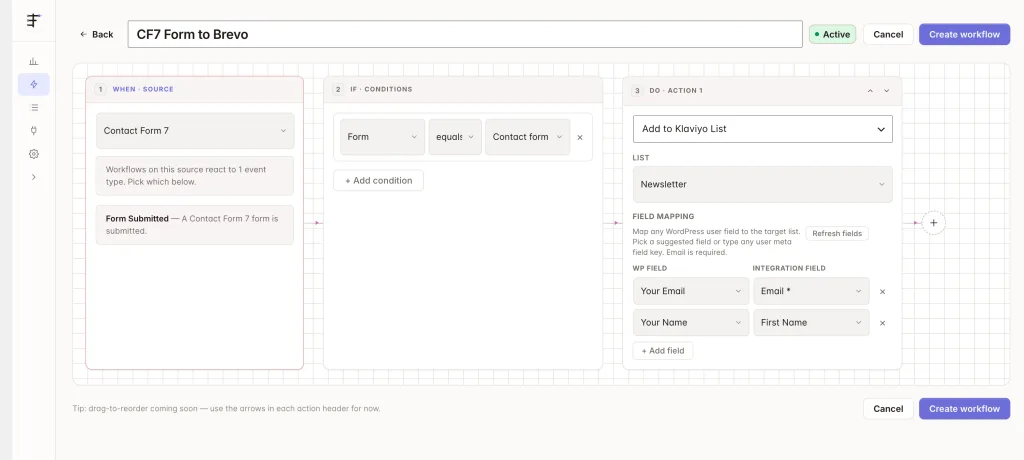
Step 2: Add your CRM or email action
- Add a Do · Action step and choose your connected integration’s action, for example Add to List or Sync Contact.
- The integration must already be connected under FlowSync → Integrations before it shows up here.
Step 3: Map your fields
| Form field | FlowSync field | Plan |
|---|---|---|
| Email input | Email Address | Free |
| Name input (first/last) | First Name / Last Name | Free |
| Single “Your Name” input | Full Name | Free |
| Any other field | form_field_{tag name} | Pro |
- Field keys come from the form’s tag names, e.g.
[text your-name]maps asyour-name. - Submit buttons, response text, reCAPTCHA, hCaptcha, and Turnstile fields are never mappable.
- Form Entry ID is always empty. Core CF7 doesn’t generate entry IDs.
- File upload fields don’t map to a URL. CF7 attachments are temporary email attachments only.
Step 4: Activate
Save the workflow and set its status to Active. New submissions start syncing immediately. FlowSync doesn’t back-fill submissions made before the workflow was active; CF7 doesn’t store entries to pull from.
If something goes wrong
- Workflow never fires. CF7 only fires after the form processes to
mail_sentormail_failed. A validation error (missing required field) never triggers the sync. - A field is missing in the CRM. Confirm it isn’t a skipped field type (submit, response, captcha) and that it had a value when submitted.
- Upload fields show nothing. Expected: CF7 uploads are email attachments only, with no public URL to map.
- Not sure why a run failed. Check FlowSync → Logs for the run and read the exact error returned by your CRM.
Still need help? Contact our support team and we’ll help you get it working.