
WPForms leads don’t need to wait for someone to check their inbox. FlowSync can send every submission straight into your connected CRM or email list as it happens.
This guide covers how to connect WPForms as a FlowSync source, map its fields, and activate the sync. Works with WPForms Lite and Pro.
What you’ll need
- WPForms installed and active (Lite or Pro), with at least one form built.
- FlowSync installed and active.
- A CRM or email integration already connected under FlowSync → Integrations.
Step 1: Create the workflow and pick WPForms as the source
- Go to FlowSync → Workflows → Add New.
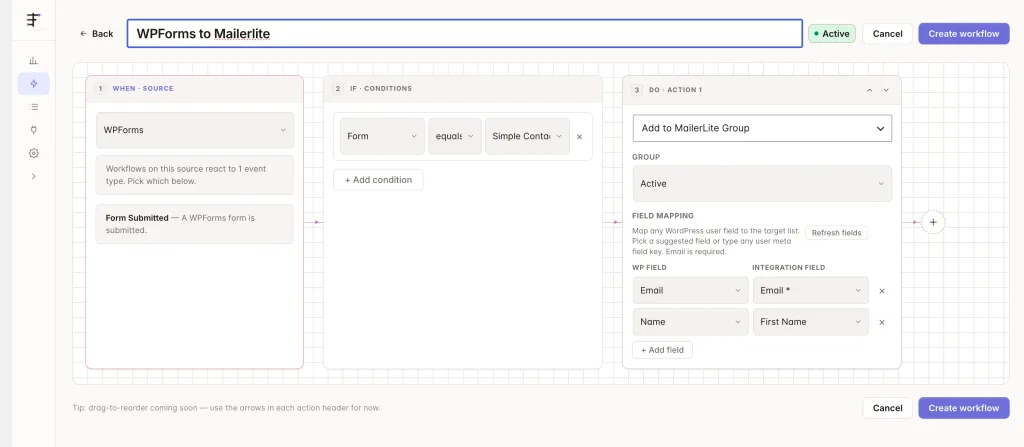
- In the When · Source step, select WPForms as the source and Form Submitted as the trigger.
- Optional: in If · Conditions, add a Form condition and select the specific form. Skip this to run the workflow for every WPForms form on the site.
Step 2: Add your CRM or email action
- Add a Do · Action step and choose your connected integration’s action, for example Add to List or Sync Contact.
- The integration must already be connected under FlowSync → Integrations before it shows up here.
Step 3: Map your fields
| Form field | FlowSync field | Plan |
|---|---|---|
| Email field | Email Address | Free |
| Name field (first/last) | First Name / Last Name | Free |
| Single Name field | Full Name | Free |
| Any other field | Listed by its label | Pro |
- Each field appears in the mapper by its label. Standard Email and Name fields are detected automatically and map to the canonical FlowSync fields on Free. Every other field is Pro.
- File upload fields map to the file’s public URL.
- The sync fires straight off form processing. It doesn’t depend on WPForms’ own Entries storage, so it works the same on WPForms Lite.
Step 4: Activate
Save the workflow and set its status to Active. New submissions start syncing immediately. FlowSync doesn’t back-fill entries submitted before the workflow was active.
If something goes wrong
- A field maps to the wrong value. WPForms identifies fields by their label. If two fields share the same label, they collide, and the last one wins. Rename one in the WPForms builder so each field’s label is unique.
- Workflow never fires. Confirm WPForms (Lite or Pro) is active and the form actually completed submission.
- Nothing shows in WPForms Entries, but the workflow still ran. Expected. FlowSync listens to the submission event directly and doesn’t require entry storage.
- Not sure why a run failed. Check FlowSync → Logs for the run and read the exact error returned by your CRM.
Still need help? Contact our support team, and we’ll help you get it working.