
Every Gravity Forms entry can land directly in your CRM or email list the moment it’s submitted, without exporting entries by hand.
This guide covers connecting Gravity Forms as a FlowSync source, mapping its fields, and activating the sync.
What you’ll need
- Gravity Forms installed and active, with at least one form built.
- FlowSync installed and active.
- A CRM or email integration already connected under FlowSync → Integrations.
Step 1: Create the workflow and pick Gravity Forms as the source
- Go to FlowSync → Workflows → Add New.
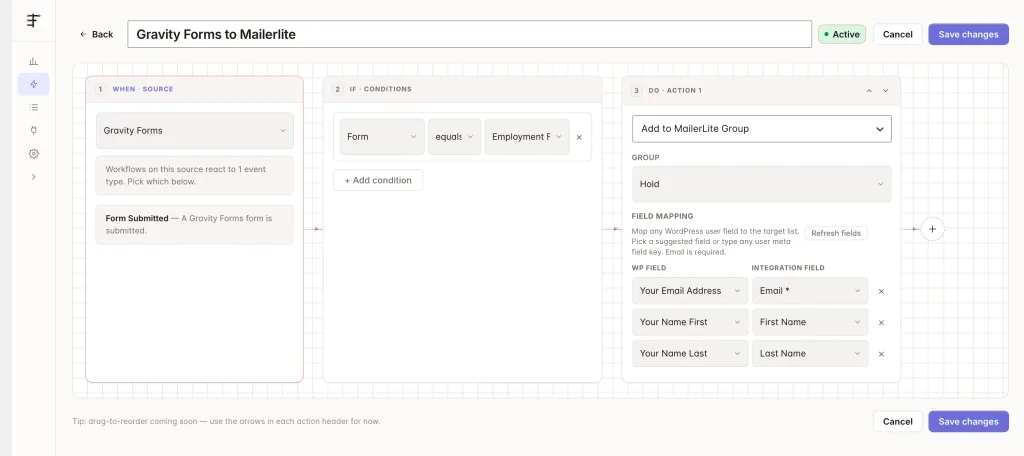
- In the When · Source step, select Gravity Forms as the source and Form Submitted as the trigger.
- Optional: in If · Conditions, add a Form condition and select the specific form. Skip this to run the workflow for every Gravity Forms form on the site.
Step 2: Add your CRM or email action
- Add a Do · Action step and choose your connected integration’s action, for example Add to List or Sync Contact.
- The integration must already be connected under FlowSync → Integrations before it shows up here.
Step 3: Map your fields
| Form field | FlowSync field | Plan |
|---|---|---|
| Email field | Email Address | Free |
| Name field (first/last) | First Name / Last Name | Free |
| Single Name field | Full Name | Free |
| Any other field | form_field_{field label} | Pro |
- Field mapping keys are based on the field’s label, not its numeric field ID. A multi-input Name field maps as two fields, for example “Name First” and “Name Last”.
- Renaming a field’s label after you’ve built a workflow breaks the saved mapping. Remap the field if you rename it.
- Payment and transaction fields (payment status, transaction ID, currency) aren’t exposed for mapping yet.
Step 4: Activate
Save the workflow and set its status to Active. New submissions start syncing immediately. FlowSync doesn’t back-fill entries submitted before the workflow was active.
If something goes wrong
- A mapped field stopped syncing. You likely renamed the field’s label in the form editor. Gravity Forms keys are label-based, so open the mapper and remap it.
- Payment fields aren’t available to map. Correct, transaction and payment status fields aren’t exposed in this version.
- Workflow never fires. Confirm Gravity Forms is active and the entry actually saved (check the form’s Entries screen).
- Not sure why a run failed. Check FlowSync → Logs for the run and read the exact error returned by your CRM.
Still need help? Contact our support team and we’ll help you get it working.