
If you use Pipedrive to manage leads and sales pipelines, one of the biggest challenges is keeping your WordPress customer data automatically up to date. New users register on your website but they never appear inside Pipedrive. Customers complete purchases but your sales pipeline never updates. Someone submits a consultation form but the lead sits inside WordPress without ever reaching your CRM.
Many WordPress site owners manage this manually at first. They export CSV files, import contacts into Pipedrive, and then spend time later fixing duplicates and outdated customer records. That usually works for small websites, but once the site starts growing the process becomes difficult to maintain consistently.
In this guide, we’ll show you how to sync WordPress users to Pipedrive automatically using FlowSync, a WordPress CRM and email automation plugin focused on syncing users and automating audience workflows directly inside WordPress.
Why WordPress and Pipedrive Often Become Disconnected
Most WordPress websites collect customer data from several different places: WooCommerce checkout, membership registrations, newsletter forms, consultation forms, and user registration pages. The problem is that Pipedrive usually doesn’t know when these things happen unless someone manually updates the CRM.
A customer might purchase a service, book a consultation, become a paying member, or submit a lead form. If those actions never reach your CRM automatically, the sales pipeline quickly becomes unreliable. This usually leads to missed follow-ups, outdated lead records, duplicate contacts, manual spreadsheet cleanup, and sales teams working with incomplete customer information.
Automation fixes this problem by connecting WordPress events directly to Pipedrive, so every meaningful interaction on your site is reflected in your CRM without anyone touching a spreadsheet.
What FlowSync Automates
FlowSync focuses specifically on WordPress CRM automation and audience syncing. Rather than trying to be a generic automation platform that connects dozens of unrelated tools, it is built to handle the specific problem of keeping your WordPress users and your CRM in sync.
Typical Pipedrive workflows include syncing new WordPress users to Pipedrive as Persons, automatically assigning Persons to Pipedrive Organizations, syncing WooCommerce customers based on order activity, updating Person records when memberships change, and triggering workflows from Pipedrive webhooks when you enable bidirectional sync.
The workflow structure stays simple: every automation has a Trigger, an optional Condition, and an Action. For example, you could set a WPForms submission as the trigger, filter to only submissions from a Consultation Request form as the condition, and then sync to a Pipedrive Organization as the action. This predictable structure makes workflows easier to manage and troubleshoot later.
Step 1: Install FlowSync
First, install and activate FlowSync on your WordPress website. After activation, open the FlowSync dashboard inside your WordPress admin panel. You’ll see sections for Workflows, Integrations, Logs, and Settings.
Step 2: Connect Pipedrive to WordPress
Next, connect your Pipedrive account. FlowSync uses Pipedrive’s API token authentication. There is no OAuth redirect or approval screen to work through. You just need two things from your Pipedrive account.
Go to FlowSync, then Integrations, find Pipedrive, and click Configure. The first field is your API Token, which you generate in your Pipedrive account under Settings, then API. Copy the token and paste it into the API Key field in FlowSync.
The second field is your Company Domain, which is your Pipedrive subdomain. If your Pipedrive URL is mycompany.pipedrive.com, you would enter mycompany.
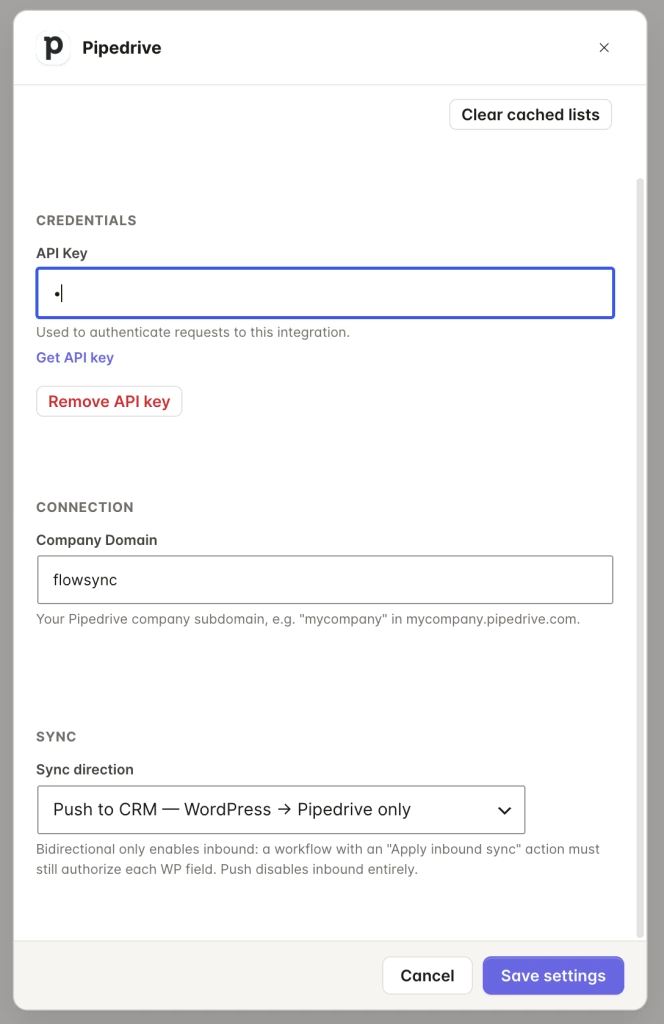
You can also choose your Sync Direction. Push to CRM means WordPress sends data to Pipedrive only. This is the default and works for most sites. Bidirectional means Pipedrive can also send data back to WordPress via webhooks, which is useful if your sales team updates contact records in Pipedrive and you want those changes reflected in WordPress. If you choose Bidirectional, you’ll also need to configure a Webhook Secret and register the webhook URL in Pipedrive under Settings, then Webhooks.
Once both fields are filled in, FlowSync can automatically create or update Persons in Pipedrive.
Step 3: Create Your First Workflow
Now let’s build a simple automation: when somebody registers on WordPress, automatically create or update a Person inside Pipedrive.
Go to FlowSync, then Workflows, then Add New. First, choose your trigger. Select WordPress User Registered. This means the workflow runs whenever a new user account is created on your site.
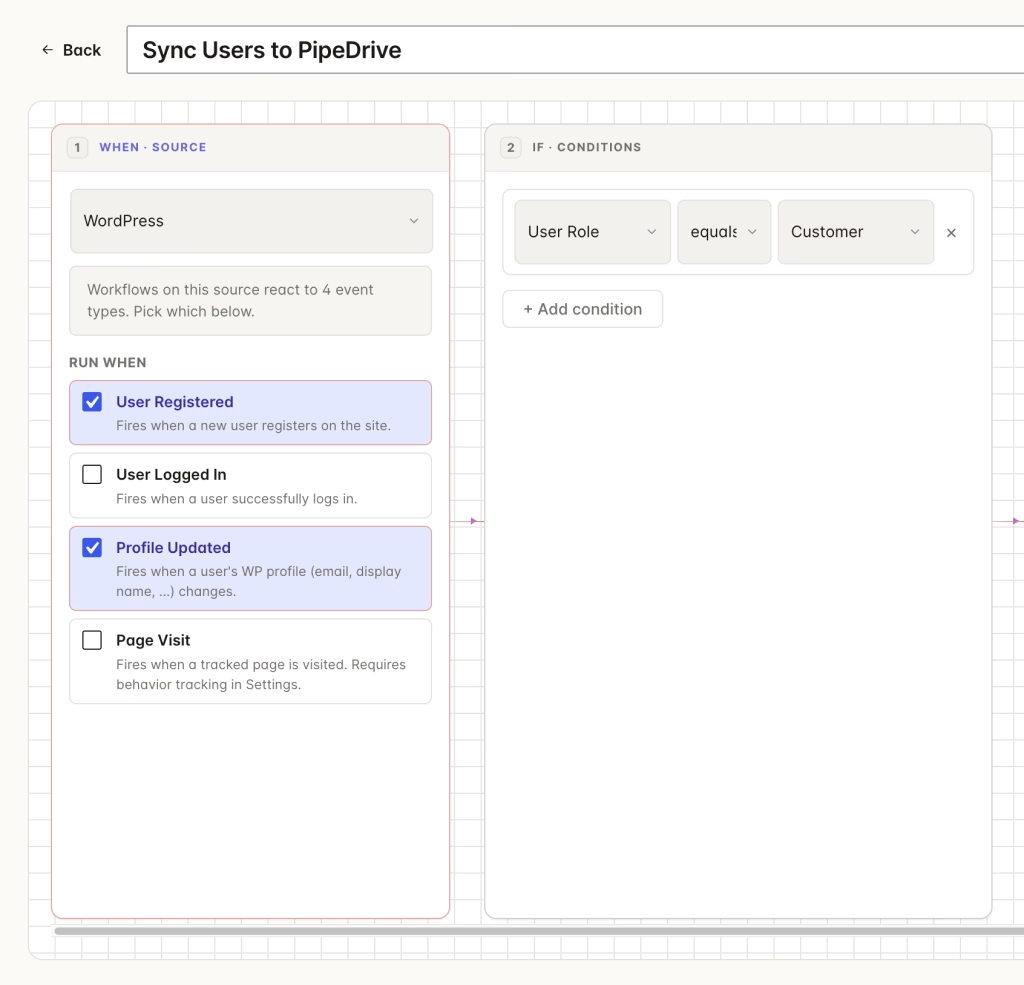
Conditions are optional but help you filter which users should sync. For example, you might only want to sync Customers, WooCommerce buyers, Members, or users from a specific membership plan. If you want all users synced, you can skip conditions entirely.
Next, add the Pipedrive action. Select Sync to Pipedrive Organization. This action creates or updates a Person in Pipedrive. It looks up the Person by email first. If a matching Person already exists, it updates the record. If no match is found, it creates a new Person.
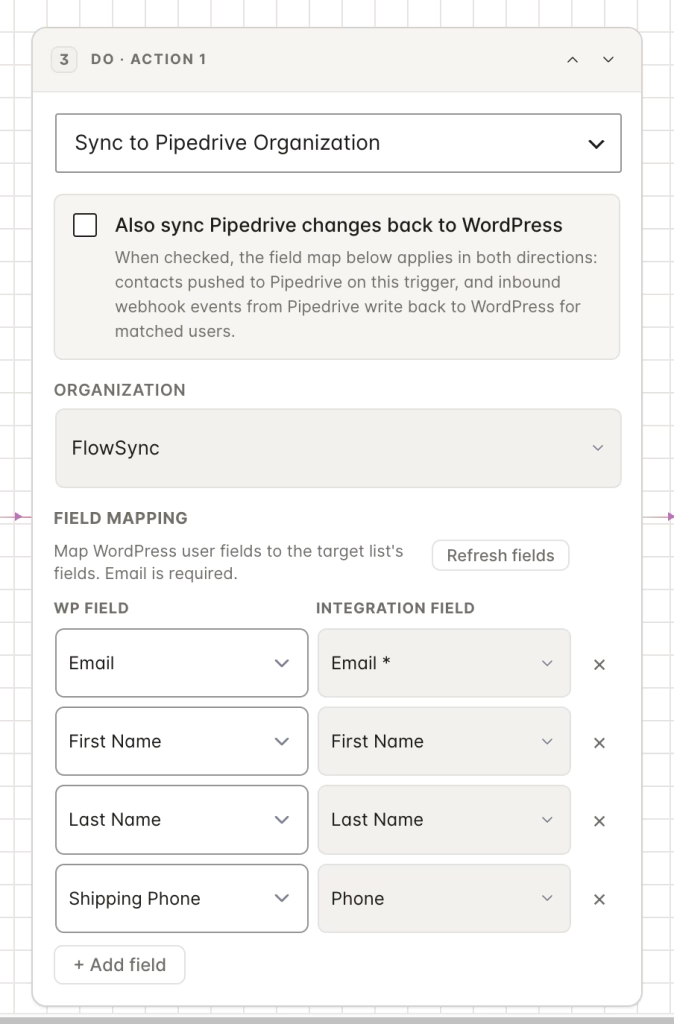
Now, map your WordPress fields to Pipedrive fields. FlowSync provides defaults: Email Address maps to email, First Name to first_name, Last Name to last_name, and Phone Number to phone. You can also fetch custom Person fields from Pipedrive and map them to any WordPress user meta field. If you want the Person assigned to a specific Pipedrive Organization, select it from the Organization picker. FlowSync fetches your live list of Organizations from Pipedrive so you can choose the right one without leaving WordPress.
Save the workflow and activate it. From this point onward, new WordPress users will automatically appear as Persons inside Pipedrive.
WooCommerce Example
WooCommerce automation is one of the most practical Pipedrive workflows for service businesses and agencies. Instead of manually entering customers into your CRM after each sale, the workflow handles it automatically.
A typical setup would use Order Completed as the trigger, with a condition that filters to a specific product category, such as Consulting. The action is Sync to Pipedrive Organization.
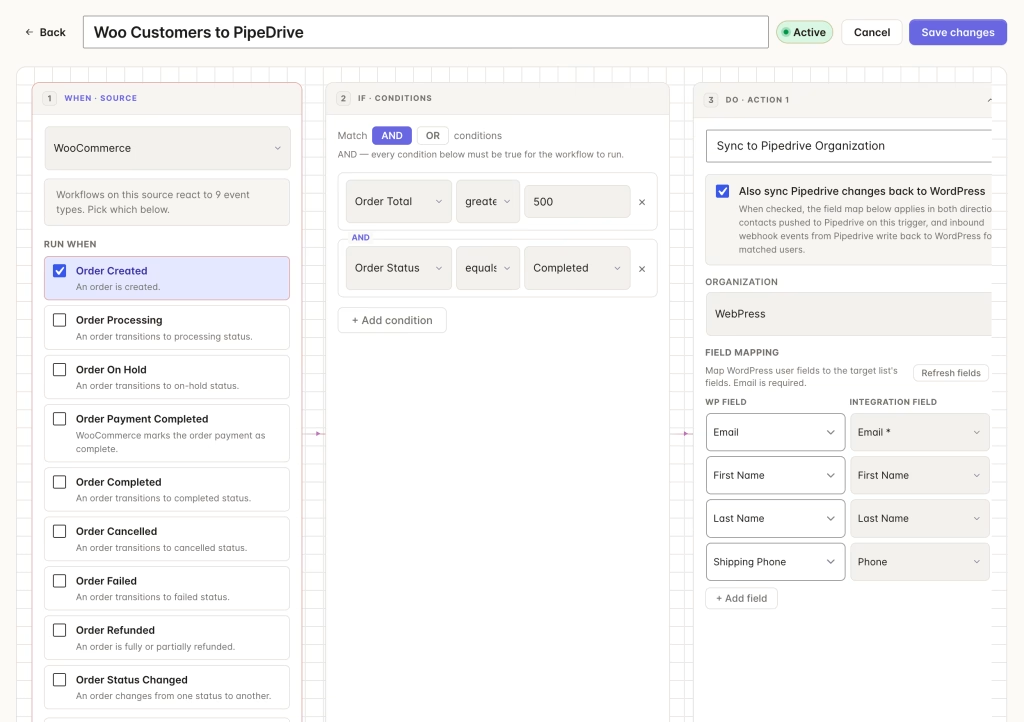
This creates or updates a Person in Pipedrive whenever a customer completes a purchase in that category. You can also assign the Person to a different Organization depending on what they bought, which helps with sales tracking, lead qualification, customer follow-up, and keeping your pipeline organized.
Membership Site Example
Suppose you run a membership website using MemberPress. You want new members added to Pipedrive automatically, premium members assigned to the correct Organization, and expired members updated so your CRM does not fill up with outdated records.
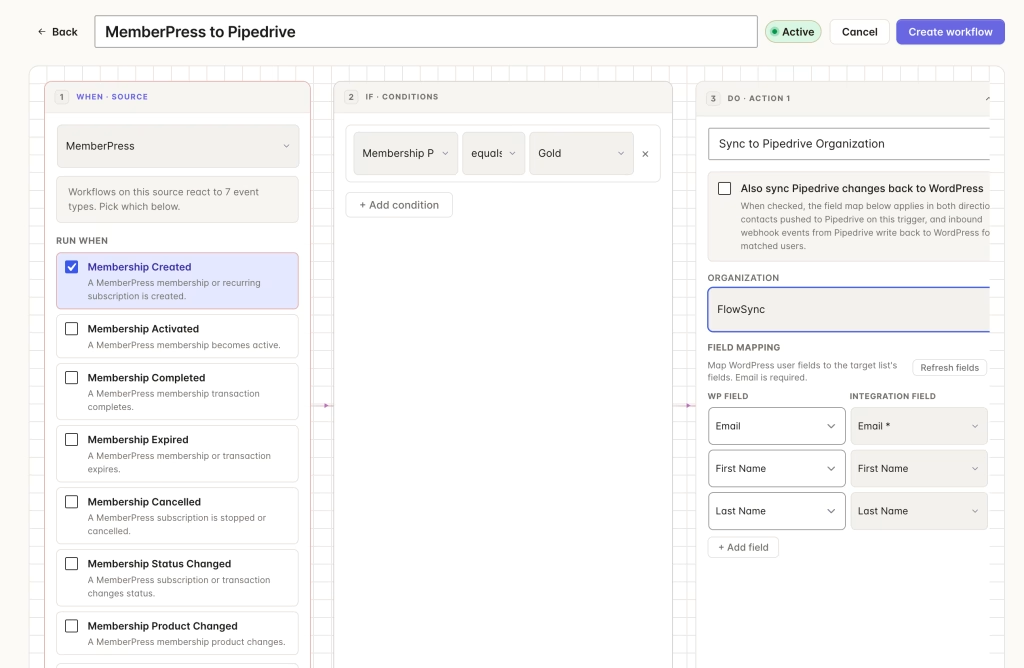
You can handle all of this with a couple of workflows. For premium members, set the trigger to Subscription Activated, add a condition that filters to the Gold membership plan, and use Sync to Pipedrive Organization as the action, assigning them to your Premium Members org. For expired members, use Subscription Expired as the trigger and Sync to Pipedrive Organization as the action.
This approach keeps your CRM cleaner automatically by updating Person records whenever membership status changes, rather than letting outdated data accumulate.
Form Lead Automation
You can also send WordPress form submissions directly to Pipedrive. A typical setup uses a form submission as the trigger (e.g., a WPForms submission) and Sync to Pipedrive Organization as the action.
This works well for consultation requests, quote forms, service inquiries, and sales lead forms. Instead of checking emails manually every day to see who filled out a form, your submissions appear directly as Persons inside Pipedrive, ready for your sales team to follow up.
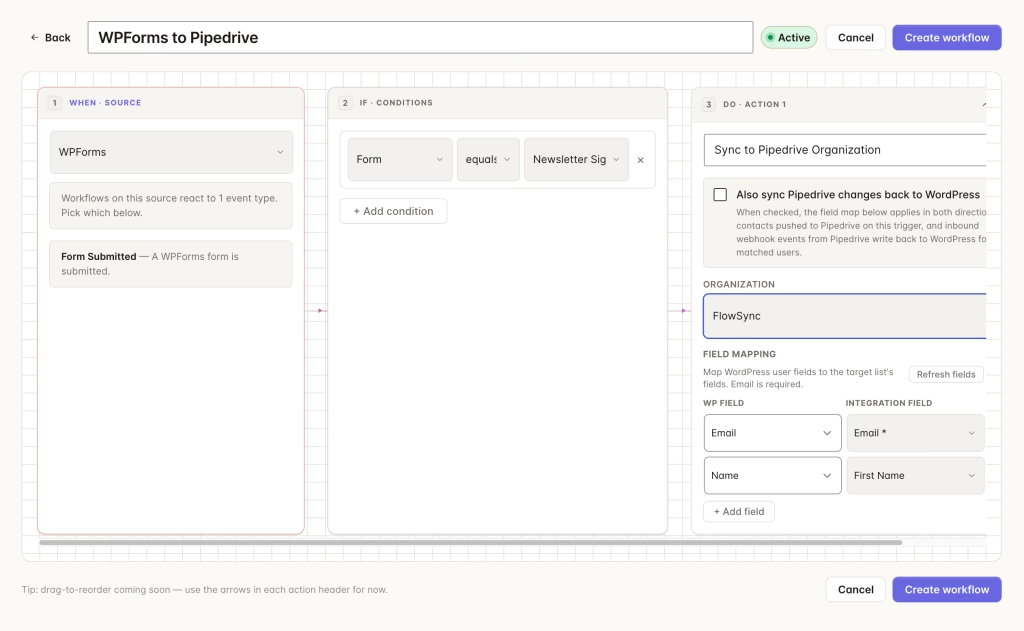
FlowSync supports several popular WordPress form plugins for this purpose, including WPForms, Gravity Forms, Contact Form 7, Elementor Forms, Fluent Forms, and SureForms.
Bidirectional Sync
If you selected Bidirectional as your sync direction, FlowSync can also receive Pipedrive webhooks when a Person is created, updated, or deleted. Setting this up takes a few steps.
In FlowSync, go to Integrations, then Pipedrive, then Configure and set Sync Direction to Bidirectional. Set a Webhook Secret. This is a key that Pipedrive will include with each webhook so FlowSync can verify the request is legitimate. Finally, copy the webhook URL from FlowSync and register it in Pipedrive under Settings, then Webhooks.
Once configured, you can create workflows where Pipedrive events act as triggers. The available events are Pipedrive Person Created, Pipedrive Person Updated, and Pipedrive Person Deleted. This is useful when your sales team updates contact details in Pipedrive and you want those changes automatically reflected in WordPress — but only for the specific WordPress user fields you authorize in your workflow. FlowSync does not blindly sync every field. Each inbound write must go through an active workflow that explicitly approves which fields get written back to the WordPress user profile.
Common Mistakes to Avoid
One common oversight is entering the API token but forgetting the company domain. Both are required for FlowSync to connect to your Pipedrive account. Without the domain, API calls will fail. Double-check that both fields are filled in before saving your integration settings.
Another mistake is placing every WordPress user into the same Pipedrive Organization. That might seem fine at first, but it becomes difficult to manage as your contact list grows. Instead, segment users based on membership plans, purchase behavior, lead source, or service interest. Use FlowSync’s conditions to route different users to different Organizations. Better segmentation usually improves sales follow-up and reporting.
Adding contacts is only part of the process. You should also automate what happens when memberships expire, subscriptions are canceled, leads go cold, or deals close. Otherwise, your CRM eventually becomes cluttered with outdated customer records. Use subscription and membership triggers to keep Pipedrive up to date as customer statuses change.
Before using any workflow on a live website, test it properly. Create a test user and confirm that the Person appears in Pipedrive, fields sync correctly, duplicate Persons are not created (FlowSync matches by email), conditions work properly, and Organization assignment is correct. Taking a few minutes to verify this upfront avoids confusion later when real customer data starts flowing into the CRM.
Why Native WordPress CRM Automation Helps
Some site owners connect WordPress and Pipedrive using external automation tools that sit between the two platforms. That setup can work, but it introduces another layer that can fail, adds latency, and creates a separate system to monitor and troubleshoot.
With native WordPress automation, workflows run closer to your website data. Membership plugins integrate directly. User events trigger immediately. CRM syncing happens automatically inside WordPress. There are fewer moving parts to troubleshoot, and everything lives in one place. FlowSync focuses specifically on WordPress CRM workflows rather than trying to become a broad automation platform that handles everything from social media scheduling to invoice generation.
FAQ
Can I sync existing WordPress users to Pipedrive?
Yes. You can manually run workflows to sync existing users into Pipedrive using FlowSync’s manual run feature. This is useful when connecting Pipedrive to an already active website with hundreds or thousands of existing users.
Does this work with WooCommerce?
Yes. WooCommerce customers can be synced automatically based on products, categories, and order activity. They are created or updated as Persons in Pipedrive, and you can assign them to Organizations based on what they purchased.
Can I create Persons automatically from WordPress forms?
Yes. Supported WordPress form plugins, including WPForms, Gravity Forms, Contact Form 7, Elementor Forms, Fluent Forms, and SureForms, can automatically create or update Persons inside Pipedrive.
Does this require coding?
No. The workflows are created directly inside WordPress using the FlowSync workflow builder. You select triggers, optionally add conditions, choose actions, and map fields. No code is needed.
Can I update existing Pipedrive Persons?
Yes. FlowSync looks up Persons by email. If a matching Person is found, it updates the existing record. If no match exists, it creates a new one. This means you can run the same workflow repeatedly without creating duplicates.
Can Pipedrive update WordPress?
Yes, if you enable bidirectional sync. When a Person is created, updated, or deleted in Pipedrive, a webhook can trigger a workflow in FlowSync that writes approved fields back to the corresponding WordPress user profile.
What Pipedrive fields can I sync?
FlowSync supports the standard Person fields (email, first name, last name, phone) plus any custom Person fields you have defined in your Pipedrive account. Custom fields are fetched automatically from the Pipedrive API so they appear in the field mapping dropdown without any manual configuration.
That’s how to sync WordPress users to Pipedrive automatically
As your WordPress website grows, manually managing CRM data becomes difficult. Users register, purchases happen, memberships change, and new leads arrive constantly. Without automation, your CRM eventually becomes outdated and unreliable.
A proper WordPress-to-Pipedrive workflow helps you reduce manual work, improve lead management, keep Person records updated, assign Persons to the right Organizations, trigger sales workflows automatically, and optionally sync data back from Pipedrive to WordPress when you enable bidirectional sync.
The goal is simple: when something important happens on your WordPress site, your CRM should react automatically. That is exactly what FlowSync is designed to do.