
TAPNET Lead Engine is a lead intake API. It takes leads in, and your sales team works them inside TAPNET. This page covers connecting FlowSync to TAPNET and sending WordPress registrations, form entries, or orders in as leads.
TAPNET works a little differently from the list-based email platforms FlowSync connects to. There are no lists to pick, no contact lookup, and no way to remove a contact. So FlowSync gives you one action, “Send Lead to TAPNET”, and that is the whole surface.
What you’ll need
- A TAPNET Lead Engine account with at least one intake source set up.
- The intake API key for that source.
- FlowSync installed and active on your WordPress site.
- A WordPress user with the
manage_flowsynccapability (admins have this by default).
Step 1: Get your TAPNET Intake API Key
In Tapnet, navigate to the Growth Hub and click on the API Docs nav link on the left sidebar.
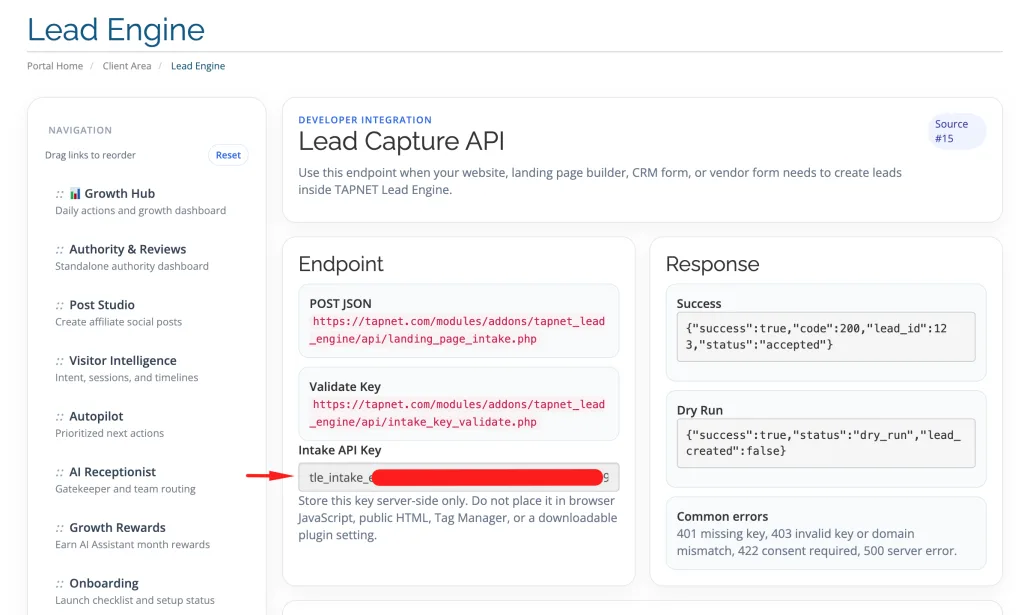
Copy the intake API key and proceed to the next step.
Step 2: Connect TAPNET in FlowSync
In WordPress, go to FlowSync → Integrations, find the TAPNET Lead Engine card, and click Configure. Paste your intake API key and save.
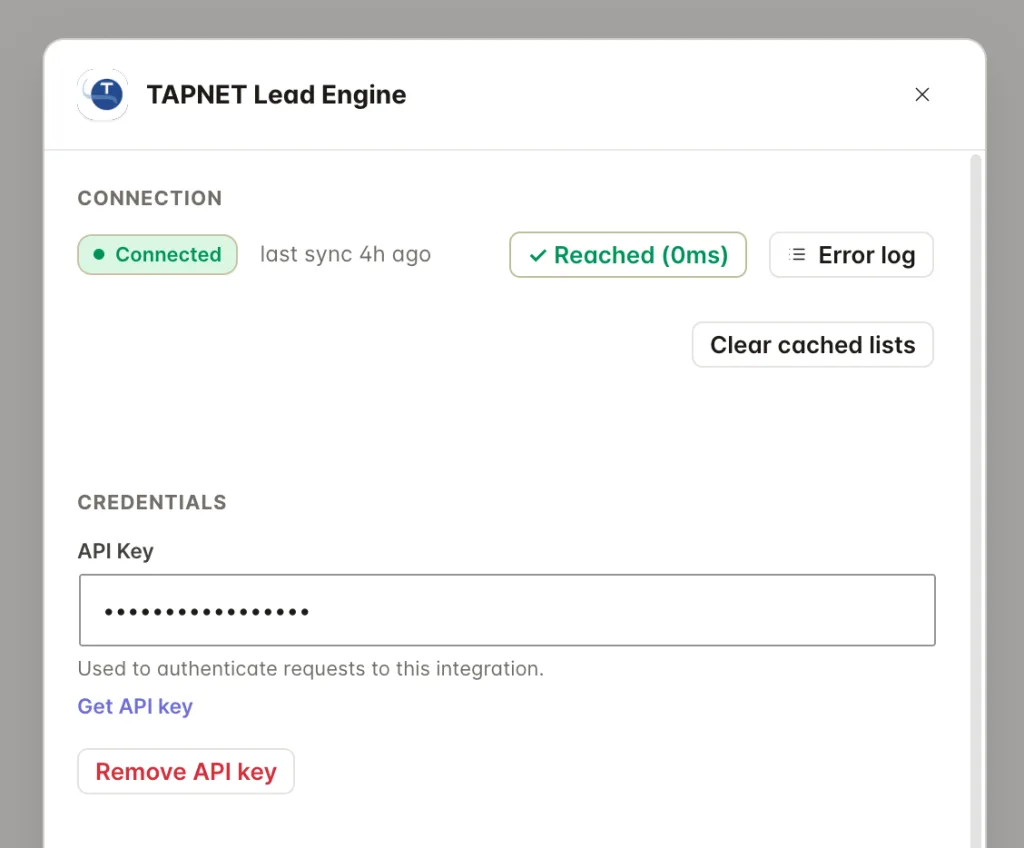
Four optional settings sit under the key:
- Intake URL. Leave this blank unless TAPNET gave you a custom endpoint. Blank uses the standard intake URL.
- Consent. Choose “Implied consent” to send a consent flag with every lead. Intake sources configured to require consent will reject leads without it.
- Default Service Interest and Default Target Location. Sent with every lead. A workflow that maps its own value overrides the default.
- Default Tags. Comma-separated. These are merged with any tags a workflow maps, not replaced by them.
Step 3: Add the Send Lead action to a workflow
Open a workflow, add an action, and pick Send Lead to TAPNET.
The Destination picker shows a single entry, “All leads”. That is expected. TAPNET routes leads by API key, not by list, so the picker exists only because every FlowSync action has a target. You do not need to change it.
Step 4: Map your fields
By default, FlowSync maps:
| WordPress | TAPNET |
|---|---|
email | |
| Full name | name |
Free covers these two identity fields. Pro adds the rest of the TAPNET intake schema to the mapping dropdown:
- Lead details: phone, company, message, service interest, target location, preferred contact method, callback time, external ID, tags.
- Submission context: page URL, page title, referrer, form ID, and the five UTM fields (source, medium, campaign, term, content).
Anything you map that is not one of those goes into the lead’s custom_fields object, so a field your own intake source defines still gets through. Developers can add it to the dropdown with the flowsync_tapnet_contact_fields filter, and reshape the final request body with flowsync_tapnet_lead_payload.
FlowSync generates an external ID for every lead when you have not mapped one, so a resent lead can be traced back.
If something goes wrong
- “TAPNET rejected the request: the intake API key is missing.” The key did not reach TAPNET. Reopen the configure modal and confirm it saved.
- “invalid key, disabled intake source, or domain mismatch.” Three separate causes behind one 403. Check the key is current, the intake source is enabled in TAPNET, and that any domain restriction on the key allows this site. FlowSync sends leads server to server with no browser origin header, so a key restricted by request origin rather than by registered domain or IP will always fail here.
- “this intake source requires consent.” Set Consent to “Implied consent (send consent flag)” in the TAPNET settings.
- “TAPNET rejected the lead.” TAPNET accepted the request but refused the lead itself, usually a validation problem. The sync log carries TAPNET’s own message.
- Rate limit reached. FlowSync retries rate-limited leads automatically after a short wait. Repeated failures mean the run genuinely exceeded your allowance.
- Check the sync log. Every failed lead records the exact error TAPNET returned.
Still need help? Contact our support team, and we’ll help you get it working.