
Want new WordPress users, members, or form leads to land in Sender (sender.net) automatically? This page covers connecting FlowSync to Sender and syncing contacts into your groups.
One thing to know before you start: Sender calls its lists groups. Anywhere you’d expect a “list” picker in FlowSync, Sender shows a group instead. It’s the same concept, just a different name.
Sender connects with an API access token. There’s no OAuth screen to click through.
What you’ll need
- A Sender account with at least one group created.
- An API access token from your Sender dashboard.
- FlowSync installed and active on your WordPress site.
Step 1: Get your API access token from Sender
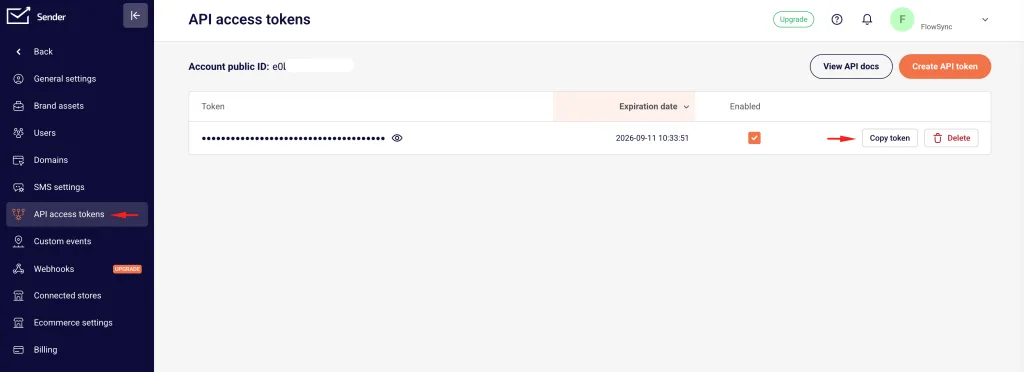
In Sender, open Account Settings and click the API access tokens tab (Sender’s token screen lives at /settings/tokens). Generate a new access token and copy it.
Step 2: Connect Sender in FlowSync
In WordPress, go to FlowSync → Integrations, find the Sender card, and click Connect. Paste the token into the API Key field and click Save settings.
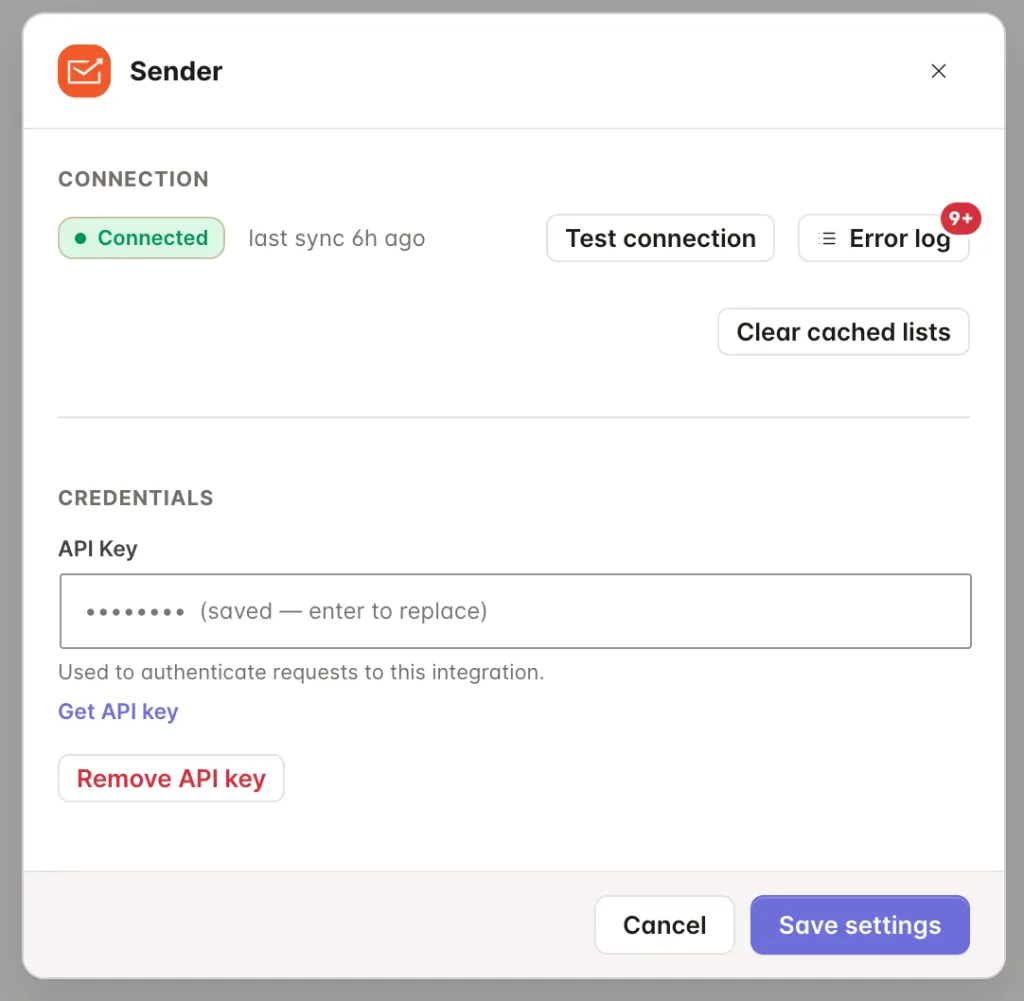
Click Test connection to confirm; a working connection shows Reached with a response time.
Step 3: Add a Sender action to a workflow
Open a workflow and add an action:
- Add to Sender Group adds or updates a contact and puts them in the selected group.
- Remove from Sender Group removes the contact from that group only.
Adding a contact is a non-destructive upsert. Running the same workflow twice on the same person won’t wipe anything: Sender updates the fields you send and leaves everything else as it was. Adding a contact to a second group with a separate workflow doesn’t remove them from the first. Groups only add up; they don’t overwrite each other.
For developers: by default, a FlowSync sync does not trigger any Sender automation attached to the group. This stops a workflow from unexpectedly emailing an existing audience. Set the
flowsync_sender_trigger_automationfilter totrueif you want adds to fire group automations.
Step 4: Map your fields
By default, FlowSync maps:
| WordPress | Sender |
|---|---|
email |
|
| First name | firstname |
| Last name | lastname |
| Phone | phone |
These four are built into every Sender subscriber record. Anything else you map goes into a Sender custom field.
Sender’s custom fields use a token, shown in Sender’s own dashboard and in the FlowSync field picker as {{fieldname}}. Pick the token from the list, or type a bare field name (like company) and FlowSync wraps it in {{ }} for you.
The daily subscriber-write quota
Sender caps the number of times you can add or update a subscriber in one day. This is separate from the normal per-minute API limit, and it’s the one thing about Sender that behaves differently from every other CRM FlowSync connects to.
A few things worth knowing:
- The cap applies only to adding and updating subscribers. Removing a contact from a group doesn’t count against it.
- If a workflow hits the cap, FlowSync doesn’t fail the run. It pauses and retries automatically, spacing retries out on a widening interval so it isn’t hammering Sender while the cap is in effect.
- A manual run that gets paused this way picks back up where it left off once writes resume. You don’t lose progress, and you don’t need to restart it.
- Sender reports a reset time in its API response, but capacity actually comes back gradually as older writes age out, not all at once at that exact time. FlowSync checks in periodically rather than waiting for the reported time, so writes often resume well before then.
In short: if you see a workflow pause on Sender, it’s working as designed. The run isn’t lost; it’s waiting for room to write again.
Group removal timing
If a workflow adds a contact to a group and then removes them from it right after (for example, moving someone between two groups in the same run), leave about 30 seconds between the two steps.
Sender recalculates who’s in a group in the background rather than instantly, so a removal that runs immediately after an add can fail even though the contact really is there. FlowSync doesn’t pretend this succeeded. It reports an honest failure so you can re-run the action once Sender has caught up, instead of silently leaving the contact in a group you meant to remove them from.
If something goes wrong
- Test connection fails with an auth error. The API access token is wrong, expired, or was revoked. Generate a new one in Sender and re-save it in FlowSync.
- A remove action fails right after an add. This is the group removal timing issue above. Wait about 30 seconds, then rerun the workflow.
- A workflow keeps failing with a quota message. Sender’s daily subscriber-write cap is spent for this account. FlowSync will keep retrying on its own; check back later or reduce the number of contacts the workflow processes at once.
- Custom field doesn’t populate. Confirm you picked the field’s real token from the picker instead of guessing a name, and that it isn’t accidentally mapped to one of the four built-in fields (email, firstname, lastname, phone), which have their own row and won’t accept a second mapping.
- Check the sync log. Failed syncs record the exact error Sender returned.
Still need help? Contact our support team and we’ll help you get it working.