
FlowSync turns LifterLMS course and membership activity into CRM or email automation. Students land in your CRM when they enroll, and completions, quiz results, and membership changes can trigger tags, list moves, or follow-up emails.
LifterLMS is a free FlowSync source. Install both plugins and the trigger shows up; no license needed.
What you’ll need
- LifterLMS installed and active.
- FlowSync installed and active.
- An integration already connected in FlowSync (Integrations).
Available triggers
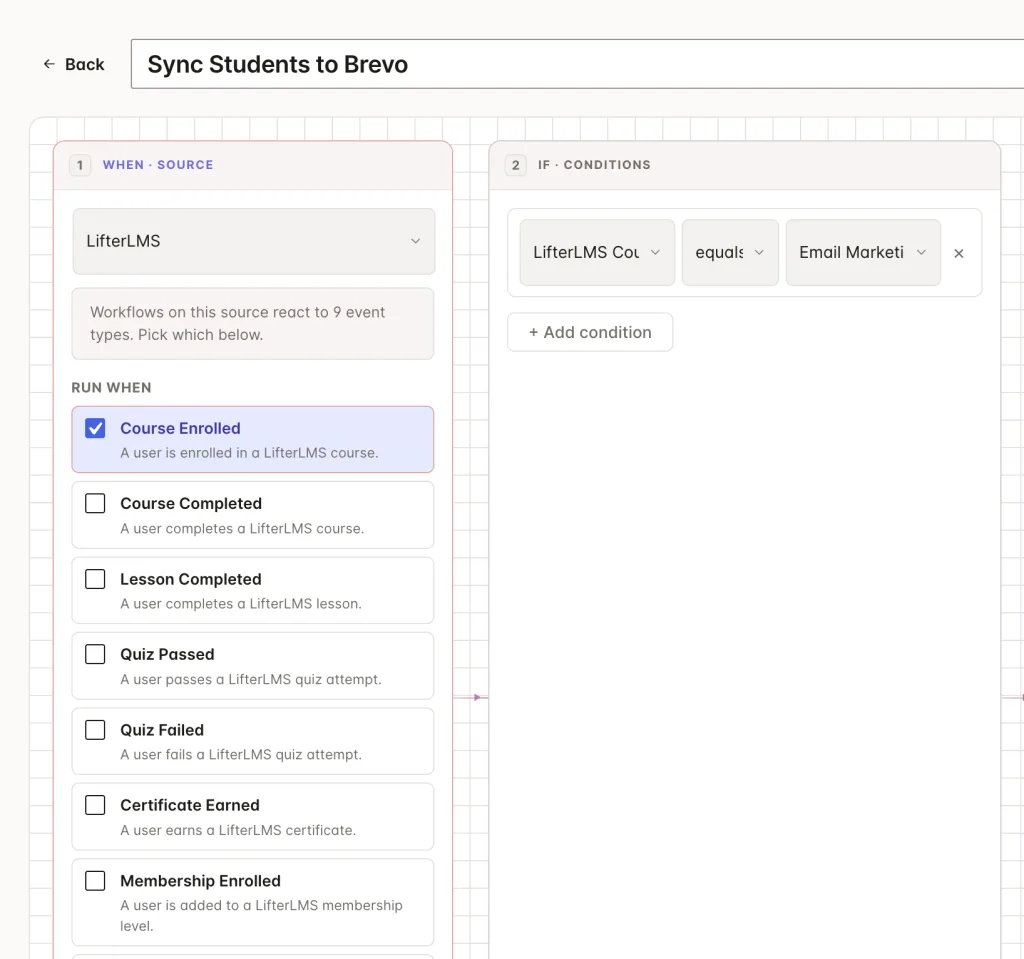
- Course Enrolled: a student is enrolled in a course, by purchase, admin, or membership.
- Course Completed: a student finishes a course.
- Lesson Completed: a student completes a lesson. Includes the lesson and its parent course.
- Quiz Passed: a student passes a quiz attempt.
- Quiz Failed: a student fails a quiz attempt. Useful for remedial-content emails.
- Certificate Earned: a student earns a certificate.
- Membership Enrolled: a user is added to a membership level.
- Membership Expired: a user’s membership access expires.
- Membership Canceled: a user is removed from a membership level for any reason other than expiry.
Step 1: Create a workflow
Go to FlowSync > Workflows and click Add New. Give it a name, for example “Course completions to Mailchimp.”
Step 2: Choose LifterLMS as the source
Under trigger source, select LifterLMS, then pick a trigger such as Course Enrolled or Course Completed. Add a condition if you only want a subset, for example, LifterLMS Courses equals a specific course, or LifterLMS Event Status equals completed.
Step 3: Add your CRM action
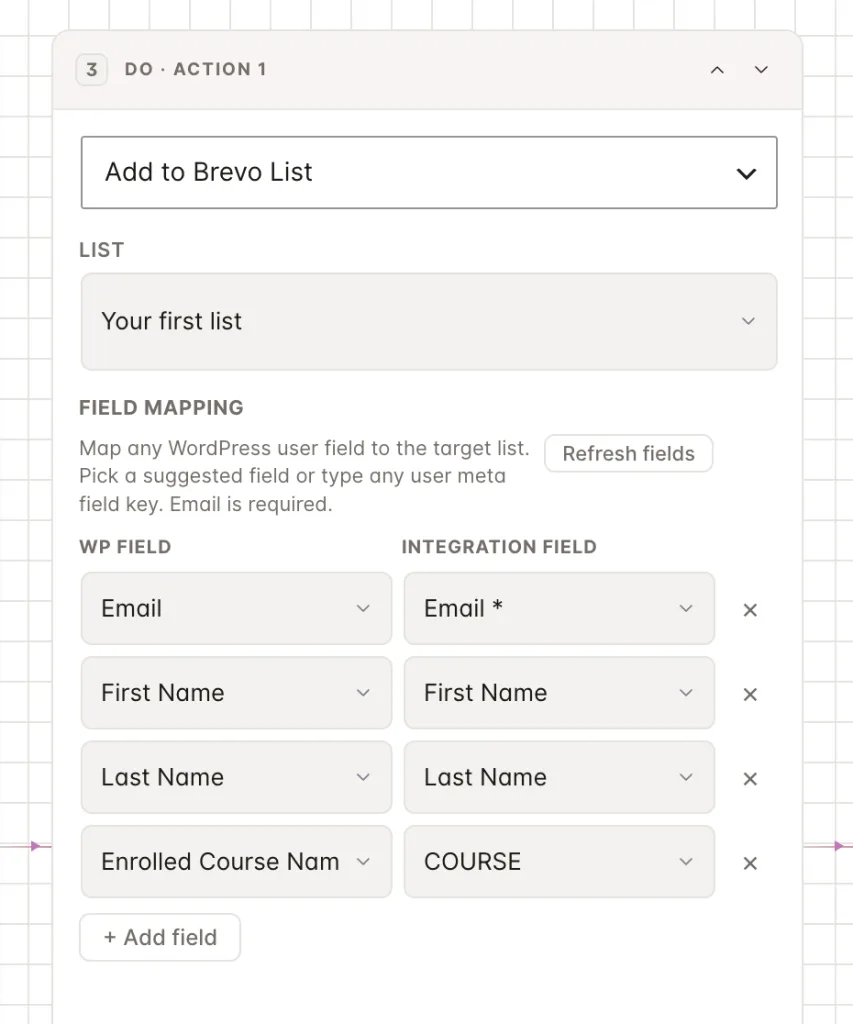
Under Actions, select your connected CRM and choose an action, such as Add to List or Add Tag.
A common setup is two workflows per course: Course Enrolled adds the student to your “active students” list, and Course Completed moves them to a “graduates” segment or applies a completion tag.
Step 4: Map your fields
Standard identity fields (email, first name, last name) map like any other source. With FlowSync Pro active, LifterLMS also contributes its own mapping fields, grouped in the field picker under LifterLMS · Courses, LifterLMS · Memberships, and LifterLMS · Triggering Event.
| Group | Fields |
|---|---|
| Courses | Enrolled course IDs, names, and count; completed course IDs, names, and count |
| Memberships | Membership IDs, names, and count |
| Triggering event | Course, lesson, quiz, certificate, and membership ID and name, plus event status |
Course-level fields are resolved live from the student record, so they populate even during a manual run with no event context. Triggering-event fields use the event that started the workflow. Course, quiz, and membership targeting still happens through conditions, so a single workflow can serve either one course or all of them.
Save the workflow, then set it to Active.
If something goes wrong
Enroll a test student and check FlowSync > Logs for the run before assuming something’s broken.
- Trigger source doesn’t show LifterLMS. LifterLMS isn’t active, or FlowSync needs a page reload after activating it.
- Membership Expired never fires. Expiry is determined by LifterLMS’s own access expiration and applies only to plans with a set access period. Removals by admin or cancellation fire Membership Canceled instead.
- Quiz workflows fire more than once per student. Quiz events fire per attempt. A student who retakes a quiz triggers the workflow again. Add a condition or use your CRM’s idempotent actions (add to list is safe to repeat) if that matters.
- Enrollment fires but the student isn’t in the CRM. Check the workflow’s conditions in the log entry. A course condition that doesn’t match the enrolled course skips the run.
Running LearnDash on another site? See Sync LearnDash Students to Your CRM. New to FlowSync? Start with your first workflow in five steps.
Still need help? Contact our support team, and we’ll help you get it working.