
Want new customers, members, or form leads to land in a Drip campaign without a CSV export? This page covers connecting FlowSync to Drip and syncing WordPress users into campaigns, tags, and custom fields.
One thing to know up front: Drip has no lists. Subscribers are global to your account, and you segment them with campaign membership and tags. So where other integrations ask you to pick a list, Drip asks you to pick a campaign.
What you’ll need
- A Drip account.
- Your Drip API token and your Drip account ID.
- FlowSync installed and active on your WordPress site.
- A WordPress user with the
manage_flowsynccapability (admins have this by default).
Step 1: Get your Drip API token and account ID
In Drip, open your user settings and copy the API token.
The account ID is a number, not a name. Find it in Drip under Settings → General Info, or read it out of your dashboard URL: the digits right after /accounts/. Every Drip API call is scoped to one account, so FlowSync needs both values.
Step 2: Connect Drip in FlowSync
In WordPress, go to FlowSync → Integrations, find the Drip card, and click Configure. Paste the API token and the account ID, then save.
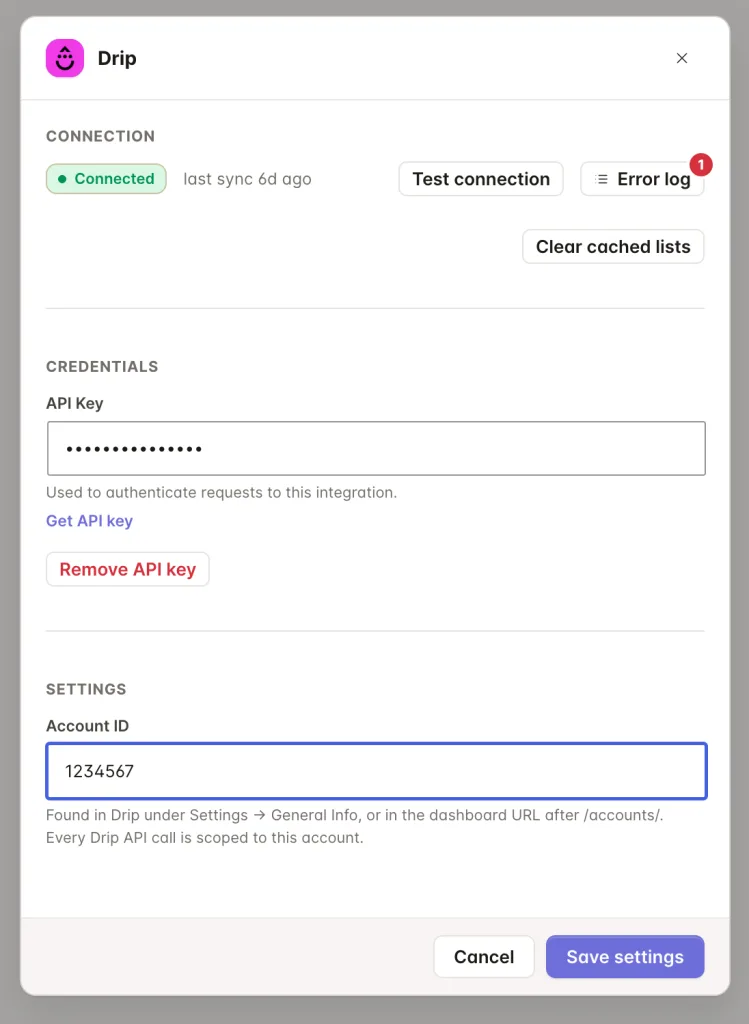
Click Test connection. A working connection shows Reached with a response time. FlowSync tests by asking Drip for a single campaign, so a token that works but points at the wrong account will fail here rather than silently syncing nothing.
Step 3: Add a Drip action to a workflow
Open a workflow and add an action. Drip gives you four:
- Subscribe to Drip Campaign adds or updates the subscriber and starts them on the campaign you pick. Drip’s subscriber endpoint performs upserts by email, so a single request covers both new and existing subscribers. FlowSync turns Drip’s own double opt in off for this action, because you already decided to add them when you built the workflow.
- Remove from Drip Campaign unsubscribes the person from that one campaign. Their subscriber record and every other campaign they are on stay intact.
- Add Drip Tag and Remove Drip Tag manage tags without touching campaign membership. Adding a tag to an email Drip has never seen creates the subscriber.
Nothing here deletes a subscriber. Removal actions unlink only at the target level.
Step 4: Map your fields
By default, FlowSync maps:
| WordPress | Drip |
|---|---|
email | |
| First name | first_name |
| Last name | last_name |
| Phone | phone |
Free maps these core identity fields. Pro adds the rest of Drip’s top-level subscriber properties to the dropdown, plus your account’s custom fields.
Drip’s top-level properties are: email, new email, first name, last name, phone, address line 1, address line 2, city, state, zip, country, and time zone. Anything else you map is sent inside the subscriber’s custom_fields object.
Why a custom field might not appear in the dropdown: Drip stores custom fields without a schema. Its API can only report identifiers that are already in use on at least one subscriber. A brand new custom field shows up in the list after the first subscriber carries it. You can always type the identifier into the mapping field yourself rather than waiting for it.
If something goes wrong
- Test connection fails right after saving. Check the account ID first. A valid token with the wrong account ID is the most common cause, and it looks the same as a bad token.
- The campaign dropdown is empty. FlowSync lists active campaigns only. A campaign that is paused or still in draft in Drip will not appear.
- Subscribers are created but never start the campaign. Confirm the workflow uses Subscribe to Drip Campaign and not a bare tag action. A tag action creates the subscriber but starts nothing.
- A mapped field is not showing on the subscriber. If the key is not one of Drip’s top level properties, it went into
custom_fields. Check the subscriber’s custom fields in Drip before assuming the sync failed. - Check the sync log. Failed syncs record the exact error Drip returned.
Still need help? Contact our support team and we’ll help you get it working.