
FlowSync turns WooCommerce Subscriptions lifecycle events into CRM or email automation. New subscribers, renewal payments, cancellations, and expirations can each move a contact between CRM lists, so your CRM reflects who’s actually still paying.
What you’ll need
- WooCommerce and WooCommerce Subscriptions installed and active.
- An integration already connected in FlowSync (Integrations).
Available triggers
- Subscription Created — a WooCommerce subscription is created. Default on.
- Subscription Activated — a subscription becomes active.
- Subscription Payment Completed — a payment completes, on both the initial signup and every renewal.
- Subscription Renewed — a renewal payment completes, renewals only, never the initial signup.
- Subscription Canceled — a subscription is canceled.
- Subscription Expired — a subscription expires. Default on.
- Subscription Status Changed — a subscription’s status changes for any reason.
Step 1: Create a workflow
Go to FlowSync > Workflows and click Add New. Give it a name, for example, “Renewals to ActiveCampaign.”
Step 2: Choose WooCommerce Subscriptions as the source
Under trigger source, select WooCommerce Subscriptions, then pick a trigger such as Subscription Created or Subscription Renewed. Add a condition using Subscription Status or Subscription Product IDs if needed.
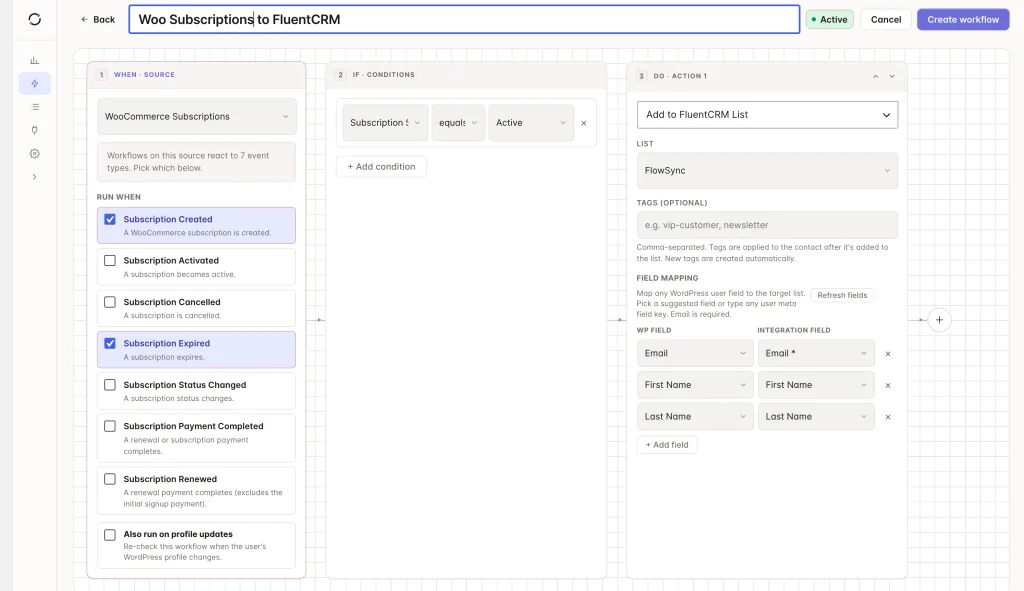
Step 3: Add your CRM action
Under Actions, choose your connected CRM. Use Add to List for active subscribers, or Remove from List for cancelled or expired ones.
Step 4: Map your fields
| Source field | Maps to |
|---|---|
| Contact email | |
| First/Last Name | First/last name |
| Product Names | Custom field or tag |
| Subscription Status | Custom field or tag |
Every event carries subscription_id, subscription_status, product_ids, and product_names. Status-change events also carry old_status and new_status.
Free keeps the field mapper scoped to core identity fields. FlowSync Pro unlocks the full set: WooCommerce Subscription Details (Subscription ID, Status, Old/New Status, Product IDs, Product Names) and the full billing/shipping address on the subscription.
Save the workflow, then set it to Active.
If something goes wrong
Purchase a test subscription product, or change a test subscription’s status from WooCommerce > Subscriptions, then check FlowSync > Logs for the run.
- Renewal payments trigger the wrong workflow. Use Subscription Renewed for renewal-only automation. Subscription Payment Completed fires on both the initial signup and every renewal.
- New subscriber doesn’t appear in the CRM. Confirm the workflow is Active. Subscription Created covers both checkout-created subscriptions and ones created any other way.
- Expired or cancelled subscribers stay on active CRM lists. Add a separate workflow with the Subscription Expired or Subscription Cancelled trigger and a Remove from List action.
- Product-based condition never matches. Subscription Product IDs compares the numeric product ID, not the product name. Confirm the subscription actually contains that product as a line item.
Still need help? Contact our support team and we’ll help you get it working.