
FlowSync listens to Paid Memberships Pro’s membership lifecycle and turns it into CRM or email automation. New members can be added to a welcome list, expired members can be removed from active lists, and level changes can move a contact to a different segment.
What you’ll need
- Paid Memberships Pro installed and active.
- An integration already connected in FlowSync (Integrations).
Available triggers
- Membership Created — a user is assigned a membership level. Default on.
- Membership Activated — a membership becomes active.
- Membership Renewed — a recurring subscription payment completes.
- Membership Expired — a membership reaches its expiry date. Default on.
- Membership Cancelled — a membership is cancelled.
- Membership Level Changed — a user’s level changes, upgrade or downgrade.
- Membership Status Changed — a membership’s status changes for any reason.
Step 1: Create a workflow
Go to FlowSync > Workflows and click Add New. Give it a name, for example “New PMPro members to HubSpot.”
Step 2: Choose Paid Memberships Pro as the source
Under trigger source, select Paid Memberships Pro, then pick a trigger such as Membership Created or Membership Expired. Add a condition based on Membership Level or Membership Status if you want only a specific plan.
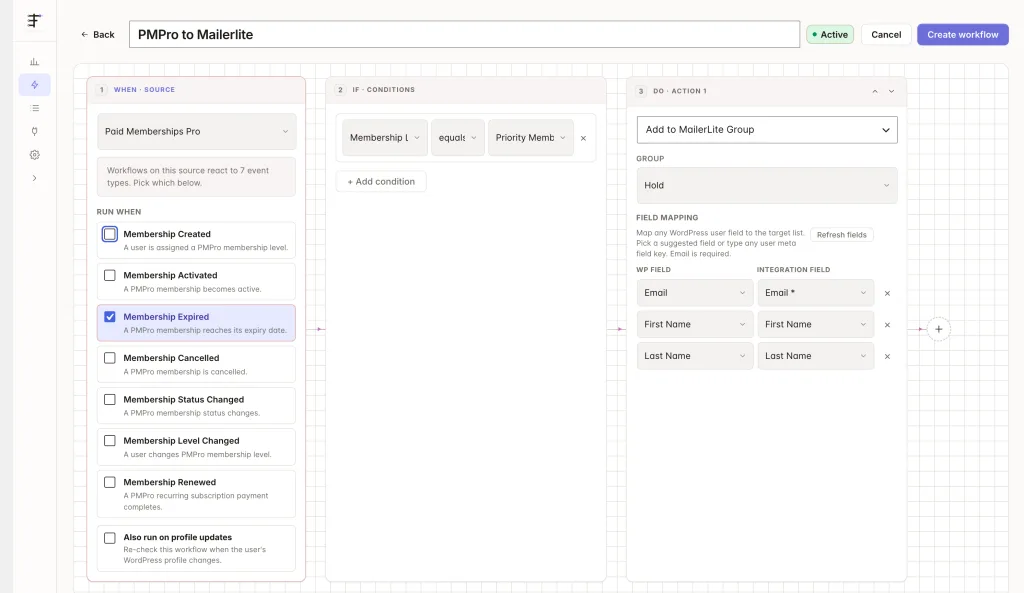
Step 3: Add your CRM action
Under Actions, choose your connected CRM. Use Add to List for new or active members, or Remove from List for expired or cancelled ones.
Step 4: Map your fields
| Source field | Maps to |
|---|---|
| Contact email | |
| First/Last Name | First/last name |
| Level Name | Custom field or tag |
| Membership Status | Custom field or tag |
| Billing Amount | Custom field |
Every event carries level_id, level_name, membership_status, start_date, expiry_date, billing_amount, and order_id.
On FlowSync Pro, the field picker adds PMPro · Membership (Level ID(s)/Name(s), Status, Membership Row ID(s), Start Date, Expiry Date, Renewal Date, Billing Amount) and PMPro · Billing (Billing First/Last Name, Address, City, State, Postal Code, Country, Phone, Email). Custom fields you’ve added under PMPro’s field groups also appear automatically.
Save the workflow, then set it to Active.
If something goes wrong
Sign up a test account for a paid level, or change a test user’s level from PMPro’s admin tools, then check FlowSync > Logs for the run.
- New members don’t appear in the CRM. Confirm the trigger is Membership Created, not Membership Activated, and that the workflow is Active.
- Renewal payments don’t trigger the workflow. Use Membership Renewed. It fires only on the recurring payment, separate from the initial checkout.
- Level Changed condition never matches. It compares the user’s full set of level IDs before and after, so it only fires when that set actually changes. For “member has level X,” use a Membership Level condition on a status-based trigger instead.
- Expired members stay on active CRM lists. Add a second workflow with the Membership Expired trigger and a Remove from List action. FlowSync doesn’t automatically reverse an earlier add.
Still need help? Contact our support team and we’ll help you get it working.