
Want new WordPress users, members, or form leads to land in EmailOctopus automatically? This page covers connecting FlowSync to EmailOctopus and syncing contacts into your lists.
EmailOctopus connects with an API key. There’s no OAuth screen to click through.
What you’ll need
- An EmailOctopus account with at least one list created.
- An API key from Developer → API Keys in your EmailOctopus dashboard.
- FlowSync installed and active on your WordPress site.
Step 1: Get your API key from EmailOctopus
In EmailOctopus, go to Developer → API Keys and generate a key. Copy it.
Step 2: Connect EmailOctopus in FlowSync
In WordPress, go to FlowSync → Integrations, find the EmailOctopus card, and click Connect. Paste the key into the API Key field and click Save settings.
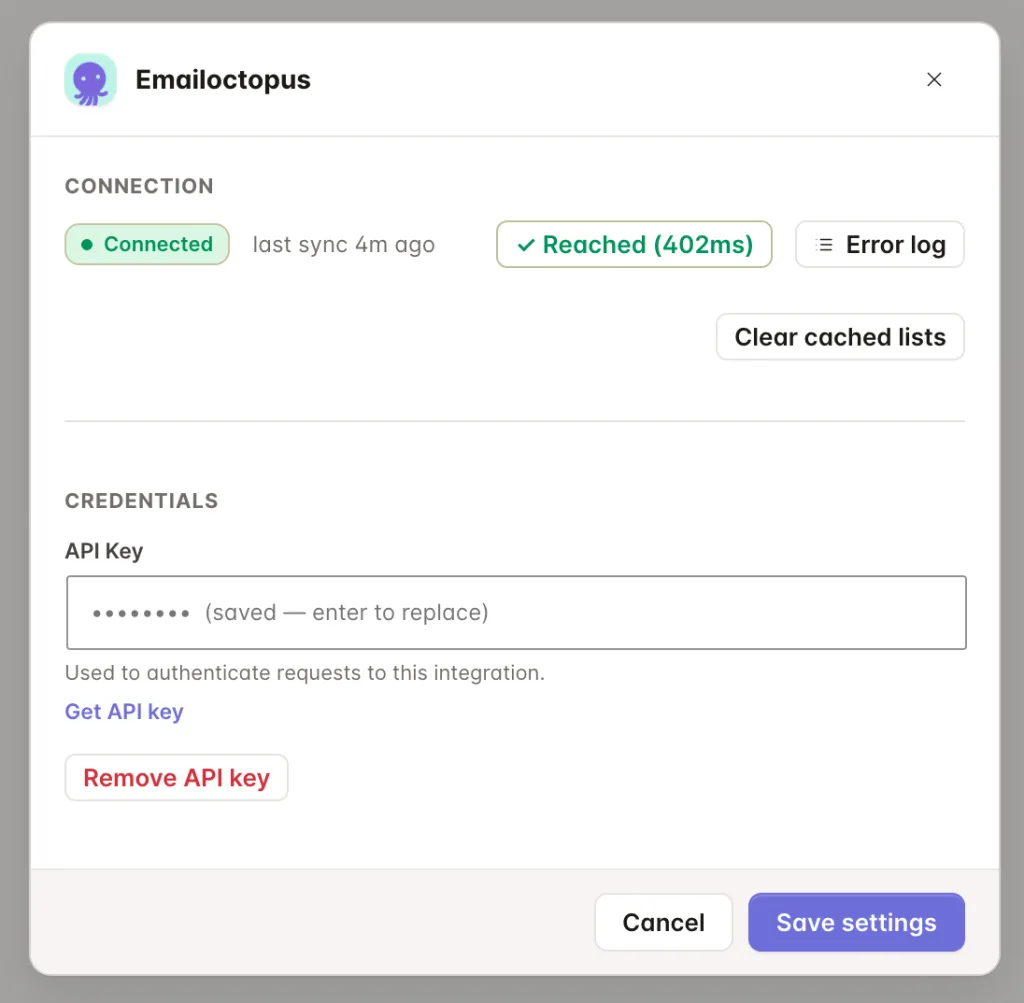
Click Test connection to confirm; a working connection shows Reached with a response time.
Step 3: Add an EmailOctopus action to a workflow
Open a workflow and add an action:
- Add to EmailOctopus List adds or updates a contact on the selected list and can apply tags in the same action.
- Remove from EmailOctopus List removes the matching contact from that list.
- Add EmailOctopus Tag / Remove EmailOctopus Tag also requires a List to be selected, since tags and custom fields are per-list in EmailOctopus.
For developers: EmailOctopus identifies a contact by the MD5 hash of the lowercased email, so a typo or a differently-cased email between the add and a later remove/tag action won’t match.
Step 4: Map your fields
By default, FlowSync maps:
| WordPress | EmailOctopus |
|---|---|
email | |
| First name | FirstName |
| Last name | LastName |
Free maps these core fields. Pro automatically adds the selected list’s custom fields to the mapping dropdown.
If something goes wrong
- Test connection fails with an auth error. The API key is incorrect or has been revoked. Generate a new one and re-save.
- A remove or tag action can’t find the contact. Check for typos or a different email address on the WordPress user than the one originally synced.
- Custom field doesn’t map. EmailOctopus field tags (like
FirstName) are case-sensitive. Use the exact tag from EmailOctopus, not a made-up label. - Tag action fails. Add/Remove Tag actions require a List to be chosen as the scope, set on the action.
- Check the sync log. Failed syncs record the exact error EmailOctopus returned.
Still need help? Contact our support team, and we’ll help you get it working.