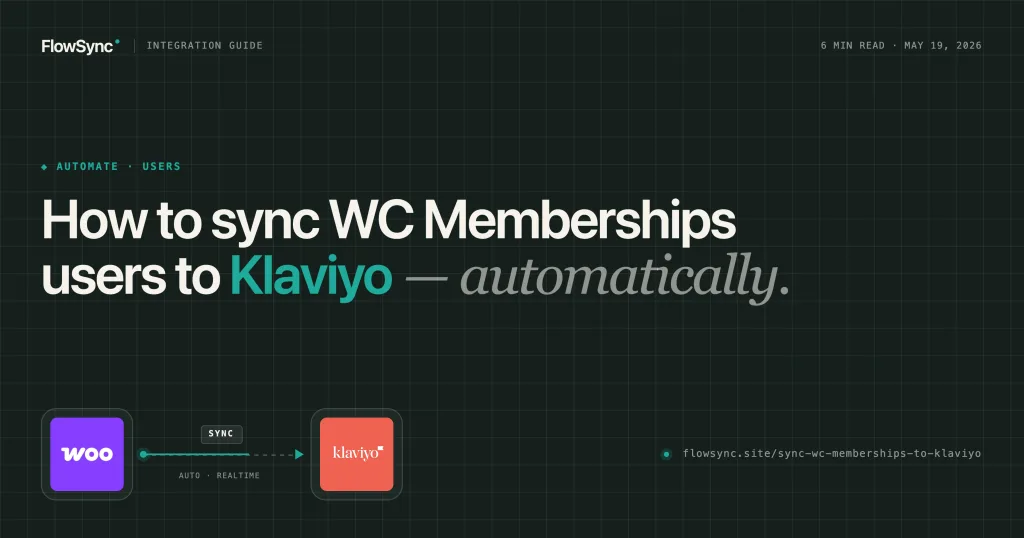
If you sell memberships through WooCommerce Memberships and run your email in Klaviyo, the two don’t communicate on their own. Someone buys a plan, their membership activates, and Klaviyo has no idea unless you export the member list and import it by hand. Do that every week, and your segments are always a step behind who is actually a member right now.
FlowSync closes that gap. You build a single workflow that monitors WooCommerce Memberships, checks which plan the member is on, and adds them to the corresponding Klaviyo list the moment their membership activates. Here is how to set it up.
What you’ll build
A workflow that fires when a WooCommerce membership becomes active, checks the membership plan, and adds the member to the right Klaviyo list. Build one per plan, and each membership tier lands in its own list, ready for the flows you already run in Klaviyo.
Step 1: Create a new workflow
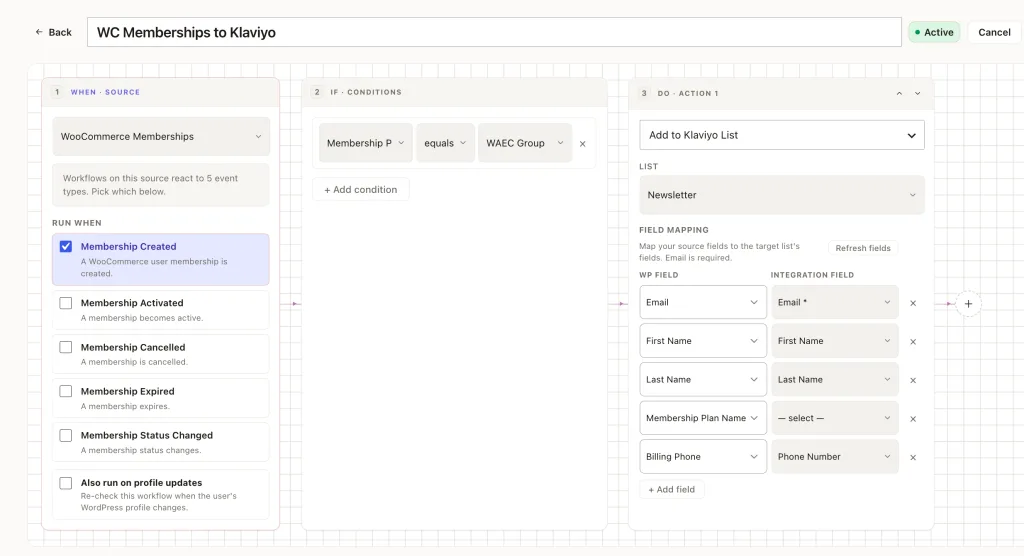
In your WordPress dashboard, go to FlowSync → Workflows and click Add New. Give it a clear name like “WC Memberships to Klaviyo.”
Step 2: Set the trigger
Under WHEN · SOURCE, select WooCommerce Memberships. FlowSync lists the membership events it can trigger on:
- Membership Created
- Membership Activated
- Membership Cancelled
- Membership Expired
- Membership Status Changed
Select Membership Activated. A membership can exist before it is active (for example, while a payment is still pending), so triggering on activation means the workflow only runs once the member is genuinely active. Membership Activated also covers complimentary memberships, since WooCommerce treats complimentary as an active state.
Step 3: Add a condition
Click + Add condition under IF · CONDITIONS and set:
- Field: Membership Plan
- Operator: equals
- Value: pick the plan from the dropdown
The Membership Plan field reads your live WooCommerce membership plans and stores the selection as a plan ID rather than the plan name, so renaming a plan later won’t break the workflow. This condition is what routes each plan to its own Klaviyo list. Different tiers run through separate workflows that point to separate lists.
Step 4: Configure the Klaviyo action
Under DO · ACTION, select Add to Klaviyo List. If you haven’t connected Klaviyo yet, click Connect and paste your Klaviyo private API key. You create one in Klaviyo under Settings → Account → API Keys. Read more: Connecting FlowSync to Klaviyo
For developers: Klaviyo authenticates with a private API key, not OAuth. The key is stored per site and never returned in cleartext from the settings endpoint, only a “set” flag. FlowSync talks to the current Klaviyo API (
profilesand list-subscription jobs), so a profile is matched by email, created or patched, then subscribed to the target list.
Pick the target list, then map your fields:
| WordPress field | Klaviyo profile field |
|---|---|
| Email (required) | |
| First Name | First Name |
| Last Name | Last Name |
An email is required because Klaviyo identifies a profile by email. FlowSync looks up the profile by email and updates it if it already exists, so you won’t create duplicates.
Email, First Name, and Last Name map on the free plan. Mapping anything beyond those three, such as phone number, job title, location, or a WooCommerce field like the plan name or order data, is part of advanced field mapping in FlowSync Pro. Any field you map that isn’t one of Klaviyo’s standard profile attributes is stored as a Klaviyo profile property, which is useful for segmenting on plan name or signup source.
Consent note: Adding a profile to a Klaviyo list through this action sets the profile’s email marketing consent to subscribed. Only point this workflow at members who have agreed to receive marketing email. If a plan includes people who haven’t opted in, route them to a list you treat as transactional, or gate the workflow with a condition that checks an opt-in field.
Step 5: Activate and verify
Toggle the workflow to Active. New activations sync as they happen.
To bring your existing members in, use Run manually from the workflow’s menu. The manual run has a dry run option that reports how many members are eligible, how many would be skipped, and a sample of the first five, without sending anything to Klaviyo. Use it to confirm the plan condition is catching the right members before you run it for real. Manual runs only work on active workflows, so activate first, then preview.
After a run, open FlowSync → Logs to see which profiles synced and their results. That is where you confirm what actually reached Klaviyo.
Remove members from the list when they leave
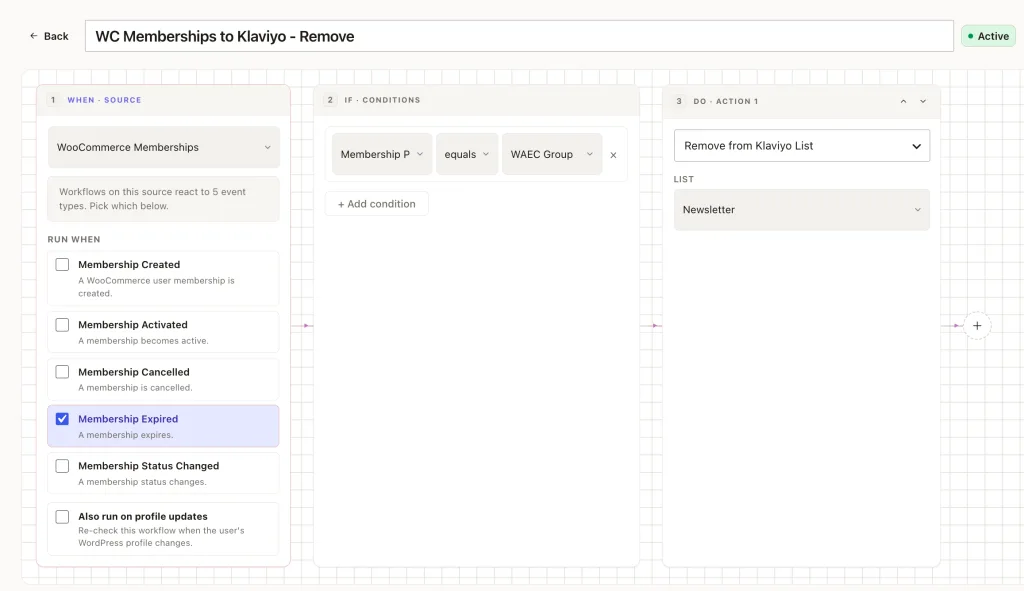
The workflow above only adds members. To keep your Klaviyo list accurate when a membership ends, build a second workflow. A single workflow can’t branch, so it adds and removes live in separate workflows.
Create a new workflow, set the trigger to Membership Expired (or Membership Canceled), keep the same Membership Plan condition, and choose the Remove from Klaviyo List action that points to the same list. The removal is non-destructive: it takes the profile off that list without deleting the profile or its history in Klaviyo.
Common issues
The profile already exists in Klaviyo. That’s expected. FlowSync matches by email and updates the existing profile rather than creating a new one, so rerunning the workflow won’t produce duplicates.
A mapped field is empty in Klaviyo. FlowSync only sends fields with values, so a blank WordPress field won’t overwrite existing Klaviyo data. If a field is empty after a sync, check that the member’s WordPress profile actually has that value.
The member synced but isn’t in the list. Confirm that the action targets a Klaviyo list, not a segment. Segments in Klaviyo are rule-based, and you can’t add a profile to a segment directly; the profile lands in the list, and your segment rules determine membership from there.
Next steps
Clone the add workflow for each membership plan, changing the Membership Plan condition and the Klaviyo list on each copy. Pair each one with a matching expiry workflow so every list stays current as members join and leave. Once the structure is in place, all of your Klaviyo flows, from onboarding to win-back, run off lists that reflect your real WooCommerce membership state without a single manual export.

FlowSync
FlowSync syncs members, customers, and form leads to Brevo, Mailchimp, HubSpot, Klaviyo, and more based on activity happening on your WordPress site.