A customer checks out on your WooCommerce store, their order completes, and then nothing happens in Klaviyo. They don’t enter your welcome flow, they’re missing from your post-purchase emails, and the next time you build a segment, they aren’t in it. The sale went through fine, but the marketing side of your stack never heard about it.
This happens because WooCommerce and Klaviyo are two separate systems that don’t share a customer record by default. You either wire that connection up yourself, or you fill the gap by hand, usually with a CSV export every week or two. This guide walks through connecting the two with FlowSync so that a completed order automatically pushes the customer into the right Klaviyo list, with no export step and no middleware between your site and your CRM.
The CSV export is slower and riskier than it looks
The manual version of this is to export your WooCommerce customers, open the file, and upload it to Klaviyo. It works the first time. Then a new order comes in an hour later, and the file is already out of date, so you either run it again or you let the gap grow until the next time you remember.
The slowness is the obvious problem. The quieter problem is that every export puts a file full of customer names and email addresses onto someone’s laptop, into an email thread, or in a shared drive. That is real personal data, and under GDPR and CCPA, you are responsible for where it sits and who can reach it. A weekly spreadsheet of customer contacts is exactly the kind of loose copy that turns a small mistake into a reportable one. Syncing the data directly from your site to Klaviyo via an API removes that copy entirely, so it’s a data-handling improvement, not just a time-saver.
Klaviyo’s own WooCommerce sync tracks orders, but it doesn’t run your logic
Most people ask the obvious question first: Doesn’t Klaviyo already have a WooCommerce integration? It does, and it’s good at what it does, which is event tracking. It watches store activity like placed orders and started checkouts and feeds that back to Klaviyo for metrics and triggered flows.
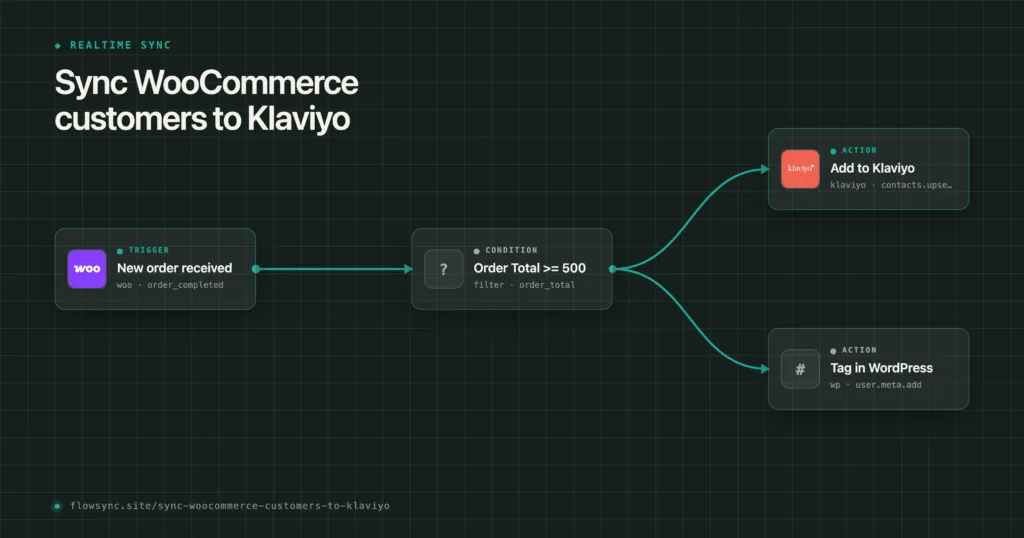
What it doesn’t give you is control over the decision of who gets synced and to which list, using information that lives in WordPress. FlowSync runs inside WordPress, so before it sends anything to Klaviyo, it can check the things your site knows: the customer’s user role, the order status, the order total, the products and categories in the order, even a custom field your checkout collects. You define the rule, and the contact only reaches Klaviyo when it is met. That’s the difference between firing an event over the fence and actually choosing what crosses it.
For developers: FlowSync hooks the native WooCommerce order actions rather than polling. The
order_completedtrigger fires on the transition into completed status and ships a typed payload includingorder_id,order_total,order_currency,product_ids, andbilling_email. Conditions evaluate against that payload first and fall back to a database read when a field isn’t present in the event context, so a manual run resolves the same rules a live event would.
What you’ll build
One workflow: when a WooCommerce order reaches completed status, add the customer to a Klaviyo list, matched by email. Then a second short workflow that removes them from a list on refund so your segments stay honest. The basic version runs on the free plan. The segmentation and order-data parts are Pro, and I’ll mark exactly where that line is as we go.
Connect Klaviyo to FlowSync
You need a Klaviyo API key with permission to manage contacts and lists.
- Sign in to Klaviyo and create a private API key with contact and list access. Copy it straight away, since Klaviyo only shows the full value once.
- In your WordPress admin, go to FlowSync → Integrations → Klaviyo → Connect.
- Paste the key and click test. FlowSync verifies credentials and pulls in your Klaviyo lists so they’re available for selection in the builder.
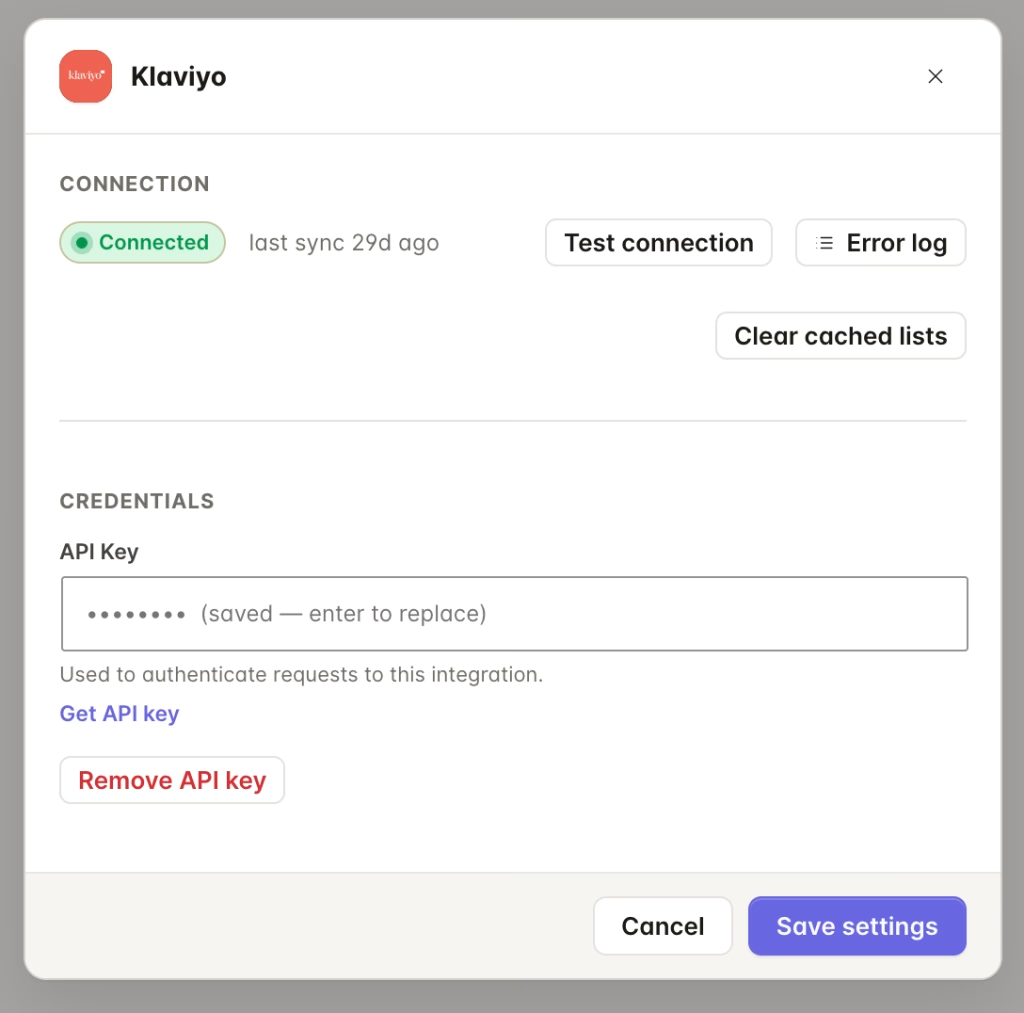
For developers: Auth is a stored API key, not OAuth, and Klaviyo’s rate limit is 300 requests per minute. The
klaviyo.list.addaction is idempotent and matched by email, so a workflow that fires twice for the same customer won’t create a duplicate profile or throw. Full connection steps live in the Klaviyo connection guide.
Build the sync workflow
- Create a new workflow and click the trigger node.
- Choose WooCommerce as the source and Order completed (
order_completed) as the trigger. - Click + Add step → Klaviyo and pick Add to Klaviyo list (
klaviyo.list.add). - Select the list you want new customers added to.
- Map the fields. On the free plan, you can map the customer’s email, first name, and last name, which is everything Klaviyo needs to create or match a profile.
- Click the Create workflow button to save your changes.
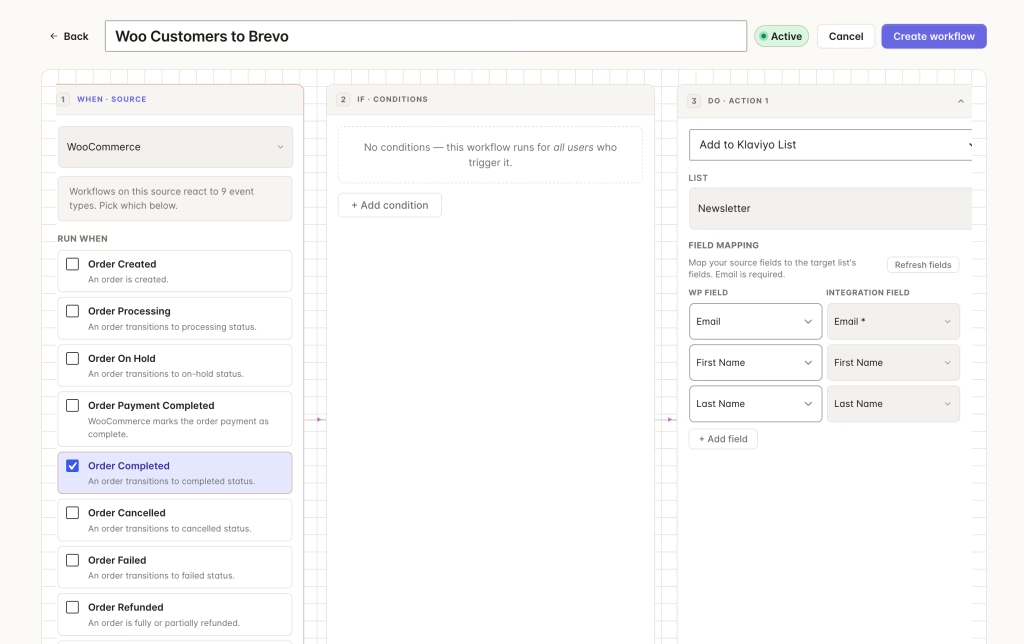
That’s a complete, working sync. Every completed order now lands the customer in that Klaviyo list automatically.
For developers: Map trigger fields into the action with
{{trigger.field}}merge tags from the inline payload picker. The run log shows the exact request body sent to Klaviyo and the raw response, so a failed map or a rejected field is visible immediately rather than after a campaign goes out wrong.
Segment customers by what they bought
One list for every customer is where most setups stop, and it’s also where they get weak. The point of syncing from WooCommerce specifically is that you know what each person bought, so you can be selective about who ends up on a given list.
Conditions handle this. Add a condition and the workflow only runs for orders that match, so you can point a workflow at your VIP list and require the order total to clear a threshold, and only customers who spend over that amount get added. The same works for products: require a particular product category and only buyers of that category land in the list. Conditions combine with AND and OR, so a single workflow can require several things at once, like the order being completed and the total being over a set amount, and a specific category being present.
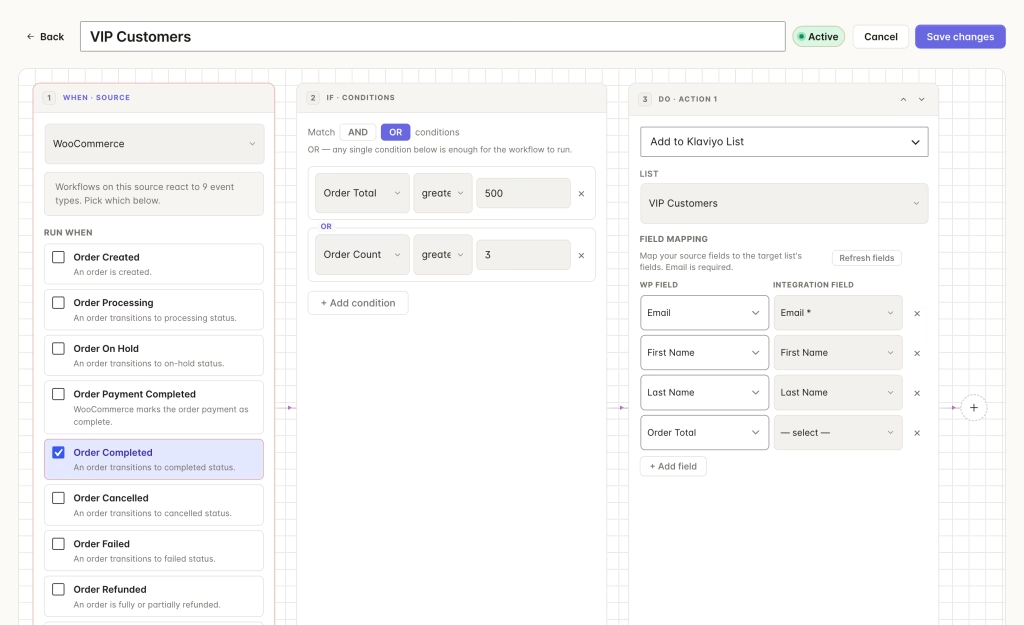
Conditions like these are included, not a paid add-on. The Pro line here is field mapping. The free plan maps the customer’s email, first name, and last name, which is everything Klaviyo needs to create the profile, and Pro adds mapping for everything beyond that. So if you want to push order details like the total or the products bought into Klaviyo profile properties, that mapping is the Pro part, not the conditions that decide who gets synced.
For developers: Conditions are AND/OR filter trees evaluated by the condition evaluator before the action runs. Product conditions resolve against
order_product_categoriesusing category IDs rather than names, so renaming a category in WooCommerce doesn’t silently break a saved workflow, and order status options come fromwc_get_order_statuses(), stored normalized without thewc-prefix.
A note on language, since it trips people up: Klaviyo’s actions here add and remove profiles from lists and segments, not profile tags. Klaviyo’s tags organize lists and flows rather than labeling individual profiles, so FlowSync segments through list membership. If you’ve used Mailchimp tagging, the effect is similar but the mechanism is list-based.
Only sync customers who agreed to marketing
If your checkout collects marketing consent, you should be syncing the people who gave it and skipping the people who didn’t. Dropping a customer who never opted in into a promotional list is how you end up with spam complaints, and complaint rate is the number that quietly destroys your Klaviyo sender reputation.
FlowSync doesn’t add a consent field to your checkout. What it does is read a field that already exists there. If your theme or a plugin adds a marketing opt-in checkbox or any custom field at checkout, FlowSync can use that field in a condition and run the sync only for customers who checked it or filled it in. You set the rule against your own field, whatever you named it.
Using a custom checkout field in a condition like this is included, not a paid feature. It keeps your list clean at the source and gives you a defensible record that everyone in Klaviyo opted in on your site.
Keep the list clean when orders are refunded
Add-to-list on its own only ever grows the list. Pair it with a second short workflow: trigger on Order refunded (order_refunded), action Remove from Klaviyo list (klaviyo.list.remove), pointed at the same list. The removal is non-destructive, so it pulls the contact out of that list without deleting the profile or its history.
This matters for the same reputation reason as consent. Someone who just refunded an order and then receives a “thanks for your purchase, here’s what’s next” email is a prime candidate to hit the spam button, and enough of those drag down deliverability for your whole list.
Common mistakes
- Putting everyone in one list. It’s the fastest way to set this up and the fastest way to make your Klaviyo account less useful. Split by what people bought from the start, even if it’s just a second workflow for your highest-value buyers.
- Triggering on Order created instead of Order completed.
order_createdfires the instant an order is placed, including unpaid and abandoned ones, so you’ll sync people who never actually bought. Useorder_completedfor real customers, after payment and fulfillment. - Skipping the consent field. If your checkout captures opt-in and your workflow ignores it, you’re syncing people who said no. Add the condition.
- Not running the test. The run log tells you exactly what FlowSync sent to Klaviyo. Fire one test order through before you trust it with live traffic.
FAQ
Does this sync customers who bought before I installed FlowSync? New orders sync automatically. To backfill existing customers, use a manual bulk run, which is a Pro feature that processes your current customers through the workflow in batches.
Do I still need Klaviyo’s WooCommerce integration? They do different jobs and run fine together. Klaviyo’s integration handles store event tracking and metrics. FlowSync handles the decision of who gets synced to which list based on WordPress-side rules. Many stores use both.
Will it create duplicate profiles? No. The add action is matched by email and idempotent, so running it more than once for the same customer updates the existing profile rather than creating a second one.
What’s free and what’s Pro? Free covers the core sync and the conditions that go with it: order completed adds the customer to a Klaviyo list with email, first name, and last name, with conditions to control who qualifies, across up to three workflows. Pro covers field mapping beyond email and name, so push order data like total or purchased products into Klaviyo profile properties, plus run manual bulk syncs to sync existing customers.
Set it up
Install FlowSync, connect Klaviyo with your API key, and build the order-completed workflow. The free plan includes three workflows, which are enough to run a real sync with a refund cleanup alongside it.
Install FlowSync free, 3 workflows included
If you also run Mailchimp, the same pattern works there with a slightly different mechanism. See syncing WooCommerce customers to Mailchimp based on what they bought. For the full list of WooCommerce triggers you can build on, see the WooCommerce source page, and for every Klaviyo action, see the Klaviyo integration page.

FlowSync
FlowSync syncs members, customers, and form leads to Brevo, Mailchimp, HubSpot, Klaviyo, and more based on activity happening on your WordPress site.