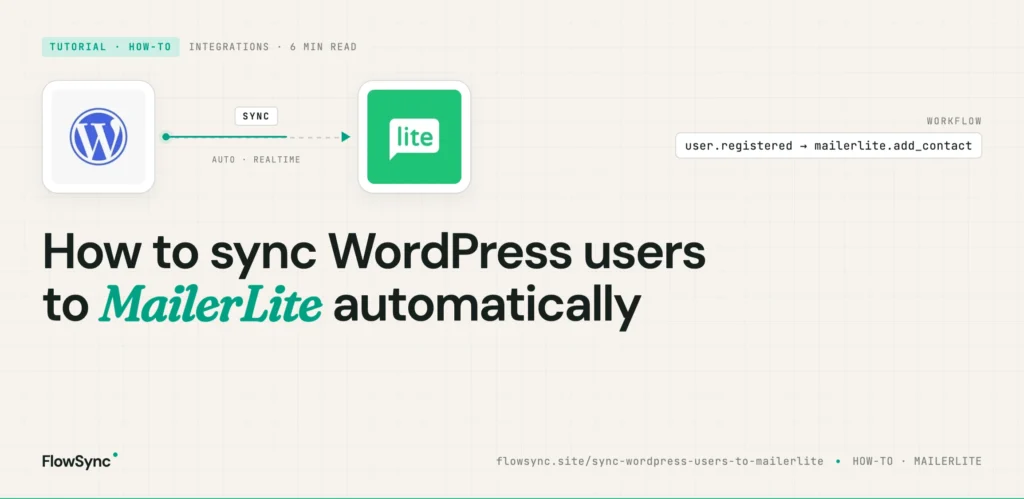
If you use MailerLite for email marketing, one of the hardest parts is keeping your WordPress users synced properly.
New users register on your website, but they never get added to MailerLite. Customers purchase products, but onboarding emails never start. Members cancel subscriptions, but they still remain inside active email campaigns.
None of this is something breaking. WordPress and MailerLite are two separate systems that don’t share a subscriber record by default, so until you connect them, everything that happens on your site stays on your site.
Many WordPress site owners handle this manually at first. They export users from WordPress, upload CSV files into MailerLite, and organize subscribers by hand. That works for small sites. Once the website starts growing, it quickly becomes difficult to manage.
This guide walks through replacing that with FlowSync, so a new registration pushes the subscriber into the right MailerLite group the moment it happens, with no export step and no middleware between your site and your email platform. You’ll build the core sync first, then set up group-based segmentation, and at the end, the part most setups miss: making changes in MailerLite flow back to WordPress.
Manual imports fall behind the moment you finish them
A CSV import is accurate for exactly as long as nobody registers, buys, or cancels. The first new signup after your upload is already missing from MailerLite, so you either repeat the export on a schedule or accept a growing gap between your site and your subscriber list. Most people land somewhere in between: an import every few weeks, and a list that’s always slightly wrong.
There’s also a data-handling cost that’s easy to overlook. Each export creates a file of names and email addresses sitting on a laptop, in a downloads folder, or attached to an email. Under GDPR and CCPA that file is personal data you’re accountable for, and recurring loose copies of your subscriber base are how small mistakes become reportable ones. Sending the data straight from your site to MailerLite over the API means that file never exists.
Connect MailerLite to FlowSync
MailerLite authentication is a single API token.
- Sign in to MailerLite, go to Integrations → API, and generate a token. Copy it right away.
- In your WordPress admin, go to FlowSync → Integrations → MailerLite → Connect.
- Paste the token and click test. FlowSync verifies the credentials and pulls in your MailerLite groups and custom fields so they’re available for selection in the builder.
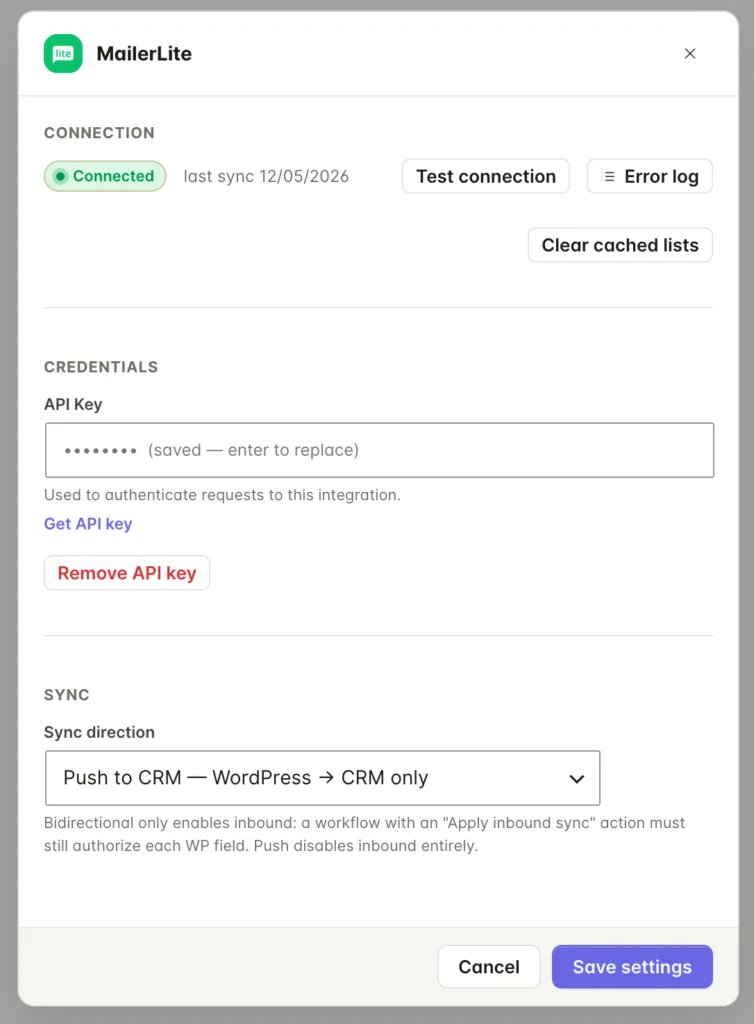
For developers: FlowSync authenticates with a Bearer token against the current MailerLite API at
connect.mailerlite.com. Groups and custom fields are fetched and cached, so the pickers in the builder reflect your account without an API round trip on every page load. The integration settings also include a sync direction option (push, or bidirectional via webhooks), which the last section of this guide covers.
Build the registration sync
The first workflow: when a user registers on WordPress, add them to a MailerLite group.
- Create a new workflow and click the trigger node.
- Choose WordPress as the source and User Registered as the trigger.
- Click + Add step → MailerLite and pick Add to MailerLite Group (
mailerlite_add_to_list). - Select the group new users should join.
- Map the fields. On the free plan you can map the user’s email, first name, and last name, which is everything MailerLite needs to create or match a subscriber.
- Click the Create workflow button to save your changes.
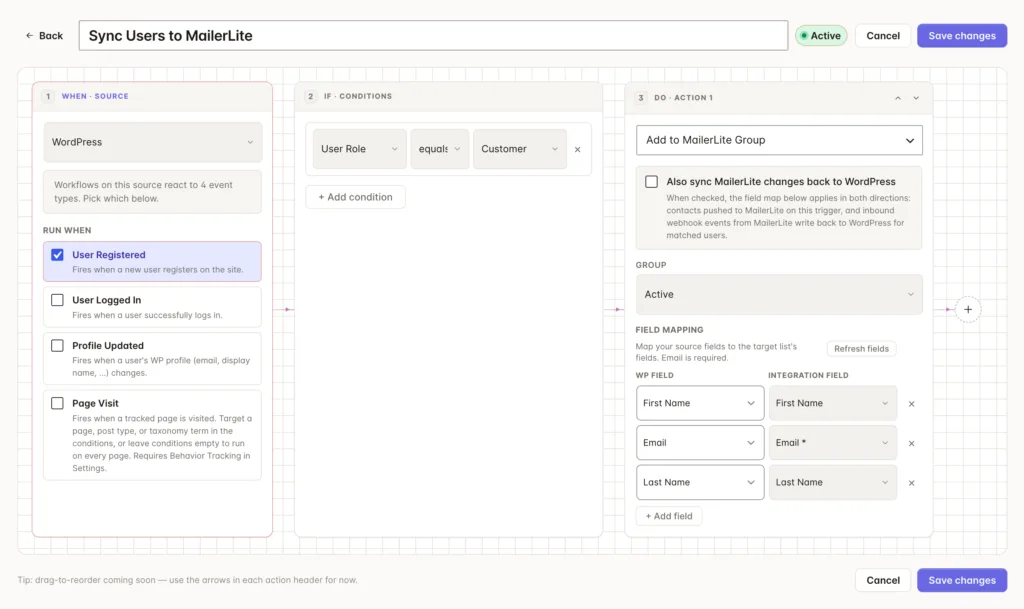
That’s a working sync. Every new registration now lands in that group automatically, and any MailerLite automation that triggers on joining the group starts on its own.
If only some users should be synced, add a condition before the action. Conditions filter who the workflow runs for, so you can require a user role, a membership plan, or a custom field value. They’re included on the free plan and combine with AND and OR, so one workflow can check several things at once.
For developers: The add action posts to MailerLite’s subscribers endpoint with the group attached, and MailerLite matches by email, so a workflow that fires twice for the same user updates the existing subscriber instead of creating a duplicate. Field keys follow MailerLite’s naming: first name maps to
nameand last name tolast_name. Custom fields in MailerLite are global rather than group-scoped, and FlowSync pulls them from the account so Pro field mapping offers them as picks rather than typed keys.
Groups are how you segment in MailerLite
MailerLite doesn’t have per-subscriber tags the way ActiveCampaign or Mailchimp do. Groups are the segmentation unit, and FlowSync works with that directly: Add to MailerLite Group and Remove from MailerLite Group (mailerlite_remove_from_list) are the two actions, and a subscriber can sit in as many groups as you have workflows putting them there.
The practical pattern is one group per meaningful state, each maintained by a workflow pair:
- Customers. Order Completed adds the subscriber to a
Customersgroup, with a condition on the product or category if you want purchase-specific groups. WooCommerce is one of FlowSync’s sources, so order events are available as triggers the same way registrations are. - Members. Subscription Created adds them to a members group, Subscription Expired removes them. More on this below.
- Leads. Form submissions feed a separate group from registered users, so you always know which subscribers have accounts and which only filled in a form.
For developers: The remove action looks the subscriber up by email, then removes the group membership. Both lookups treat a 404 as a no-op success rather than a failure, so an expiry workflow that runs for a user who was never synced logs
already_absentand moves on instead of erroring. The removal is non-destructive: the subscriber and their history stay in MailerLite, they just leave the group.
Keep membership status honest
If you run a membership site on ProfilePress, registration is only the first event worth syncing. Subscription lifecycle events are available as triggers, and the audience-hygiene pattern is two workflows, not one.
Workflow 1: new members. Trigger on Subscription Created, add a condition for the plan if you sell more than one, and add the subscriber to your members group. Your member onboarding automation in MailerLite keys off that group.
Workflow 2: expired members. Trigger on Subscription Expired and remove the subscriber from the same group.
The second workflow is the one that protects your sender reputation. A lapsed member still receiving members-only campaigns is the contact most likely to hit the spam button, and complaint rate drags down deliverability for everything you send, not just that campaign.
Sync changes back from MailerLite to WordPress
This is the part a one-way connection can’t do. MailerLite isn’t only an integration in FlowSync, it’s also a source, which means events happening inside MailerLite can trigger workflows on your WordPress site.
The available triggers are Subscriber Created, Subscriber Updated, Subscriber Unsubscribed, Subscriber Added To Group, and Subscriber Removed From Group. So when someone unsubscribes in MailerLite, a workflow can react in WordPress: update a user meta field, change a role, or notify you, so your site stops treating them as a marketable contact instead of finding out months later.
To enable this, open the MailerLite integration settings in FlowSync, set Sync direction to Bidirectional, and register the webhook URL FlowSync shows you inside MailerLite along with a signing secret. Until you do, the integration stays push-only and nothing flows inbound.
Writing MailerLite field changes back into WordPress user fields runs over your mapped fields, and field mapping beyond email and name is the Pro side of the plan, the same boundary as outbound mapping.
For developers: Inbound events arrive on a REST endpoint that verifies the
X-MailerLite-Signatureheader against your webhook secret before anything is processed. Events only match workflows for emails that resolve to an existing WordPress user; subscribers who never had a WP account are ignored rather than logged as errors. Inbound writes are deliberately opt-in twice over: the integration must be set to bidirectional, and a workflow still has to authorize each WordPress field it’s allowed to touch.
Sync form leads too
Registrations cover users with accounts, but most lead capture happens in forms. FlowSync’s Form Submitted trigger supports the major form plugins, including WPForms, Gravity Forms, Fluent Forms, Contact Form 7, Elementor Forms, and SureForms. A newsletter signup or lead magnet form feeds MailerLite through the same builder: form submitted, optional condition, add to group. No exporting entries and importing them as subscribers later.
Common mistakes
- One giant group for everyone. It’s the quickest setup and it throws away the reason you’re syncing from WordPress in the first place, which is that your site knows who’s a customer, a member, or a lead. Split groups by state from day one.
- No expiry or unsubscribe handling. Add-to-group alone only grows your audience. Pair every add with its remove, and turn on the inbound unsubscribe trigger so WordPress learns about opt-outs too.
- Triggering on the wrong event. For customers, use Order Completed rather than an earlier order state, or you’ll sync people whose payment never went through.
- Skipping the test. Register a test account first. The run log shows the exact request FlowSync sent to MailerLite and the response, so a wrong group or a failed field map is visible immediately, not after a campaign goes out.
FAQ
Can I sync users who registered before I installed FlowSync? New registrations sync automatically. To backfill your existing user base, use a manual bulk run, which is a Pro feature that processes current users through the workflow in batches.
Will this create duplicate subscribers? No. MailerLite matches subscribers by email, so re-running a workflow for the same user updates the existing record.
Can MailerLite changes update WordPress? Yes. Set the integration’s sync direction to bidirectional and MailerLite webhook events become workflow triggers, with inbound field writes authorized per workflow. Push-only is the default.
Does this work with WooCommerce and membership plugins? Yes. WooCommerce orders, ProfilePress subscriptions, and other membership lifecycle events are available as triggers, so the patterns here apply to customers and members as well as registrations.
What’s free and what’s Pro? Free covers the core sync: the User Registered trigger, conditions, the add and remove group actions, and field mapping for email, first name, and last name, across up to three workflows. Pro adds field mapping beyond that, including MailerLite custom fields, omnichannel sync over your mapped fields, and manual bulk runs for existing users.
Set it up
Install FlowSync, connect MailerLite with your API token, and build the registration workflow. The free plan includes three workflows, enough for the registration sync, a customer or member group, and the expiry cleanup that keeps it honest.
Install FlowSync free, 3 workflows included
Full connection steps live in the MailerLite connection guide. For every MailerLite action and trigger that FlowSync supports, see the MailerLite integration page, and for the plugins that can fire triggers, see the sources page.

FlowSync
FlowSync syncs members, customers, and form leads to Brevo, Mailchimp, HubSpot, Klaviyo, and more based on activity happening on your WordPress site.