Not every business wants to push customer data into a traditional CRM.
Sometimes, a spreadsheet is enough.
A lot of WordPress site owners use Google Sheets to track:
- Leads
- Customers
- Membership signups
- Orders
- Event registrations
- Form submissions
The problem is that updating spreadsheets manually becomes frustrating very quickly.
You export users from WordPress.
You copy and paste rows into Google Sheets.
Then somebody registers after the export, and your spreadsheet is already outdated again.
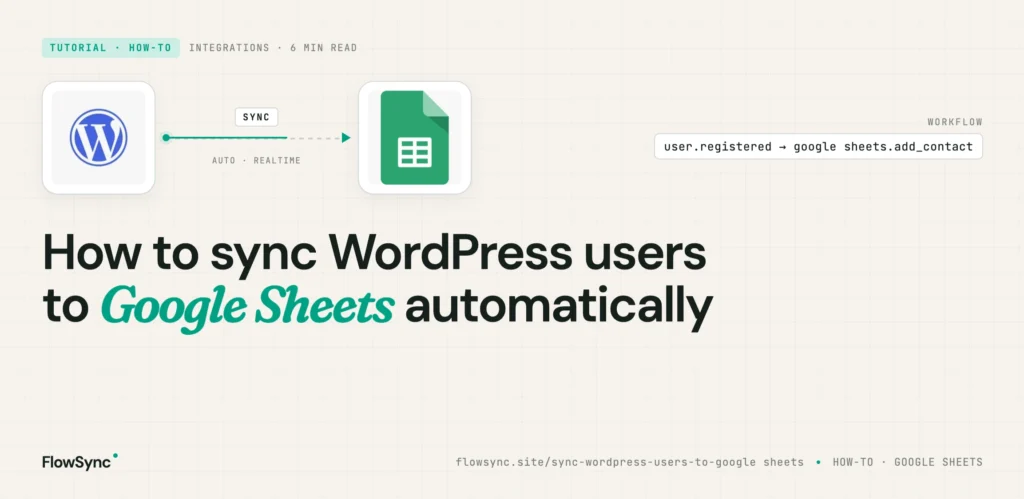
In this guide, I will show you how to automatically sync WordPress users to Google Sheets using FlowSync.
You will learn how to:
- Connect WordPress to Google Sheets
- Automatically send users into spreadsheets
- Track WooCommerce customers and memberships
- Sync form submissions automatically
- Build lightweight reporting workflows
FlowSync focuses specifically on WordPress CRM and automation workflows. Instead of relying on exports and imports, it reacts to events happening on your website and sends the data automatically.
Why Manual Spreadsheet Tracking Becomes a Problem
Here is a common example.
You run a membership website.
Every time a new member joins, you want to record:
- Name
- Membership plan
- Signup date
- Payment status
At first, you manually update a spreadsheet.
That works until:
- Registrations increase
- Staff members forget updates
- Duplicate rows appear
- Customer information becomes inconsistent
The same problem happens with WooCommerce orders and form leads.
Eventually, your spreadsheet becomes unreliable.
Automation fixes this by connecting WordPress events directly to Google Sheets.
Instead of manually updating spreadsheets every day, the workflow runs automatically in the background.
What FlowSync Automates
FlowSync focuses on WordPress CRM automation and audience workflows.
Typical Google Sheets workflows include:
- Add new WordPress users to spreadsheets
- Track WooCommerce customers automatically
- Record membership signups
- Sync form submissions into spreadsheets
- Track onboarding activity
- Build lightweight lead databases
- Export customer activity automatically
The workflow structure is simple:
- Trigger
- Condition
- Action
For example:
- Trigger: Form submitted
- Condition: Form equals Consultation Request
- Action: Add row to Google Sheet
This keeps workflows easy to manage later.
Step 1: Install FlowSync
First, install and activate FlowSync on your WordPress site.
After activation, open the FlowSync dashboard inside your WordPress admin area.
You should see sections like:
- Workflows
- Integrations
- Logs
- Settings
Step 2: Connect Google Sheets to WordPress
Next, connect Google Sheets.
Go to:
FlowSync → Integrations
Find Google Sheets and click Configure.
Unlike some integrations, Google Sheets uses your own Google Cloud credentials.
You will typically need:
- Google Client ID
- Google Client Secret
FlowSync will guide you through:
- Creating a Google Cloud project
- Enabling Google Sheets API access
- Connecting your Google account
- Selecting the spreadsheet you want to use
Once connected, FlowSync will be able to append rows automatically into your spreadsheet.
Step 3: Create Your First Workflow
Now let’s build a simple automation.
We will create this workflow:
When a user registers on WordPress, automatically add them to Google Sheets.
Go to:
FlowSync → Workflows → Add New
Choose a Trigger
Select:
- WordPress User Registered
This means the workflow will run whenever a new user account is created.
Add Conditions (Optional)
Conditions allow you to filter which users should be added to the spreadsheet.
For example:
- Only sync Customers
- Only sync WooCommerce buyers
- Only sync Members
- Only sync users from a specific membership plan
If you want all users tracked, you can skip this step.
Add the Google Sheets Action
Next, add an action.
Choose:
- Append Row to Google Sheets
Then select:
- Spreadsheet
- Worksheet tab
Next, map your spreadsheet columns.
For example:
| Spreadsheet Column | WordPress Data |
|---|---|
| Name | Full Name |
| User Email | |
| Role | User Role |
| Signup Date | Registration Date |
Save the workflow and activate it.
From this point forward, new WordPress users will be automatically added to your spreadsheet.
WooCommerce Example
WooCommerce tracking is one of the most practical Google Sheets use cases.
Example workflow:
- Trigger: Order Completed
- Condition: Product Category = Electronics
- Action: Add order details to spreadsheet
This helps with:
- Sales tracking
- Customer reporting
- Inventory monitoring
- Lightweight bookkeeping
Instead of manually exporting orders every week, your spreadsheet updates automatically.
Membership Site Example
Suppose you run a membership website using ProfilePress.
You want to track:
- Member email
- Membership plan
- Activation date
- Expiration date
You can automate all of this using workflows.
Workflow 1: New Members
- Trigger: Subscription Activated
- Condition: Membership Plan = Premium
- Action: Add row to Google Sheets
Workflow 2: Expired Members
- Trigger: Subscription Expired
- Action: Update or append membership status row
This gives you a simple reporting dashboard without logging into multiple systems.
Form Lead Automation
You can also send WordPress form submissions directly into Google Sheets.
For example:
- Trigger: WPForms form submitted
- Action: Add row to spreadsheet
This works well for:
- Contact forms
- Lead generation forms
- Consultation requests
- Event registrations
Instead of copying leads manually, the spreadsheet updates automatically.
Common Mistakes to Avoid
Creating Messy Spreadsheets
A lot of people dump every type of data into one sheet.
That becomes difficult to manage later.
Instead, organize spreadsheets by:
- Leads
- Customers
- Memberships
- Orders
- Events
Cleaner spreadsheets are easier to maintain.
Forgetting Data Validation
If your spreadsheet becomes part of your reporting process, make sure:
- Columns stay consistent
- Dates use proper formatting
- Status values are standardized
Otherwise, reporting becomes unreliable later.
Not Testing the Workflow
Before relying on automation, always test the workflow properly.
Create a test user and confirm:
- A new row appears
- Columns map correctly
- Duplicate rows are not created
- Data formatting looks correct
Why Native WordPress Automation Helps
Some site owners connect WordPress and Google Sheets using external automation platforms.
That setup can work, but it also introduces another layer that can fail.
With native WordPress automation:
- Workflows run closer to your actual website data
- Membership plugins integrate directly
- User events trigger immediately
- Spreadsheet updates happen automatically inside WordPress
- There are fewer moving parts to troubleshoot
FlowSync focuses specifically on WordPress CRM workflows and automation instead of trying to become a broad automation platform.
FAQ
Can I sync existing WordPress users to Google Sheets?
Yes. You can manually run workflows to export existing users into a spreadsheet. This is useful when setting up reporting on an already active website.
Does this work with WooCommerce?
Yes. WooCommerce customers and orders can be tracked automatically inside Google Sheets.
Can I track form submissions?
Yes. Supported WordPress form plugins can automatically send form entries into spreadsheets.
Does this require coding?
No. The workflows are created directly inside WordPress using the FlowSync interface.
Can I track memberships automatically?
Yes. Membership events such as activations and expirations can be synced into Google Sheets automatically.
Final Thoughts
As your WordPress site grows, manually updating spreadsheets becomes difficult.
Users register, memberships change, orders are placed, and customer activity constantly changes.
Without automation, spreadsheets quickly become outdated.
A proper WordPress-to-Google Sheets workflow helps you:
- Reduce manual work
- Improve reporting accuracy
- Track customers automatically
- Build lightweight dashboards
- Keep business records updated
The goal is simple.
When something important happens on your WordPress site, your spreadsheet should update automatically.
That is exactly what FlowSync is designed to do.

FlowSync
FlowSync syncs members, customers, and form leads to Brevo, Mailchimp, HubSpot, Klaviyo, and more based on activity happening on your WordPress site.