If you use Kit, formerly known as ConvertKit, one of the most important things is keeping your subscriber list updated automatically from your WordPress site.
New users register on your website, but they never get added to Kit.
Customers purchase products, but onboarding emails never start.
Members cancel subscriptions, but they still receive active customer campaigns weeks later.
A lot of WordPress site owners handle this manually in the beginning. They export users from WordPress, upload CSV files into Kit, and try to organize subscribers by hand.
That usually works for small sites.
Once the website starts growing, the process becomes difficult to manage.
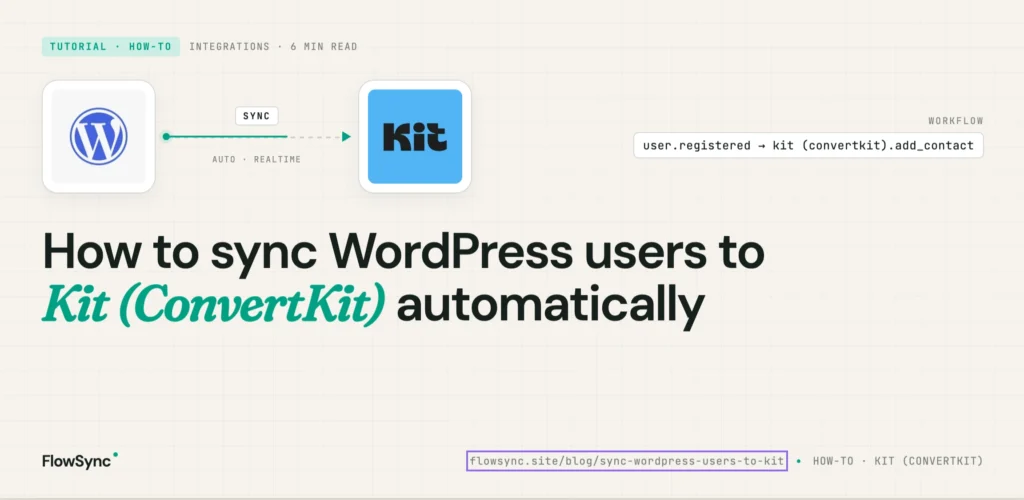
In this guide, I will show you how to automatically sync WordPress users to Kit using FlowSync.
You will learn how to:
- Connect WordPress to Kit
- Automatically sync users and customers
- Segment subscribers based on website activity
- Automate membership and WooCommerce workflows
- Keep your subscriber data updated automatically
FlowSync is built specifically for WordPress CRM and email automation workflows. Instead of relying on manual exports, it listens for events happening on your website and syncs contacts automatically.
Why Manual Subscriber Syncing Becomes a Problem
Here is a common example.
You run a membership website.
When somebody joins your premium plan, you want to:
- Add them to Kit
- Start a welcome sequence
- Tag them correctly
- Remove them later if the membership expires
If you handle this manually, problems start appearing quickly.
Some users never get added.
Some subscribers stay in the wrong sequence.
Some expired members continue receiving premium emails.
Eventually, your subscriber list becomes difficult to manage.
Automation fixes this by connecting WordPress events directly to Kit.
Instead of manually updating subscribers every week, the workflow runs automatically in the background.
What FlowSync Automates
FlowSync focuses on WordPress CRM automation and audience syncing.
Typical Kit workflows include:
- Add new WordPress users to Kit
- Sync WooCommerce customers automatically
- Add membership users to email sequences
- Trigger onboarding campaigns
- Segment subscribers by products purchased
- Sync leads from WordPress forms
- Remove expired or inactive users automatically
The workflow structure is simple:
- Trigger
- Condition
- Action
For example:
- Trigger: User registers
- Condition: User role equals Customer
- Action: Add subscriber to Kit sequence
This keeps workflows easier to understand and troubleshoot later.
Step 1: Install FlowSync
First, install and activate FlowSync on your WordPress site.
After activation, open the FlowSync dashboard inside your WordPress admin area.
You should see sections like:
- Workflows
- Integrations
- Logs
- Settings
Step 2: Connect Kit to WordPress
Next, connect your Kit account.
Go to:
FlowSync → Integrations
Find Kit and click Configure.
You will need your Kit API key.
To get it:
- Log into Kit Dashboard
- Open Settings
- Go to Developer
- Copy your API credentials
Paste the API key into FlowSync and save the settings.
Once connected, FlowSync will be able to create and update Kit subscribers automatically.
Step 3: Create Your First Workflow
Now let’s create a simple automation.
We will build this workflow:
When a user registers on WordPress, automatically add them to Kit.
Go to:
FlowSync → Workflows → Add New
Choose a Trigger
Select:
- WordPress User Registered
This means the workflow will run whenever a new user account is created.
Add Conditions (Optional)
Conditions allow you to filter which users should be synced.
For example:
- Only sync Customers
- Only sync Members
- Only sync WooCommerce buyers
- Only sync users from a specific membership plan
If you want all users synced to Kit, you can skip this step.
Add the Kit Action
Next, add an action.
Choose:
- Add Subscriber to Kit
Then select the sequence, form, or tag you want the subscriber added to.
You can also map fields such as:
- Email address
- First name
- Last name
Save the workflow and activate it.
From this point onward, new WordPress users will automatically be added to Kit.
Membership Site Example
Suppose you run a membership website using ProfilePress.
You want:
- Active members added to a premium onboarding sequence
- Trial users added to a separate email flow
- Expired members removed automatically
You can automate all of this using workflows.
Workflow 1: Active Members
- Trigger: Subscription Activated
- Condition: Membership Plan = Premium
- Action: Add subscriber to Premium sequence
Workflow 2: Expired Members
- Trigger: Subscription Expired
- Action: Remove subscriber from Premium sequence
This keeps your Kit audience cleaner automatically.
WooCommerce Example
WooCommerce automation is another common use case.
Example workflow:
- Trigger: Order Completed
- Condition: Product Category = Courses
- Action: Add customer to Customer Buyers sequence
This helps with:
- Product-based segmentation
- Follow-up campaigns
- Upselling related products
- Customer lifecycle automation
Instead of sending the same emails to everybody, you can target customers based on actual purchases.
Form Lead Automation
You can also sync WordPress form submissions directly into Kit.
For example:
- Trigger: WPForms form submitted
- Action: Add subscriber to Kit
This works well for:
- Newsletter signup forms
- Ebook downloads
- Lead magnets
- Consultation requests
Instead of exporting leads manually later, subscribers are added automatically.
Common Mistakes to Avoid
Putting Everybody Into One Sequence
A lot of people place every subscriber into one large email sequence.
That becomes difficult to manage later.
Instead, segment subscribers based on:
- Membership status
- Products purchased
- User roles
- Form submissions
- Customer lifecycle stage
Better segmentation usually improves email engagement.
Forgetting Cleanup Workflows
Adding subscribers is only part of the process.
You should also automate:
- Removing expired members
- Removing cancelled subscriptions
- Moving inactive subscribers into re-engagement campaigns
This keeps your audience cleaner over time.
Not Testing Your Workflow
Before using a workflow on a live website, always test it properly.
Create a test account and confirm:
- The subscriber appears in Kit
- Fields sync correctly
- The correct sequence or tag is used
- Duplicate subscribers are not created
Why Native WordPress Automation Helps
Some site owners use external automation platforms to connect WordPress and Kit.
That setup can work, but it also introduces another layer that can fail.
With native WordPress automation:
- Workflows run closer to your actual website data
- Membership plugins integrate directly
- User events trigger immediately
- Subscriber syncing happens automatically inside WordPress
- There are fewer moving parts to troubleshoot
FlowSync focuses specifically on WordPress CRM workflows and audience automation instead of trying to become a broad automation platform.
FAQ
Can I sync existing WordPress users to Kit?
Yes.
You can manually run workflows to sync existing users into Kit.
This is useful when connecting Kit to an already active website.
Does this work with WooCommerce?
Yes.
WooCommerce customers can be synced automatically based on products, categories, and orders.
Can I remove subscribers automatically?
Yes.
You can create workflows that remove subscribers when memberships expire or subscriptions are cancelled.
Does this require coding?
No.
The workflows are created directly inside WordPress using the FlowSync interface.
Can I sync WordPress forms to Kit?
Yes.
Supported WordPress form plugins can automatically send leads into Kit.
Final Thoughts
As your WordPress site grows, manually managing subscriber data becomes difficult.
Users register, memberships change, products are purchased, and customer activity constantly changes.
Without automation, your Kit audience eventually becomes outdated.
A proper WordPress-to-Kit workflow helps you:
- Reduce manual work
- Improve audience segmentation
- Keep subscriber data updated
- Trigger campaigns faster
- Build cleaner onboarding and retention flows
The goal is simple.
When something important happens on your WordPress site, your email marketing platform should react automatically.
That is exactly what FlowSync is designed to do.

FlowSync
FlowSync syncs members, customers, and form leads to Brevo, Mailchimp, HubSpot, Klaviyo, and more based on activity happening on your WordPress site.