Looking for the best CRM integrations for WordPress websites? The right choice depends less on the biggest feature list and more on where your customer data starts: forms, WooCommerce orders, member signups, course activity, or plain WordPress user accounts.
WordPress is usually the first place a contact does something meaningful. Someone submits a form, buys a product, starts a subscription, cancels a membership, or updates their profile. Your CRM is where the follow-up happens. The problem is the gap between those two systems.
That gap is where many WordPress sites start doing manual work. A shop owner exports customers from WooCommerce every Friday. A membership admin manually removes expired users from Mailchimp. A sales team checks form entries in the WP-Admin before creating HubSpot contacts. It works for a while, then one busy week turns the CRM into a stale copy of last month’s site data.
What makes a good WordPress CRM integration?
A good CRM integration should understand WordPress as more than a place to paste a form shortcode. WordPress has users, roles, orders, subscriptions, memberships, forms, courses, donations, and custom fields. If the integration only captures newsletter signups, it may be fine for a blog, but thin for a store or membership site.
Before picking a CRM, look at five practical things:
- Source data: Can it read the WordPress event that matters, such as a WooCommerce purchase, MemberPress cancellation, ProfilePress subscription, WPForms lead, or Gravity Forms submission?
- Timing: Does the sync happen when the event happens, or do you need scheduled imports?
- Segmentation: Can contacts be added to the right list, tag, group, segment, or CRM module?
- Field mapping: Can you send useful WordPress data, not just email address and name?
- Cleanup: What happens when someone refunds, cancels, expires, or unsubscribes?
The cleanup part is easy to miss. In support work, the messy cases are rarely about the first signup. They are about the lifecycle change six weeks later.
Why manual CRM workflows fail on WordPress sites
Manual exports fail because WordPress data changes all day. WooCommerce order status changes. Subscription renewals fail. A user upgrades from Basic to Pro. Someone submits a quote form twice, with different details each time. A member cancels, then comes back under the same email address.
When those changes sit inside WordPress and never reach the CRM, your emails start saying the wrong thing. Expired members receive active member updates. First-time buyers get treated like repeat customers. Sales reps call leads with missing context. The business outcome is simple: worse timing, more support replies, and less trust in the CRM.
The better pattern is to decide which WordPress events should update the CRM, then let those events do the work.
The best CRM integrations for WordPress websites
There is no single best CRM for every WordPress site. A WooCommerce store, a course site, and a B2B lead generation site have different needs. Here are the WordPress CRM integrations I would look at first, based on the actual workflows they handle well.
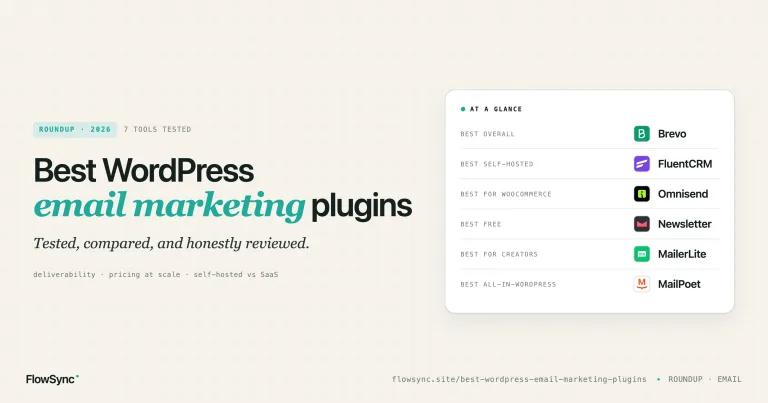
1. Brevo: best for email marketing, transactional email, and practical WordPress contact sync
Brevo’s WordPress plugin can connect WordPress contacts to Brevo, add signup forms, use Brevo SMTP for transactional WordPress emails, install tracking, and add live chat. Brevo also has a separate WooCommerce plugin for storing data and ecommerce automation.
Brevo is a good fit when the same team is responsible for newsletters, transactional email deliverability, and basic CRM follow-up. For many small WordPress businesses, that combination is useful because password resets, form emails, newsletter signups, and customer follow-up often get handled by the same person.
The practical note: Brevo’s standard WordPress plugin has limits around third-party forms, custom attributes, and ecommerce data. If your key data comes from WooCommerce, membership plugins, or form builders, check exactly which path sends the contact into Brevo. This is where a WordPress-to-CRM sync plugin can help, especially when you need to send contacts based on events from plugins like WooCommerce, ProfilePress, MemberPress, WPForms, or Gravity Forms.
2. Mailchimp: best for familiar email marketing and WooCommerce purchase data
Mailchimp for WooCommerce is still one of the first integrations store owners consider. The official plugin can sync WooCommerce customers and purchase data to a Mailchimp audience, then use that data for campaigns, post-purchase follow-up, product recommendations, abandoned cart emails, and purchase-based segmentation.
Mailchimp works well when the CRM job is mostly email marketing. A small store can start with product follow-ups, lapsed customer emails, and basic customer segments without building a complicated sales process.
Where people get stuck is in the audience structure. If every plugin, form, and checkout path adds contacts in a different way, Mailchimp becomes hard to reason about. Decide early how you will use audiences, tags, groups, and merge fields. Do not let every form create its own logic unless there is a reason.
3. HubSpot: best for B2B lead capture and sales follow-up
The HubSpot WordPress plugin is useful for WordPress sites where leads need to move into a sales process. HubSpot says the plugin includes forms, live chat, CRM contact management, email marketing, and analytics. Website forms can sync with HubSpot, and contact records can include page views, live chat conversations, form submissions, and other interactions.
HubSpot is a good choice for service businesses, agencies, consultants, B2B software companies, and higher-ticket lead generation sites. If a WordPress form submission should create a contact, notify a sales rep, and become part of a longer deal process, HubSpot usually makes more sense than a newsletter-first tool.
The WordPress-specific question is whether your lead data starts in HubSpot forms or in another form plugin. If your site already relies on Gravity Forms, WPForms, Elementor Forms, or Contact Form 7, check how those submissions reach HubSpot and whether all the fields you need are mapped correctly.
4. Klaviyo: best for WooCommerce stores with product and order-driven email or SMS
Klaviyo’s WooCommerce integration is built for ecommerce behavior. Its setup flow installs the Klaviyo extension in WooCommerce, enables the integration in Klaviyo, and syncs WooCommerce data to Klaviyo in real time. It also supports checkout consent options for email and SMS marketing.
Klaviyo is often the better choice when product data matters. A skincare store might send different follow-ups based on product category. A supplement store might build reorder reminders. A fashion store might segment by purchase history, average order value, or started checkout events.
One practical setup note: Klaviyo’s docs warn that caching plugins and redirect plugins can interfere with the WooCommerce connection during setup. That tracks with real WordPress troubleshooting. If an integration cannot validate your store, do not only blame the CRM. Check caching, security, redirects, REST API access, and WooCommerce endpoints.
5. ActiveCampaign: best for email automation with site tracking
The ActiveCampaign WordPress plugin connects WordPress to ActiveCampaign so you can publish forms and use site tracking. ActiveCampaign’s docs also explain that its WordPress site tracking can add tracking code to every page and track page visits for identified contacts.
ActiveCampaign is a good fit when you want email automation that reacts to both form activity and site behavior. For example, a training company might tag a lead after they submit a course inquiry form, then change follow-up based on the pricing pages they visit.
The watch point is consent and tracking settings. Page visits and IP addresses can be personal data, so choose tracking behavior carefully and make sure your consent language matches how the site works.
6. FluentCRM: best if you want CRM and email automation inside WordPress
FluentCRM differs from the hosted CRMs above in that it runs inside WordPress. It is a self-hosted CRM and email marketing plugin that can collect leads, send campaigns, build automations, and work with WordPress user actions, forms, WooCommerce, LMS plugins, and membership activity.
This can be a good choice for site owners who want to keep more customer data in WordPress and avoid bouncing between separate dashboards. It is especially appealing for course sites, communities, and small businesses that already spend most of the day in WP-Admin.
There is a tradeoff. A self-hosted CRM means your WordPress database, cron system, email sending setup, and hosting quality matter more. For small and medium sites, that can be perfectly workable. For large lists or heavy ecommerce activity, plan the sending infrastructure and database maintenance before you move everything into WordPress.
7. MailerLite: best for simple newsletters, creator sites, and lighter ecommerce workflows
MailerLite’s WordPress integration focuses on adding signup forms to a WordPress blog or website. MailerLite also has an official WooCommerce integration with checkout, product import, order data forwarding, purchase-triggered automation, abandoned cart emails, and ecommerce tracking.
MailerLite is a good fit for creators, small shops, and content sites that want clean newsletter tools without a heavy sales CRM. If your main workflow is “collect subscribers, send useful emails, and trigger a few purchase-based automations,” it is worth considering.
For more complex WordPress sites, check whether MailerLite receives the events you care about. A newsletter signup is easy. A membership downgrade, a subscription renewal failure, a course completion, or a donation status change may require a more WordPress-aware sync layer.
8. Zoho CRM: best for sales teams that need leads, contacts, and deals
Zoho CRM Lead Magnet lets WordPress sites create and embed CRM webforms to capture leads in Zoho CRM. Zoho also has a large CRM ecosystem, so it is a natural option for teams already using Zoho for sales, support, or operations.
Zoho CRM makes sense when your WordPress site is feeding a real sales pipeline. A lead submits a consultation form, is added to the CRM, is assigned to a rep, and eventually becomes a deal. That is different from a newsletter workflow, and the integration should be judged differently.
The practical question is from ownership. If you use Zoho webforms, the path is clear. If your WordPress site uses Contact Form 7, Gravity Forms, WPForms, Elementor Forms, or a custom form, confirm how those fields are mapped to Zoho leads or contacts.
9. FlowSync: best for WordPress-triggered CRM syncing across multiple providers
FlowSync sits in a slightly different place than the CRMs themselves. It is a WordPress CRM and email automation plugin focused on syncing WordPress users, members, customers, and form leads to CRM and email platforms.
Use FlowSync when an important event starts in WordPress and needs to be updated in a CRM. For example:
- A ProfilePress member buys a subscription and should be added to a Brevo onboarding list.
- A WooCommerce customer buys a specific product and should receive a Mailchimp tag.
- A Gravity Forms lead should be added to HubSpot with the fields mapped.
- A MemberPress subscription expires, and the contact should be removed from an active member list.
- A WooCommerce Subscriptions renewal fails, and the customer should move into a recovery segment.
FlowSync supports CRM and email destinations such as Brevo, Mailchimp, HubSpot, Klaviyo, ActiveCampaign, FluentCRM, MailerLite, Kit, Beehiiv, Campaign Monitor, Flodesk, Constant Contact, AWeber, BirdSend, Zoho Campaigns, Zoho CRM, Google Sheets, and MailPoet. It also supports WordPress sources such as WooCommerce, WooCommerce Subscriptions, WooCommerce Memberships, ProfilePress, MemberPress, Paid Memberships Pro, LearnDash, WPForms, Gravity Forms, Fluent Forms, Contact Form 7, Elementor Forms, SureForms, and GiveWP.
That does not mean FlowSync replaces your CRM. The CRM still owns the campaigns, lists, tags, records, and reporting. FlowSync helps WordPress send the right contact data to the right place when something happens on the site.
How I would choose based on the WordPress site
If you run a WooCommerce store, start by looking at Klaviyo, Mailchimp, Brevo, and MailerLite. Klaviyo is often the best fit when product and order behavior drive most emails. Mailchimp and Brevo make sense for stores that want broader email marketing capabilities and simpler customer segmentation. MailerLite can work well for lighter ecommerce and newsletter-led shops.
If you run a membership site, pay close attention to lifecycle events. New member, upgraded member, canceled member, expired member, failed renewal, and reactivated member are all different CRM moments. Brevo, Mailchimp, FluentCRM, and HubSpot can all be useful here, but the key is whether your membership plugin can trigger the right CRM action. This is one of the strongest use cases for FlowSync.
If you run a B2B lead generation site, HubSpot, ActiveCampaign, and Zoho CRM deserve a close look. The winning CRM is usually the one your sales team will actually use. A clean form-to-contact flow is more valuable than a long feature list nobody checks.
If you run a course, community, or content business, FluentCRM, MailerLite, Brevo, and Mailchimp are sensible starting points. Think about where you want the contact record to live. Some teams like doing everything inside WordPress. Others prefer an external email platform that stays separate from the website.
A practical workflow example
Here is a realistic WordPress workflow that shows why the integration layer matters.
A site sells a Pro membership through WooCommerce and grants access through a membership plugin. When someone buys the Pro plan, the business wants to:
- Add the contact to a Pro Members list in Brevo.
- Remove the contact from the Trial Members list.
- Map the plan name, renewal date, and membership status to CRM fields.
- Start a welcome sequence for new Pro members.
- Move the contact to a win-back segment if the membership expires.
You can do part of this manually. But the manual version breaks down as soon as renewals, cancellations, failed payments, and plan changes come into play. The business outcome of automating this is not just “less admin.” It means members receive the right emails for their actual status, support gets fewer confused replies, and the CRM becomes reliable enough to use for segmentation.
Set up notes before connecting WordPress to a CRM
Before you install another plugin, write down what should happen in plain English. For example: “When a WooCommerce order for Product A is completed, add the customer to List A and apply Tag A in Mailchimp.” That sentence is much easier to test than a vague goal like “sync customers to marketing.”
Then work through these checks:
- Pick one source of truth for each field. If the billing phone comes from WooCommerce, do not also overwrite it from a newsletter form unless that is intentional.
- Map required fields first: email, first name, last name, consent status, plan, product, order status, or lead source.
- Test with one real user or order before syncing a large audience.
- Check what happens on cancellation, refund, expiry, unsubscribe, and email change.
- Review sync logs or CRM activity history after every test.
- Keep staging sites from sending live CRM updates unless you really mean to test that path.
Most sync problems are not mysterious. They usually come from a missing field, a cached callback, a blocked REST request, a duplicate contact rule, or an event that never fired.
Common problems with WordPress CRM integrations
Duplicate contacts: This often happens when one path uses the billing email and another path uses the account email. Decide which email field owns the contact identity.
Wrong consent status: Checkout opt-ins, newsletter forms, and account creation are not the same thing. Make sure your CRM marks someone as subscribed only when the user has actually opted in.
Expired members still receiving active member emails: Adding contacts is only half the job. You also need removal, tag cleanup, or status updates when access changes.
Form fields missing in the CRM: Many integrations send name and email by default. Custom fields often need manual mapping.
Connection errors during setup: Security plugins, caching plugins, redirects, firewalls, and disabled REST endpoints can all interrupt CRM connections. When testing, temporarily reduce moving parts and check the provider’s troubleshooting notes.
Staging site noise: A cloned site can keep API keys and scheduled jobs. That can send test contacts or duplicate events into the live CRM. It is boring to check, but worth doing.
FAQ
What is the best CRM integration for WordPress overall?
There is no universal best option. HubSpot is a good fit for B2B lead capture and sales follow-up. Klaviyo is usually better suited to WooCommerce stores that need product- and order-based email or SMS. Brevo, Mailchimp, and MailerLite work well for many email marketing workflows. FluentCRM is useful when you want a CRM built into WordPress. FlowSync is useful when WordPress events need to automatically update one or more CRM tools.
Can WordPress sync users to a CRM automatically?
Yes. The right setup can sync WordPress users, customers, members, and form leads to a CRM. The important part is choosing the trigger. A new user registration, a completed order, a membership purchase, a form submission, or a subscription cancellation can each require a different CRM action.
Which CRM integration is best for WooCommerce?
Klaviyo, Mailchimp, Brevo, and MailerLite are common starting points for WooCommerce. Klaviyo is often preferred when ecommerce behavior drives the marketing strategy. Mailchimp and Brevo are good fits for many stores that want to run email campaigns and implement purchase-based segmentation. MailerLite works well for simpler ecommerce email workflows.
Is FluentCRM a CRM or an email plugin?
It is both, but in a WordPress-native way. FluentCRM stores contacts and runs email marketing automation inside WordPress. That can be useful, but it also means your hosting, database, cron, and email-sending setup matters more than it would with a fully hosted CRM.
Do I need FlowSync if my CRM already has a WordPress plugin?
Sometimes no. If you only need one signup form or the CRM’s own WooCommerce plugin covers your use case, that may be enough. FlowSync is useful when the CRM needs to respond to WordPress-specific events across users, orders, memberships, subscriptions, forms, courses, and donations.
Should contacts be deleted from the CRM when a user cancels?
Usually, no. In many cases, it is better to remove a list membership, remove a tag, or update a status field. That keeps contact history intact while stopping the wrong emails. Deletion rules should be handled carefully, especially for compliance and reporting.
Conclusion
The best CRM integrations for WordPress websites are those that align with how your site actually collects customer data. A form-only site, a WooCommerce store, a membership business, and a B2B sales site should not all default to the same setup.
Start with the workflow. What happened in WordPress? What should change in the CRM? What should happen when the user’s status changes later?
If your customer data starts in WordPress, FlowSync can help you sync users, customers, members, and form leads to Brevo, Mailchimp, HubSpot, Klaviyo, ActiveCampaign, FluentCRM, MailerLite, Zoho CRM, and more based on real WordPress events. That is the part most manual workflows miss, and it is usually the part that keeps your CRM trustworthy.

FlowSync
FlowSync syncs members, customers, and form leads to Brevo, Mailchimp, HubSpot, Klaviyo, and more based on activity happening on your WordPress site.