If you run email marketing through Mailchimp, your audience is only as good as the data feeding it, and on most WordPress sites, that data leaks. People register but never make it into Mailchimp. Someone buys a product, yet the post-purchase campaign never fires. A member cancels their subscription and keeps getting “thanks for being a customer” emails for weeks afterward.
Most site owners patch this by hand at first. You export a CSV file from WordPress, import the contacts into Mailchimp, and manually sort everyone into lists. That holds up fine when you have fifty users and a quiet week. Once the site grows and customer data starts changing daily, the manual approach becomes a chore you keep putting off, and the gaps between WordPress and Mailchimp widen.
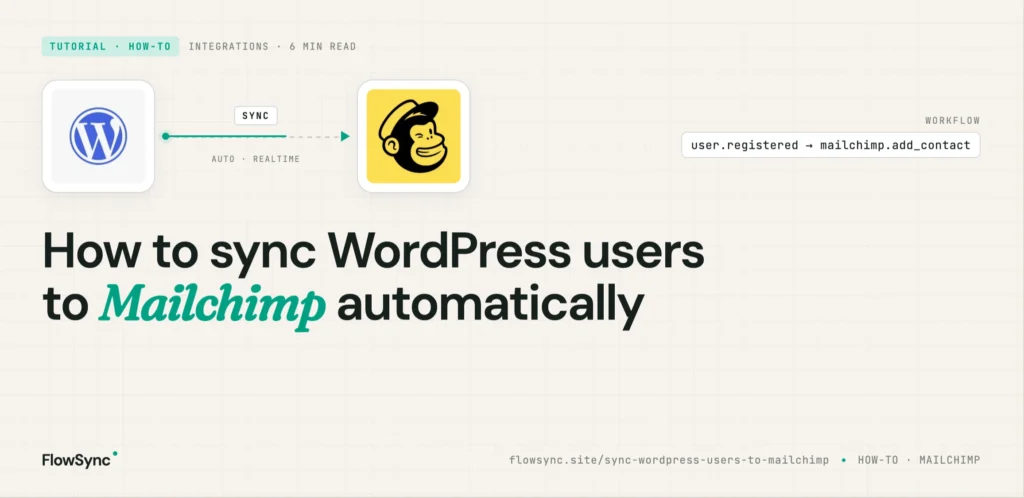
This guide walks through how to close those gaps with FlowSync, so your WordPress users land in Mailchimp on their own. By the end, you’ll know how to connect the two platforms, sync users and customers automatically, segment contacts based on what people actually do on your site, wire up WooCommerce and membership workflows, and keep your audience current without touching a CSV again.
FlowSync is built specifically for WordPress CRM and email automation. Rather than relying on exports and imports, it monitors events on your site and pushes contacts to Mailchimp as they occur.
Why Manual Mailchimp Syncing Falls Apart
Picture a typical WooCommerce store. When someone places an order, you’d ideally want to add them to Mailchimp, kick off a post-purchase sequence, tag them by the product category they bought, and follow up later with something relevant. Handle all of that by hand and it works for a while. Then it doesn’t. A few customers slip through because you were busy that day. Someone ends up in the wrong audience. Expired members keep getting promotional emails they shouldn’t. Give it a few months and your Mailchimp audience is a mess nobody trusts.
Automation fixes this by wiring WordPress events straight to Mailchimp. Instead of updating lists every week, the sync runs quietly in the background whenever something changes on your site.
What FlowSync Automates
FlowSync is focused on WordPress CRM automation and audience syncing: adding new users to Mailchimp, syncing WooCommerce customers as they buy, dropping membership users into the right audiences, triggering onboarding sequences, segmenting people by what they purchased, pulling in leads from your forms, and removing expired or inactive users when they lapse.
Every workflow follows the same three-part shape:
- Trigger: the event that starts it
- Condition: an optional filter on when it should run
- Action: what FlowSync does in response
So a real one might read: when a WooCommerce order is completed (trigger), if the product category is Electronics (condition), add the customer to your Mailchimp audience (action). Keeping workflows in that structure makes them far easier to reason about months later when you’ve forgotten why you built them.
Step 1: Install FlowSync
Install and activate FlowSync on your WordPress site, then open the FlowSync dashboard from your admin menu. You’ll see sections for Workflows, Integrations, Logs, and Settings. That’s everything you need for the rest of this guide.
Step 2: Connect Mailchimp to WordPress
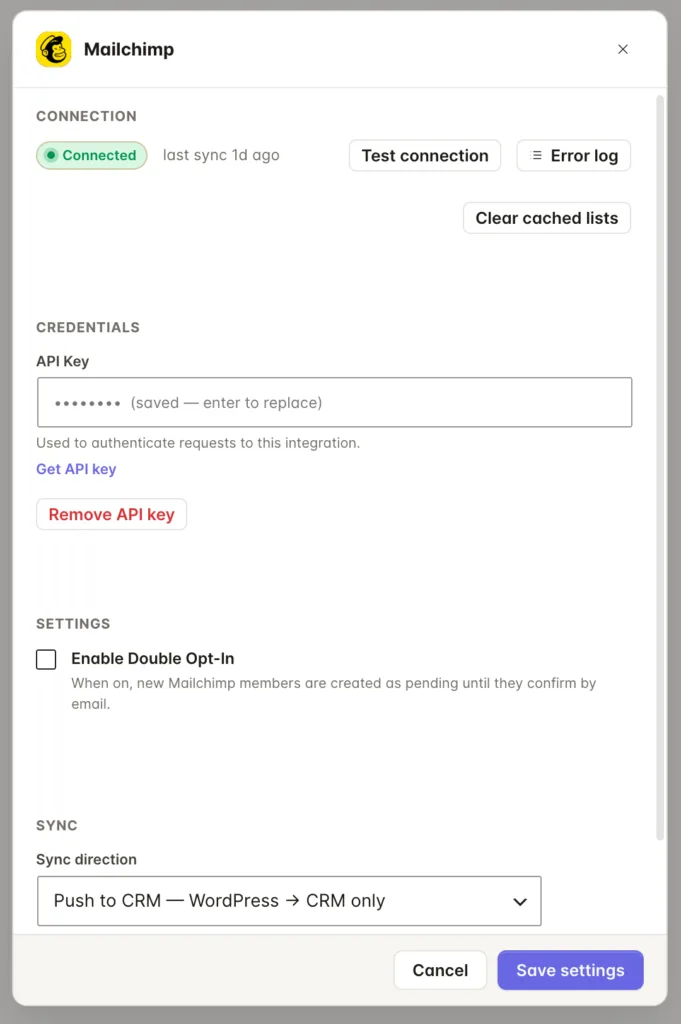
Head to FlowSync → Integrations, find Mailchimp, and click Configure. FlowSync needs your Mailchimp API key to talk to your account.
To grab it, log into the Mailchimp dashboard, open Account & Billing, then go to Extras → API Keys and generate a new key. Copy it, paste it into FlowSync, and save. Once it’s connected, FlowSync can send contacts directly to Mailchimp, with no exports required.
Step 3: Build Your First Workflow
Let’s start with the simplest useful automation: when someone registers on WordPress, add them to Mailchimp.
Go to FlowSync → Workflows → Add New.
Choose a trigger. Select WordPress User Registered. Now the workflow runs whenever a new account is created on your site.
Add a condition (optional). Conditions let you filter who actually gets synced: only customers, only WooCommerce buyers, only members, or only people on a specific subscription plan. If you want every new user in Mailchimp regardless, skip this step entirely.
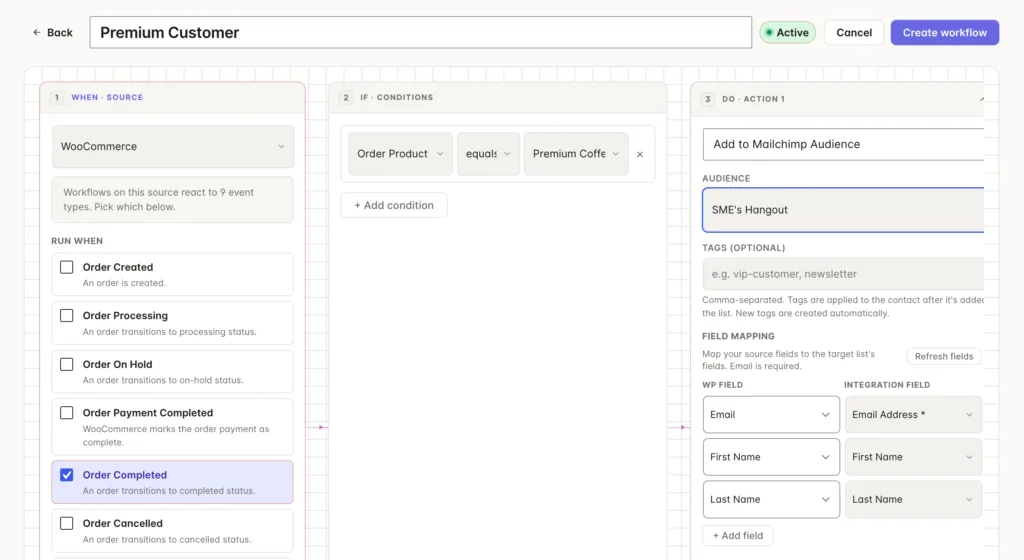
Add the Mailchimp action. Choose Add Contact to Mailchimp Audience, pick the audience you want them in, and map the fields you care about: email address, first name, last name. Save, activate, and you’re done. From here on, new WordPress users flow into Mailchimp on their own.
A WooCommerce Example
WooCommerce is where this earns its keep, because product data gives you something to segment on. Set the trigger to Order Completed, add a condition like Product Category = Clothing, and send those buyers to a “Clothing Buyers” audience.
That one rule unlocks product-based segmentation, targeted follow-up campaigns, smarter upsells on related products, and proper lifecycle automation. Instead of blasting the same email to everyone, you can talk to people about the thing they actually bought.
A Membership Site Example
Say you run a membership site on ProfilePress and you want active members in Mailchimp, trial users dropped into onboarding, and expired members removed automatically. Two workflows cover most of it.
The first handles active members: trigger on Subscription Activated, condition on Membership Plan = Premium, action adds them to your Premium Members audience. The second handles churn: trigger on Subscription Expired, action removes them from the active member audience. Together, they keep your paid list reflecting who’s actually paying.
Syncing Form Leads
You can route form submissions into Mailchimp the same way. Trigger on WPForms form submitted, action adds the contact to Mailchimp, and you’re done. It works well for newsletter signups, ebook downloads, contact forms, and consultation requests, so leads land in your audience the moment they come in, instead of waiting for a manual import you’ll get to eventually.
Common Mistakes to Avoid
Dumping everyone into one audience. It’s tempting to point every contact at a single list, but that list gets unwieldy fast and your open rates pay for it. Segment instead, by products purchased, membership status, user role, form submissions, or general activity. Better segments almost always mean better engagement.
Skipping cleanup automation. Adding contacts is only half the job. Build workflows that remove expired members, drop canceled subscriptions, and shift inactive users into a re-engagement campaign. Otherwise, your audience quietly bloats with people who left months ago.
Not testing before you go live. Don’t trust a workflow until you’ve watched it run. Create a test account and confirm the contact actually appears in Mailchimp, the fields map correctly, the right audience gets used, and you’re not creating duplicates. Five minutes of testing saves you from a messy audience later.
Why Native WordPress Automation Helps
Plenty of people connect WordPress and Mailchimp through an external automation platform, and that can work, but it adds another service between your site and your email tool, which is one more thing to break and debug when something goes wrong.
Keeping the automation inside WordPress trims that down. Workflows run right next to your actual site data, membership plugins integrate directly, user events fire instantly, CRM syncing happens in WordPress itself, and there are simply fewer moving parts when you need to figure out why a contact didn’t sync. FlowSync leans into that. It’s built for WordPress CRM workflows and audience automation rather than trying to be a general-purpose automation platform.
FAQ
Can I sync existing WordPress users to Mailchimp? Yes. You can run a workflow manually to push your current users into Mailchimp, which is handy when you’re connecting it to a site that’s already up and running.
Does this work with WooCommerce? Yes. WooCommerce customers sync automatically based on the products, categories, and orders tied to them.
Can I remove people from Mailchimp automatically? Yes. You can build workflows that pull contacts out when a membership expires or a subscription is canceled.
Does this require coding? No. You build everything inside WordPress through the FlowSync interface, with no code anywhere.
Can I sync WordPress forms to Mailchimp? Yes. Supported form plugins can send leads straight into Mailchimp.
Final Thoughts
As a WordPress site grows, keeping customer data up to date by hand becomes unrealistic. People register, memberships change, orders come in, and the details shift constantly. Without automation, your Mailchimp audience slowly drifts out of date until you can’t rely on it. A solid WordPress-to-Mailchimp workflow reduces manual work, tightens your segmentation, keeps contact data fresh, fires campaigns faster, and delivers cleaner onboarding and retention flows.
The idea is straightforward: when something important happens on your WordPress site, your email platform should respond automatically. That’s what FlowSync is built to do.
FlowSync can also sync WooCommerce customers to Mailchimp based on the specific product they buy.

FlowSync
FlowSync syncs members, customers, and form leads to Brevo, Mailchimp, HubSpot, Klaviyo, and more based on activity happening on your WordPress site.